User guide
The OKMLiveEdit tool allows you to quickly edit documents that are in the OpenKM repository.
Configuration
Section titled “Configuration”- From the system tray icon, click the OKMLiveEdit icon and go to the “Settings” menu.
- This action opens a window containing a checkbox called “Open documents manually”. This tells LiveEdit not to automatically open files to edit; you can perform this action by selecting a document from the list and clicking one of them.
- The same window also contains a checkbox called “Show the comment dialog when updating a document”. When disabled, clicking Update uploads the new version directly with a default comment, without asking.
Alternative configuration of the working folder
Section titled “Alternative configuration of the working folder”OKMLiveEdit allows you to configure a custom path for the working folder, where:
- Downloaded documents are stored while being edited
- The internal document queue state is maintained
This configuration is done using the okm.folder.path property, located in the system-wide /etc/openkm-liveedit/app.properties file (created by the system administrator; it does not exist by default).
Example:
okm.folder.path=/mnt/data/openkm-liveedit
After making the changes, you must restart OKMLiveEdit.
- Choose a document in the OpenKM user interface.
- Click the Edit button. (Your browser will ask which application should open the liveedit:// link; it is recommended that you check the option to remember this choice and confirm.)
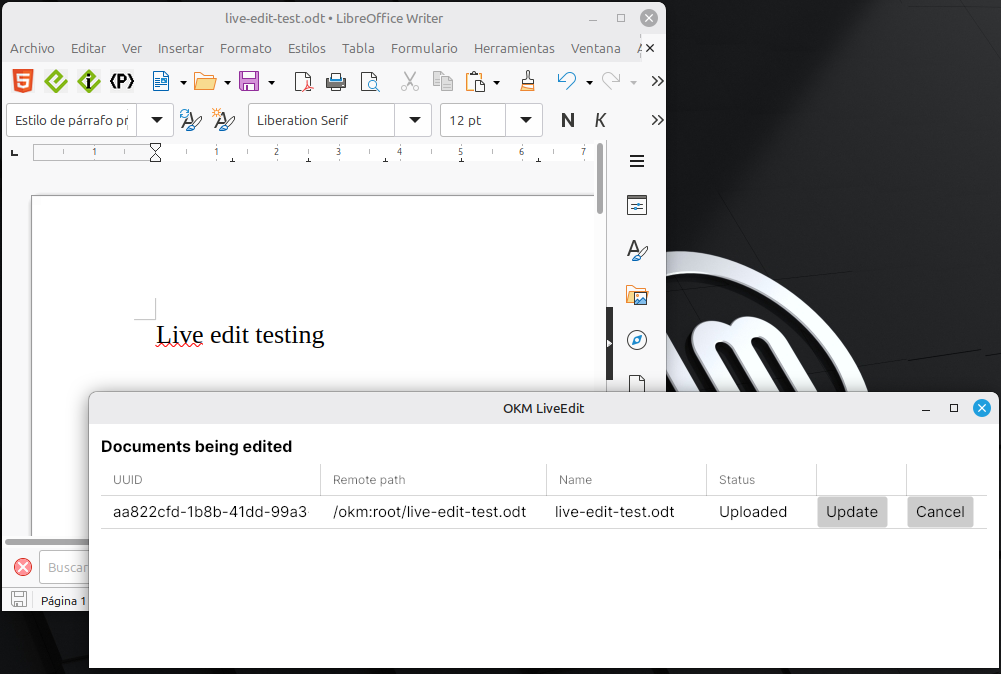
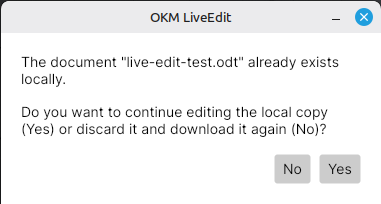
- Now the main live edit window will be shown. This window shows a list of the documents you are editing. Based on the document type, each document is automatically opened by the corresponding application. (For example, if you edit a .docx document, it will usually be opened by LibreOffice.)
- Each time the document is saved with the editing software, the changes are updated in OpenKM to preserve the edits. Until you click the Update button, the changes will not be accepted in the OpenKM repository; clicking it creates a new document.
If you want to cancel the edit and remove the file from the queue without uploading anything, press the Cancel button.
The application log is found at ~/.local/state/openkm-liveedit/logs/daemon.log (under the current user’s home directory) and contains the full log trace.