User guide v3.x
Encryption Tool allows you to encrypt several documents and upload them to the OpenKM repository, as well as download and decrypt them locally.
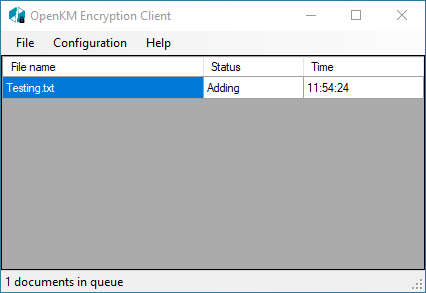
Server configuration
Section titled “Server configuration”Choose the File / Configuration menu option to show the configuration popup.
The available configuration parameters are:
| Property | Type | Description |
|---|---|---|
| Language | Select | User interface language. |
| User | String | User ID for accessing OpenKM. user1 |
| Password | String | The password of the user. pass1 |
| Host | String | OpenKM URL. http://localhost:8080/openkm/ |
To accept changes to configuration parameters, click the Accept button.
Encrypt and upload documents
Section titled “Encrypt and upload documents”- Select one or more documents and drag and drop them onto the main application window.
- Go to the “File” menu and select the “Encrypt and upload” option.
- Enter the password required to encrypt.
- Select the path within OpenKM to upload the encrypted documents.
Download and decrypt documents
Section titled “Download and decrypt documents”-
Go to the “File” menu and select the “Download and decrypt” option.
-
Search and select one or more encrypted documents from the OpenKM repository.
-
Enter the password required to decrypt the document.
-
The decrypted documents are in the path:
C:\Users\[you_user]\Documents\OpenKM\OKMEncryption\decrypt
Encrypt or decrypt documents in OpenKM
Section titled “Encrypt or decrypt documents in OpenKM”- Go to the “File” menu and select the “Encrypt a file in OpenKM” or “Decrypt a file in OpenKM” option.
- Search and select one or more documents from the OpenKM repository.
- Enter the password required to encrypt or decrypt.
In My Documents/OpenKM there is a log file called OKMEncryption.log with a complete log trace.