User guide v3.x
Hot folder tool allows the user to synchronize one or more local folders with others located in the OpenKM repository.
Configuration
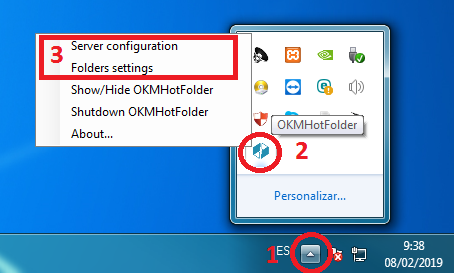
Section titled “Configuration”- Go to the notification area of the Windows taskbar.
- Right-click the OKMHotFolder icon.
- Go to the “Server configuration” and “Folder settings” options.
Server Configuration:
Section titled “Server Configuration:”First, you must choose the Server configuration menu item to set your configuration values:
| Property | Type | Description |
|---|---|---|
| Language | Select | User interface language. |
| User | String | User ID for accessing OpenKM. user1 |
| Password | String | The password of the user. pass1 |
| Host | String | OpenKM URL. http://localhost:8080/openkm/ |
Folder Settings:
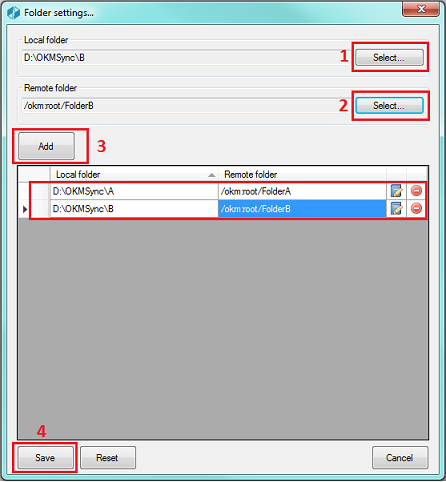
Section titled “ Folder Settings:”- Select a folder from your local disk.
- Select a folder from the OpenKM repository.
- Press the “Add” button (you can also edit or delete an item from the list).
- Press the “Save” button.
Upload files to OpenKM
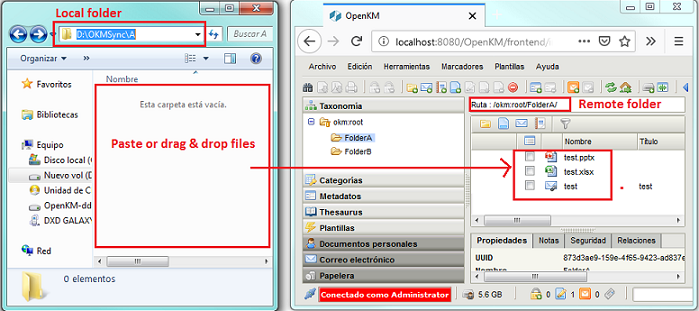
Section titled “ Upload files to OpenKM”- Copy & paste or drag & drop files into the configured local folder.
- The files will be uploaded to the configured OpenKM folder and will be deleted from the local disk.
- When the file already exists in the repository, you will be asked whether to update it.
In My Documents/OpenKM, there’s a log file called OKMHotFolder.log with a complete log trace.