User guide v3.x
The OKMLiveEdit tool allows you to quickly edit documents in the OpenKM repository.
Configuration
Section titled “Configuration”- From the notification area of the taskbar, right-click the OKMLiveEdit icon and go to the “Configuration” menu.
- This action will show a popup with a checkbox labeled “Open documents manually”. This will tell LiveEdit not to automatically open the files to edit; instead, this action can be performed by selecting a document from the list and clicking it.
- Choose a document in the OpenKM user interface.
- Click on Edit button. (A pop-up window “Launch application” will open. It is recommended to check the option “Remember my choice for liveedit links” and press the “Open link” button.)
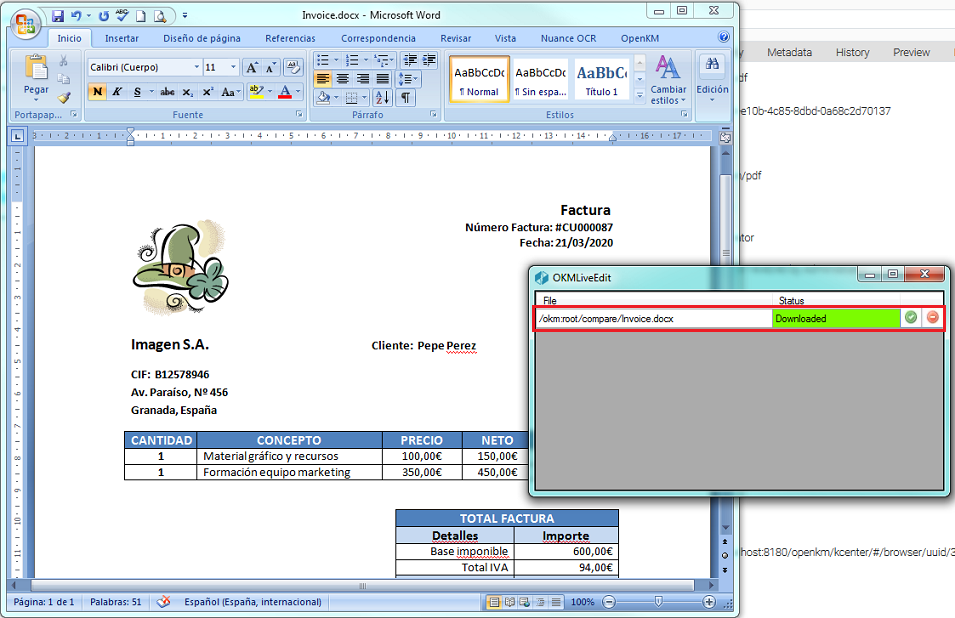
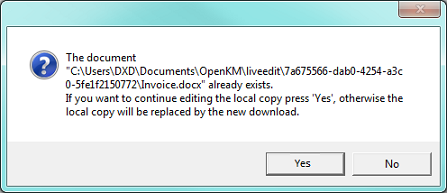
- Now the main live edit window will be shown. This window will show a list of the documents you are editing. Based on the document type, each document is automatically opened by the corresponding software. (For example, if you edit a .docx document, it will usually be opened by Microsoft Office or LibreOffice.)
- Each time the document is saved in the editing software, the changes are updated in OpenKM to preserve them. Until you click on the Update button, the changes will not be accepted in the OpenKM repository, creating a new document.
If you want to delete the file from the queue, press the Delete button.
In My Documents/OpenKM, the following log files can be found:
- OKMLiveEdit.log contains the full log trace.
- OKMLiveEdit_installer.log contains information about the installation process.