User guide v3.x
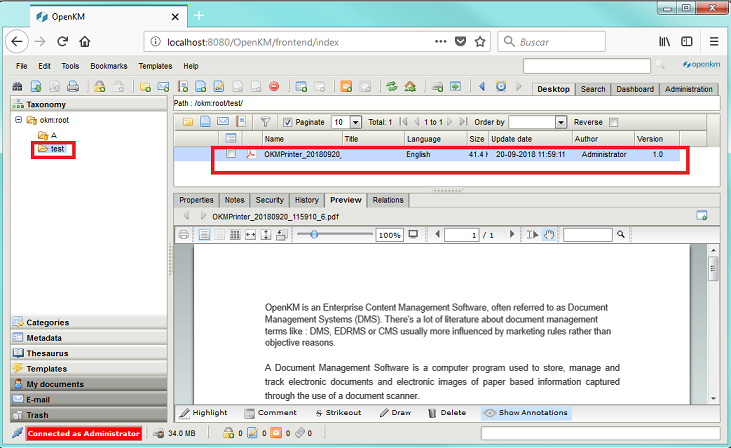
The Printer Tool allows the user to print documents in PDF format and upload them to OpenKM.
Configuration
Section titled “Configuration”- Go to the notification area of the Windows taskbar.
- Click the right mouse button on the OKMPrinter icon.
- Go to the “Configuration” option.
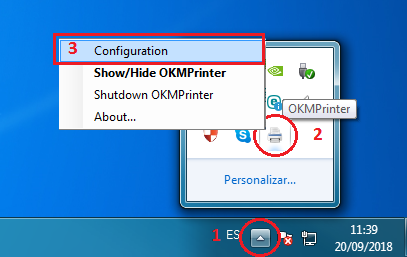
First, you must choose the Configuration menu item to set your configuration values:
| Property | Type | Description |
|---|---|---|
| Language | Select | User interface language. |
| User | String | User ID for accessing OpenKM. user1 |
| Password | String | The user’s password. pass1 |
| Host | String | OpenKM URL. http://localhost:8080/openkm/ |
| Request path to upload | Bool | When it is enabled, the user will be asked if they want to change the default destination path. |
| Default path to upload | String | Set the default destination path. This option is enabled when the “Request path to upload” option is disabled. |
After you set your configuration values, a folder called OpenKM is created in your user’s My Documents folder. In this OpenKM folder, there’s a configuration file named openkm.xml
Print and upload
Section titled “Print and upload”- Open a document from any application.
- Print the document.
- Choose the “OKMPrinter” as the destination printer.
- The application will show a message “The document has been successfully uploaded” to indicate the process is finished.
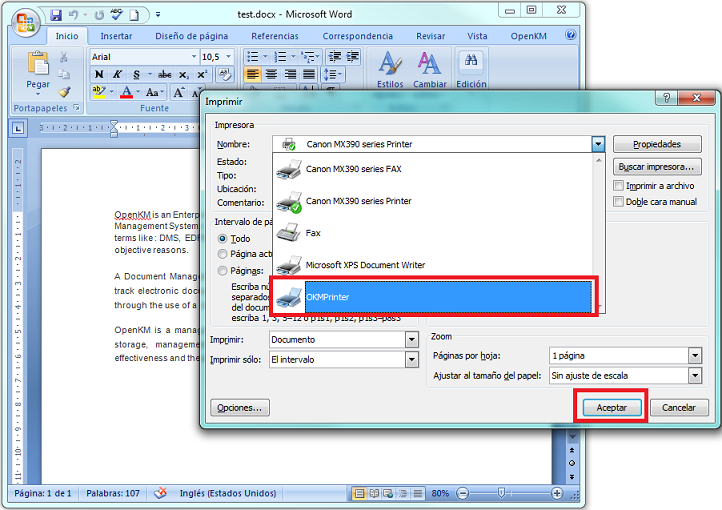
The uploaded document will be saved with the pattern: “OKMPrinter_YearMonthDay_Hour.pdf”.