User guide v1.x
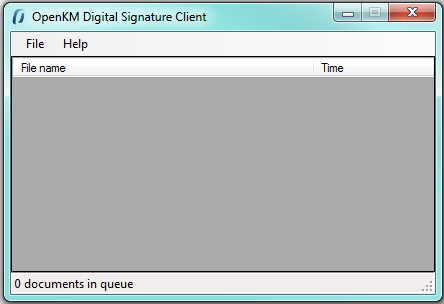
Digital Signature Client allows signing (electronic digital signature) of documents in OpenKM.
Configuration
Section titled “Configuration”Choose the File / Configuration menu option to show the configuration popup.
The available configuration parameters are:
- OpenKM version the client connects to.
- User interface language
- Username and password to connect
- The OpenKM server host
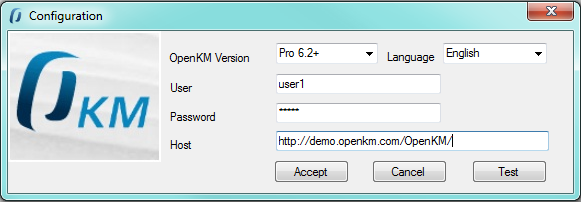
To accept configuration parameter changes, click the Accept button.
Sign and upload documents
Section titled “Sign and upload documents”To sign documents, select some files or folders and drag them to the Digital Signature Client.
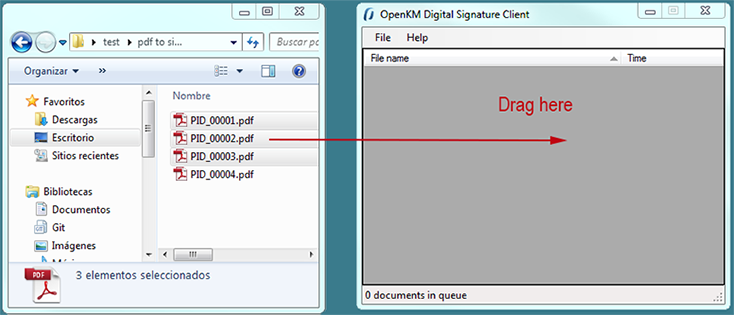
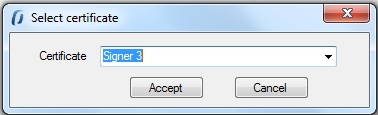
A popup will be shown to choose the certificate that will be used to sign documents. Choose a certificate and click the Accept button.
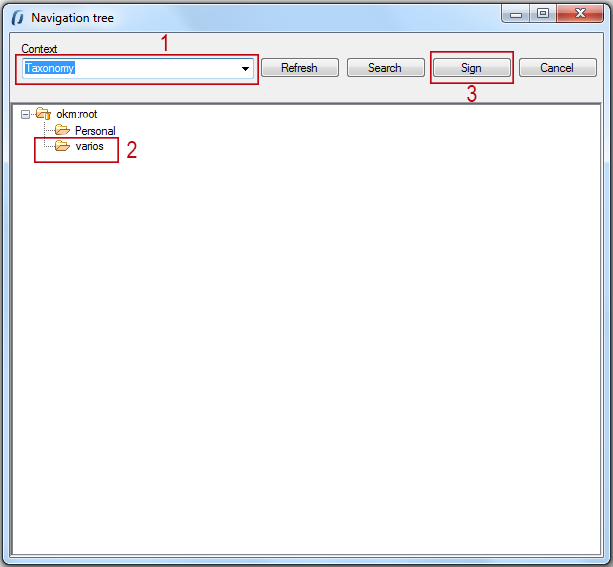
Finally, a navigator popup will be shown to select the destination folder for the documents. Select a folder with write access (for your user) and click the Sign button.
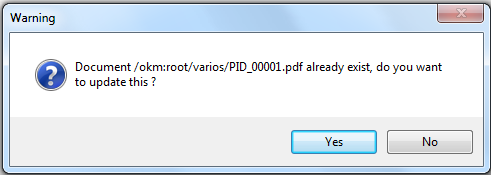
When Digital Signature Client detects an existing document with the same name in OpenKM, it prompts a popup to choose one of these two options: update the file or skip it.
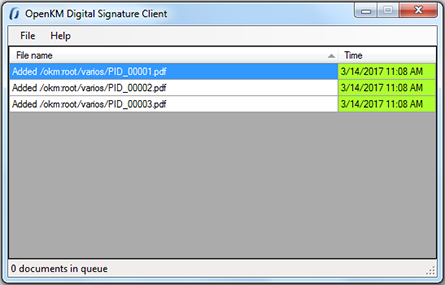
Information about the signing and uploading process is shown in the Digital Signature Client main table.
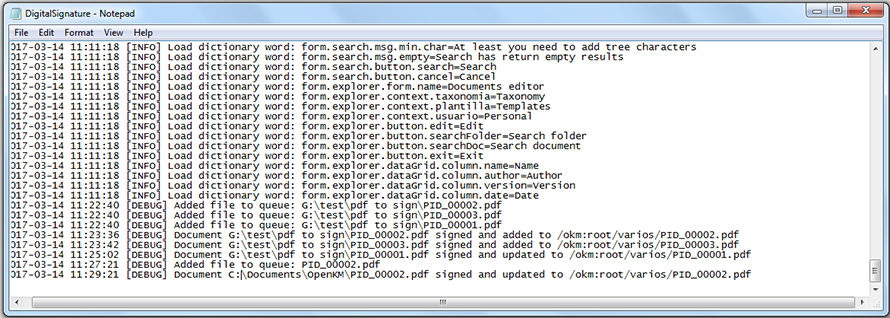
In My Documents/OpenKM there is a log file called DigitalSignature.log with a complete log trace.