User guide v5.x
The Digital Signature Client allows electronic digital signatures on documents in OpenKM.
Server configuration
Section titled “Server configuration”Choose the File / Configuration menu option to show the configuration popup.
The available configuration parameters are:
| Property | Type | Description |
|---|---|---|
| Language | Select | User interface language. |
| User | String | User ID for accessing OpenKM. user1 |
| Password | String | The user’s password. pass1 |
| Host | String | OpenKM URL. http://localhost:8080/openkm/ |
| Use personal token | Bool | The authentication will be done with the access token. |
| Personal token | String | The personal access token. okmpat-Ky1t16O2Rwx4ttPmOK0R |
To accept configuration parameter changes, click the Accept button.
Signature configuration
Section titled “Signature configuration”The available configuration parameters are:
| Property | Type | Description |
|---|---|---|
| Show document preview | Bool | When enabled, it allows you to preview documents. |
| Show signature | Bool | When activated, it makes the signature visible on the document. The following fields will be enabled: |
| Page | Select | This option determines which page will be signed: it can be the first, the last, or dynamically, which allows you to select the page and the place where the signature will be inserted in real time. |
| Expr. X | String | Expression to set the X position. |
| Expr. Y | String | Expression to set the Y position. |
| Width | String | Defines the width of the signature, for example: 200 |
| Height | String | Defines the height of the signature, for example: 100 |
| Add watermark to signature | Bool | When activated, it allows you to add an image as a watermark to your signature. The following fields will be enabled: |
| Select an image | String | Select the image for the watermark. |
| Opacity | Float | The watermark opacity. The range of values allowed is from 0 to 1. |
| Scale | Float | The scale of the image. The allowed range of values is 0 to 1. |
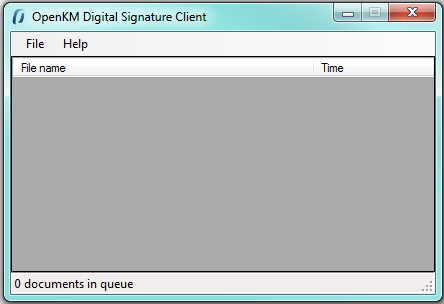
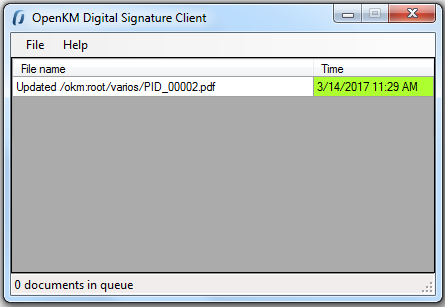
Information about the signing process is shown in the Digital Signature Client table.
Alternative configuration of the main file folder
Section titled “Alternative configuration of the main file folder”To configure a custom path for storing key application files such as:
- The log file (openkm.log)
- The configuration file (openkm.xml)
- Temporary files generated during runtime
This configuration is done using the okm.folder.path property, located in the app.properties file within the installation directory.
Example:
okm.folder.path=C:\\New_folder_path
After making the changes, you must restart the app.
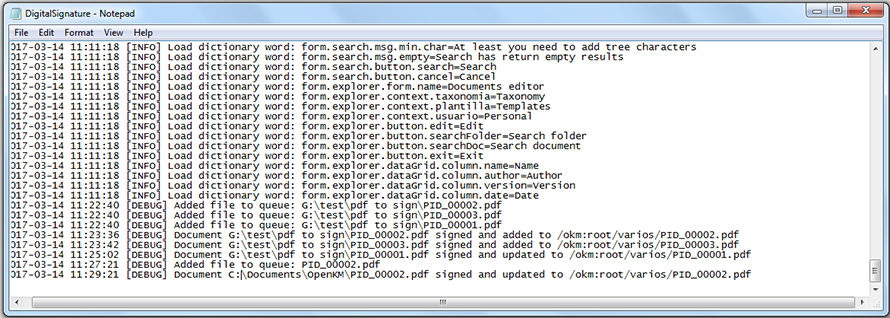
In My Documents/OpenKM there is a log file called DigitalSignature.log that contains a complete log trace.