Form designer
The designer is a visual editor, based on SurveyJS Creator, where the form fields are defined. To open it, press the Design icon in the forms list (or the Design button in the form details).
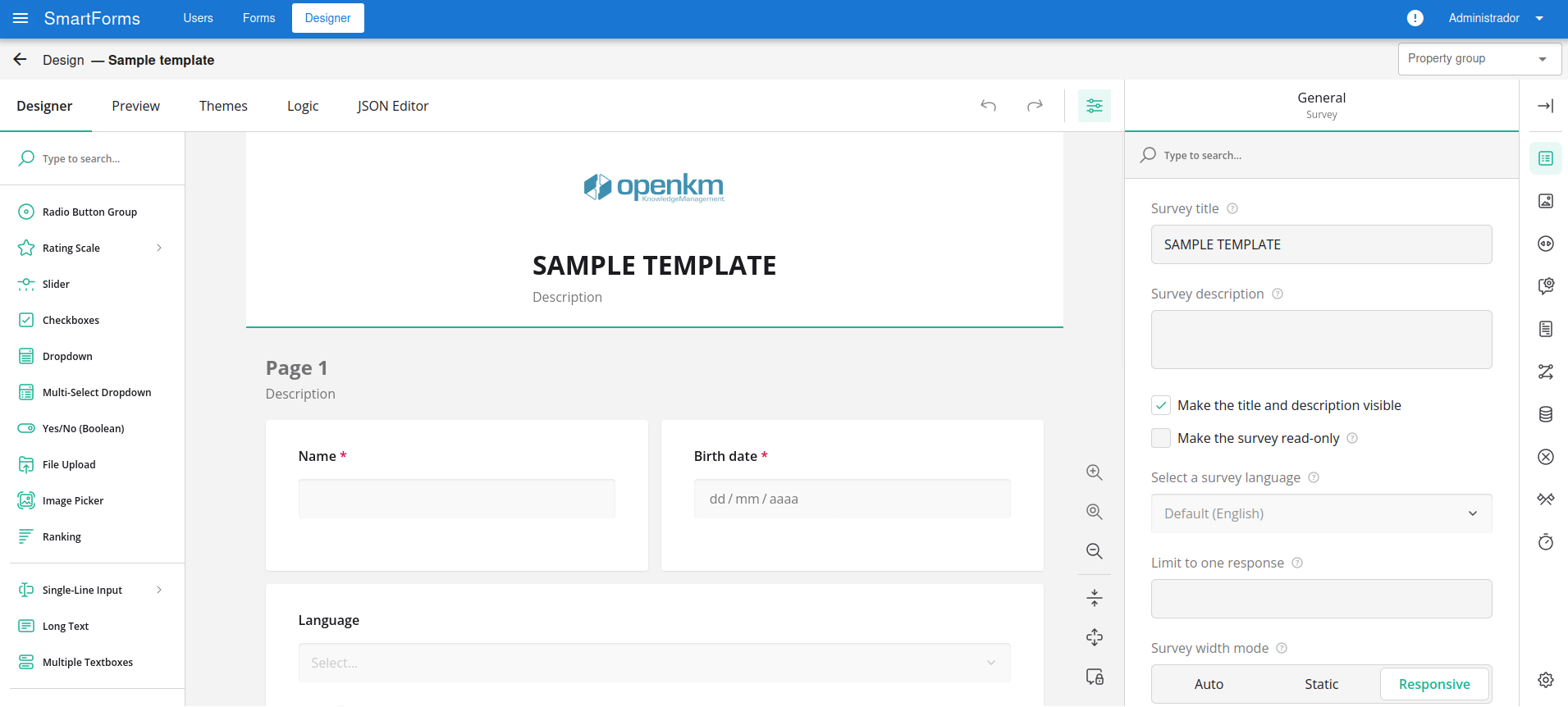
The top bar shows the name of the form. Press the arrow to go back to the forms list. The editor has the following tabs:
| Tab | Description |
|---|---|
| Designer | Drag the fields from the left toolbox (text, long text, dropdown, checkboxes, radio group, date, yes/no, file upload…) and set their properties in the right panel. |
| Preview | Shows the form as the users will see it. |
| Themes | Customizes the look of the form. |
| Logic | Defines conditions, such as showing or hiding fields. |
| JSON Editor | Shows the form definition in JSON. |
The changes are saved automatically.
Language
Section titled “Language”In the General properties of the form, Select a survey language sets the language of the form.
Simple form or wizard
Section titled “Simple form or wizard”A form with a single page is shown as a simple form. If you add more pages, the user moves through them with the Previous and Next buttons, as in a wizard.
Mapping fields to OpenKM metadata
Section titled “Mapping fields to OpenKM metadata”The form fields are mapped to the metadata fields of the template. The Name of each field must match the name of the OpenKM metadata field (for example okp:group.field), so the submitted value is stored in that metadata.
To get the right names, use the selectors in the top bar:
- Select a Property group among the ones assigned to the template.
- Select a Form element of that group.
- Press Copy field name and paste it in the Name property of the form field.
Dropdown values
Section titled “Dropdown values”For dropdowns defined in OpenKM, the options can be loaded directly from OpenKM, so they are always the ones defined in the property group. For example, this is the definition of a dropdown in a property group:
<select label="Language" name="okp:tpl.language" type="simple"> <option label="Java" value="java"/> <option label="Python" value="python"/> <option label="PHP" value="php" /></select>Smart Forms exposes the options of any dropdown field at:
http://localhost:8080/smart-forms/rest/okm/fields/options?field=okp%3Atpl.languageThe field parameter is the name of the metadata field (okp:tpl.language) and it must be URL-encoded (: is written as %3A). The response is a list of value and label pairs:
[ { "value": "java", "label": "Java" }, { "value": "python", "label": "Python" }, { "value": "php", "label": "PHP" }]To use it in the form:
- Select the dropdown field in the designer and set its Name to the metadata field (okp:tpl.language).
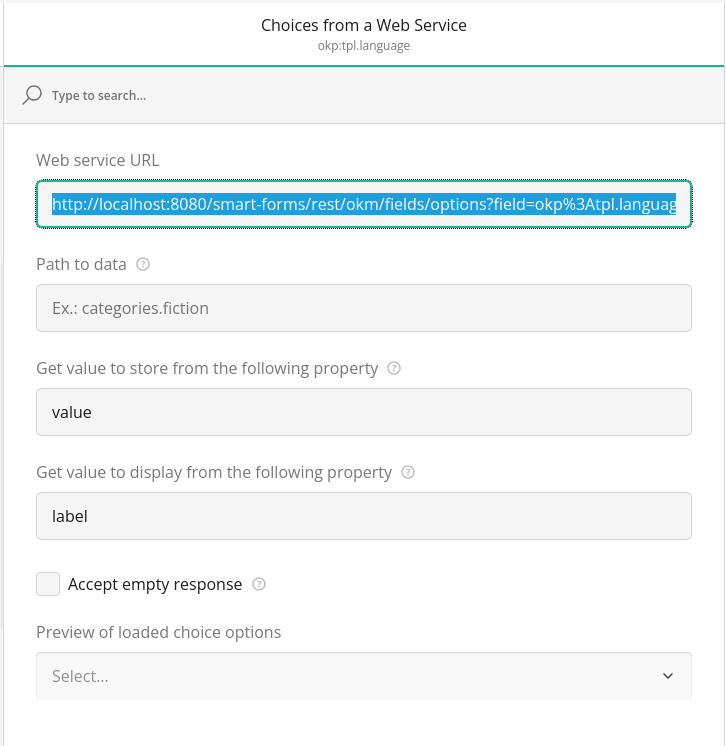
- In the right panel, open the Choices from a Web Service section.
- In Web service URL, paste the URL. The easiest way is to select the element in the top bar and press Copy field options URL, which generates it already encoded.
- Set Get value to store from the following property to value and Get value to display from the following property to label.