Form management
The Forms section lists the forms and allows you to create, edit, design and delete them.
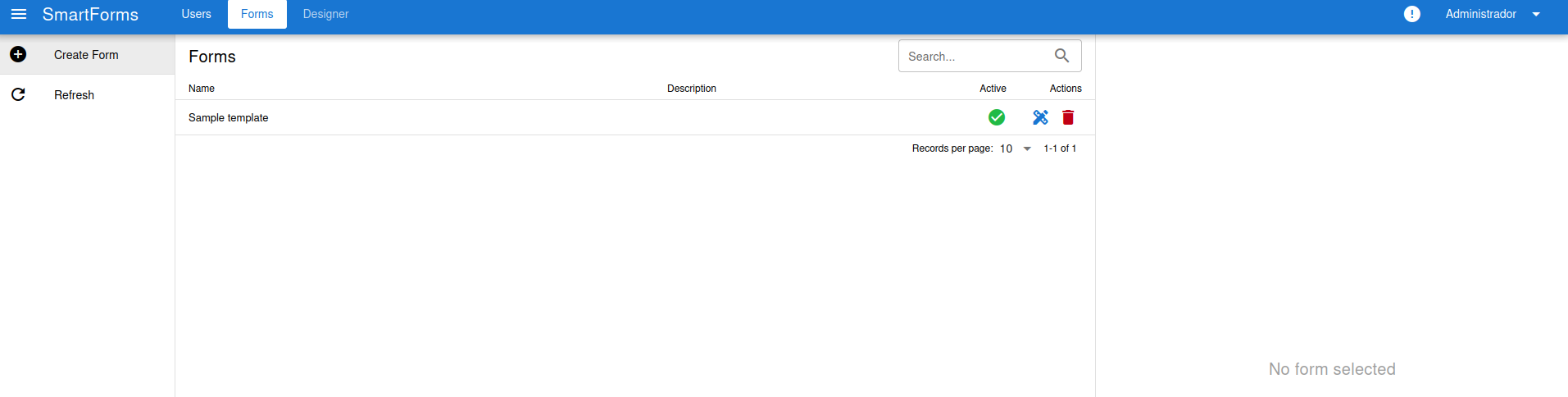
The list shows the form Name, Description and whether it is Active. The Actions column has two icons:
- Design (blue icon): opens the form in the designer.
- Delete (red icon): deletes the form.
Form data
Section titled “Form data”Click on a form to see its data in the right panel.
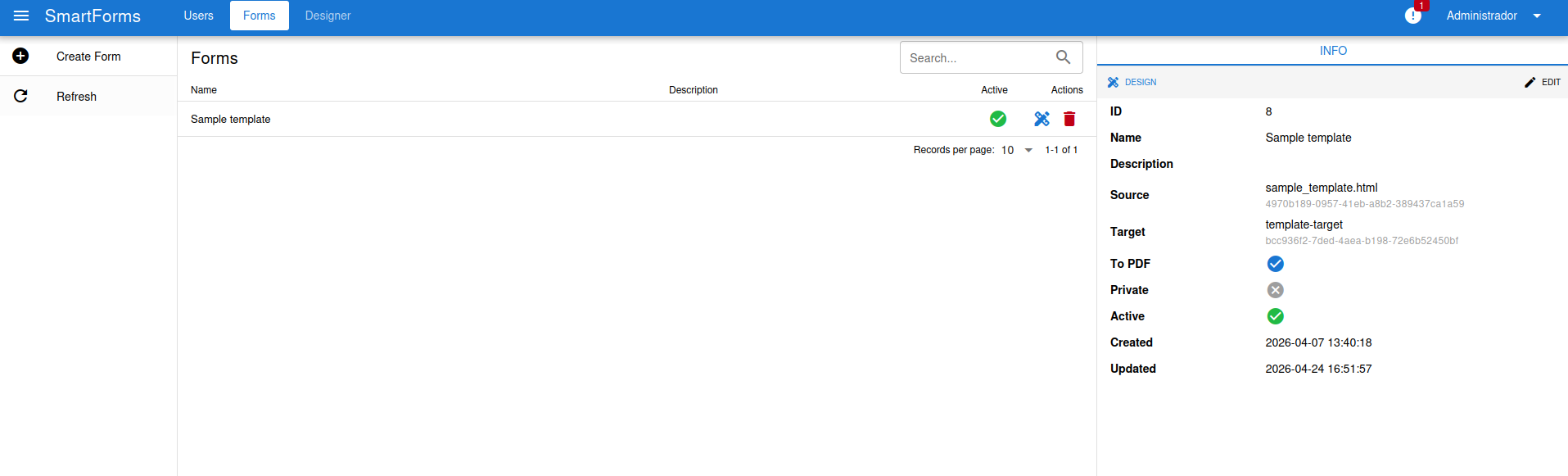
| Field | Description |
|---|---|
| ID | Form identifier. It is used in the form URL: /smart-forms/form/{id}. |
| Name / Description | Name and description of the form. |
| Source | Template document in OpenKM used to create the new documents. |
| Target | Folder in OpenKM where the new documents are created. |
| To PDF | The generated document is converted to PDF. |
| Private | Only authenticated users can fill in the form. |
| Active | Disabled forms cannot be used. |
| Created / Updated | Creation and last modification dates. |
The right panel also has two shortcuts: Design opens the designer and Edit modifies the form data.
Create a form
Section titled “Create a form”Press Create Form in the left menu.
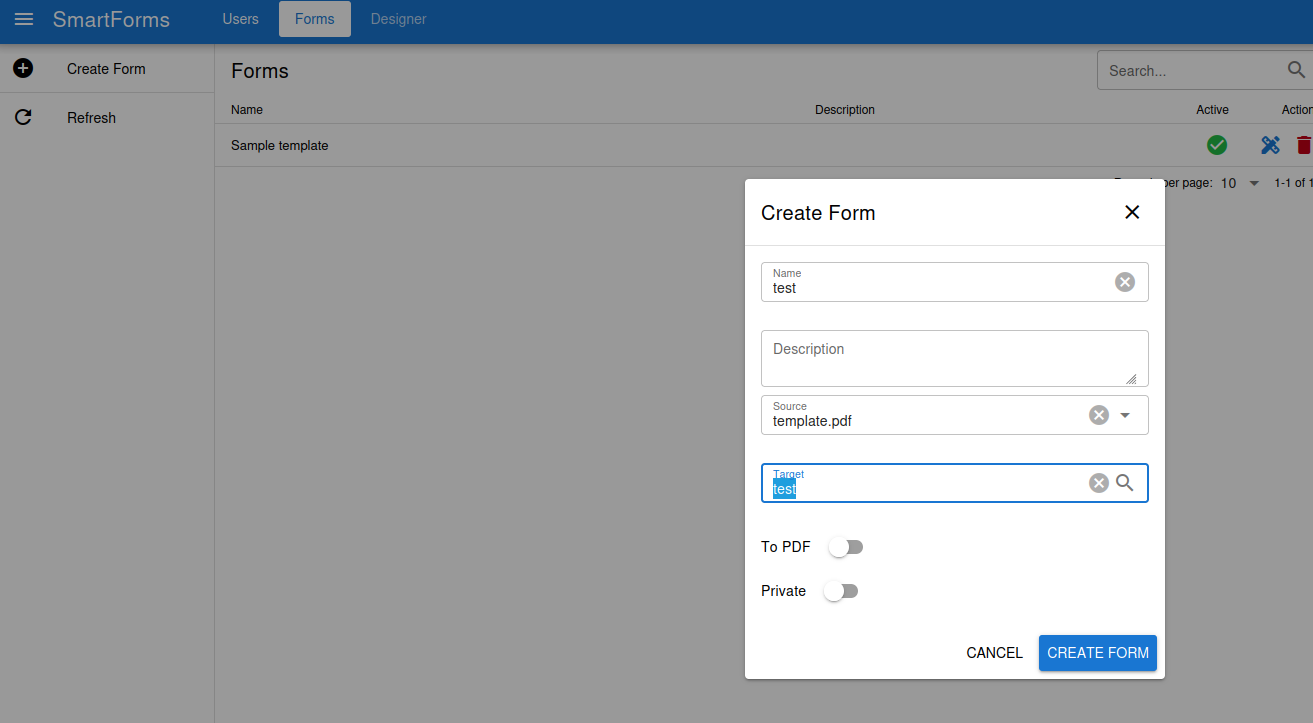
- Name: name of the form (required).
- Description: optional description.
- Source: search and select the template. The search looks for documents in the OpenKM templates node.
- Target: search and select the destination folder in the OpenKM taxonomy, where the documents created from the template will be stored.
- To PDF: enable it to convert the created documents to PDF.
- Private: enable it to restrict the form to authenticated users.
Press Create Form to save it.