Configuring IDE from a clean Eclipse
Requirements
Section titled “Requirements”Software:
Section titled “Software:”- Eclipse
- OpenJDK 1.8
Hardware:
Section titled “Hardware:”Suggested minimum hardware configuration:
- 2 CPUs
- 4 GB of RAM
- 64-bit architecture (although you can run it on 32-bit, we do not recommend that architecture).
Download Eclipse
Section titled “Download Eclipse”We suggest downloading the latest stable version of Eclipse. Eclipse comes in several versions; you should download the “Eclipse IDE for Java EE Developers” for your computer architecture (32- or 64-bit).
Configure Java
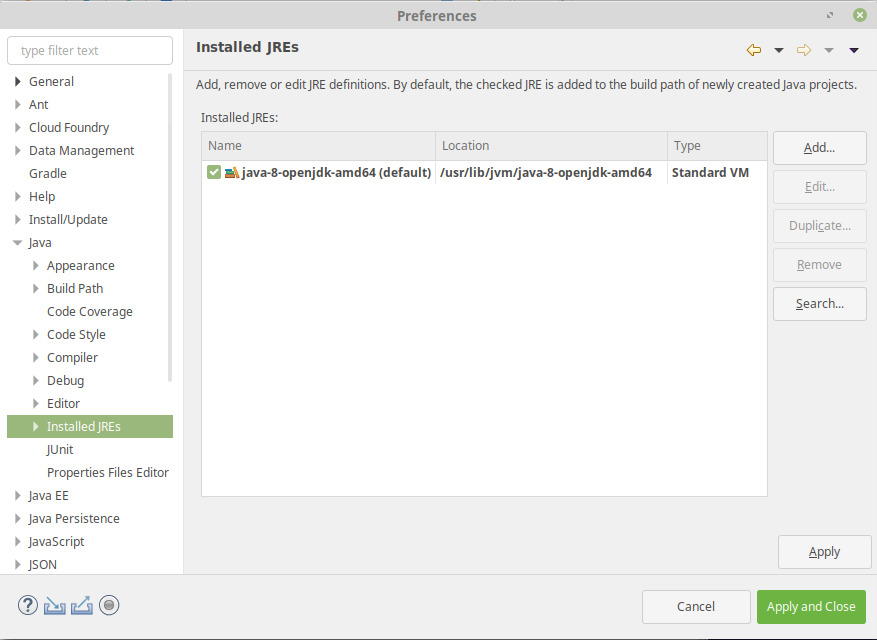
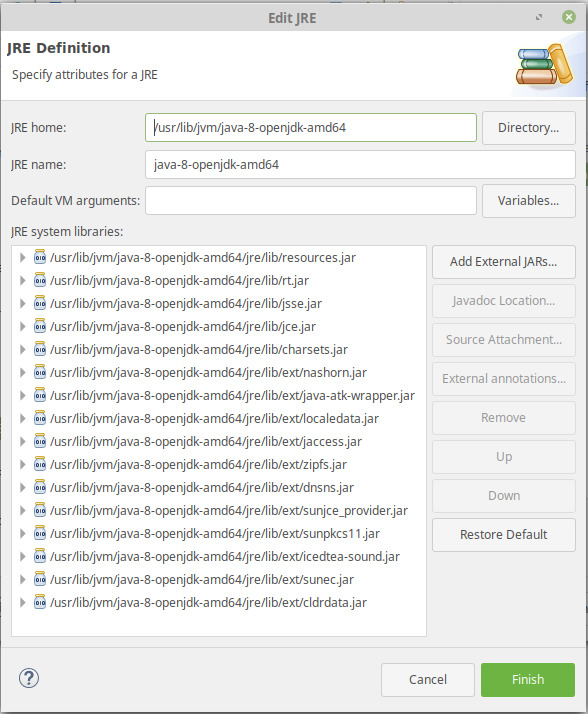
Section titled “Configure Java”Go to Window / Preferences / Java / Installed JRE. You must have OpenJDK 1.8 defined here:
Configure Tomcat server
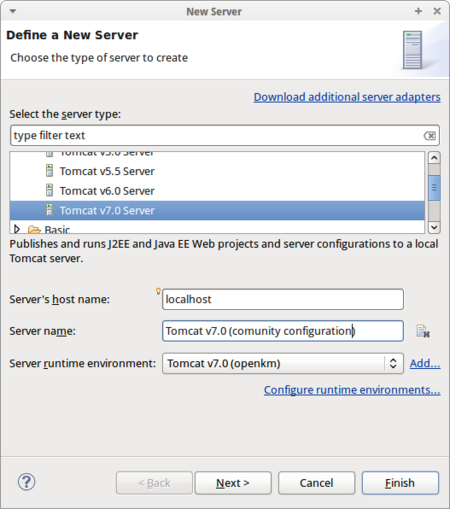
Section titled “Configure Tomcat server”Go to the “Servers” tab. Right-click and, from the contextual menu, choose “Add / server”. From the list choose “Tomcat 7 server”:
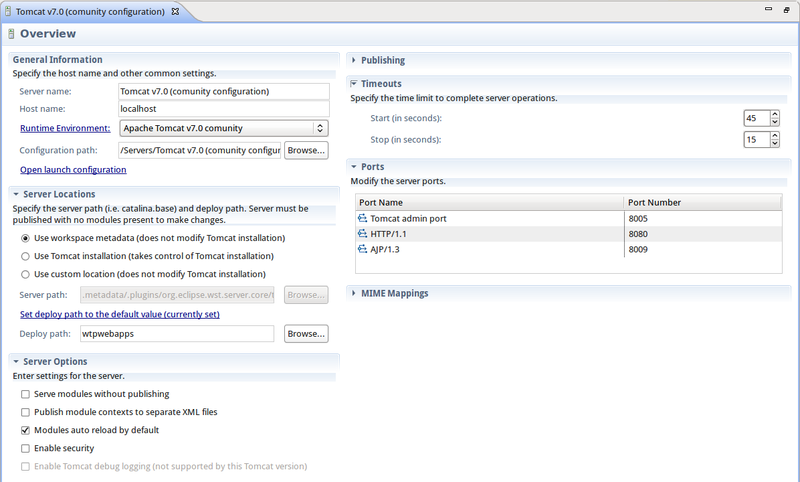
Configure a new runtime server environment:
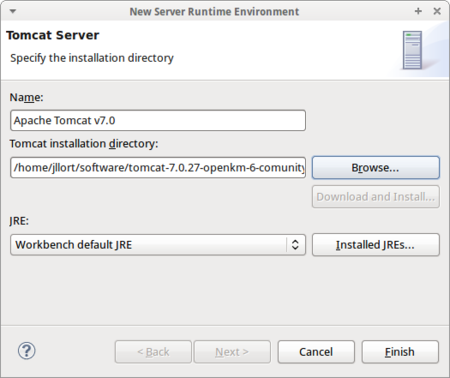
Check the Use Tomcat installation box (takes control of Tomcat installation).
Increase the start and stop timeouts (for example, to 180 and 120 seconds respectively).
Edit the launch configuration: add memory parameters (we suggest 2 GB), the sigar library path, and UTF-8 file encoding in the VM arguments field:
-Xms128m -Xmx2048m -Djava.awt.headless=true -Dfile.encoding=utf-8 -Djava.library.path="/home/openkm/tomcat-8.5.69/lib/sigar"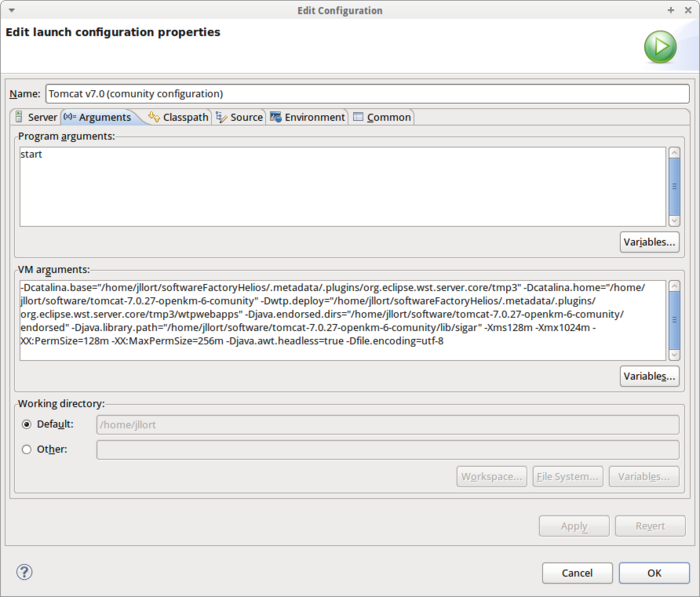
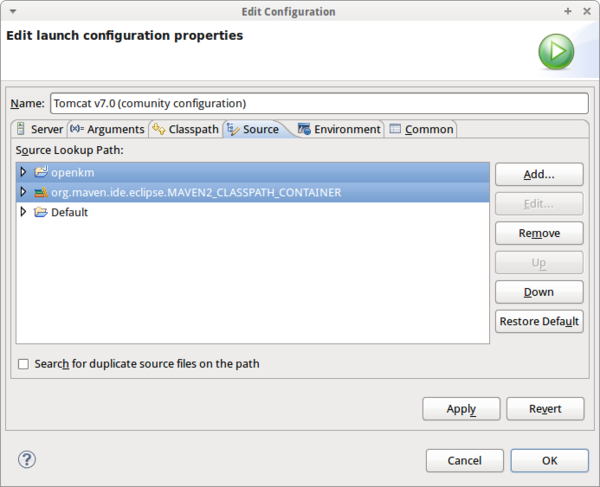
Add your OpenKM project on the Source tab:
Add CATALINA_PID and LD_LIBRARY_PATH to the environment variables:
CATALINA_PID=$CATALINA_HOME/catalina.pidLD_LIBRARY_PATH=$LD_LIBRARY_PATH:$CATALINA_HOME/lib/sigar:/usr/local/apr/libor
CATALINA_PID=$CATALINA_HOME/catalina.pidLD_LIBRARY_PATH=/home/openkm/tomcat-8.5.69/lib/sigar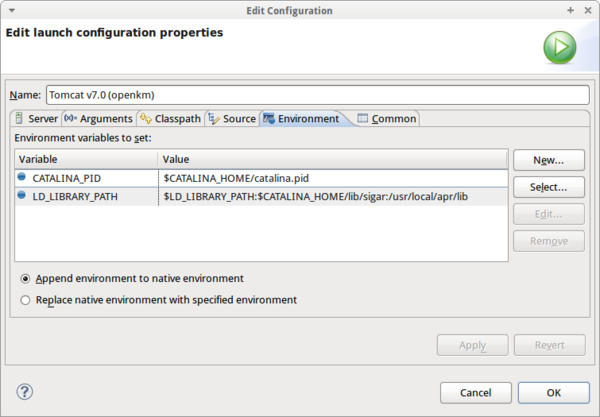
Maven support for Eclipse
Section titled “Maven support for Eclipse”The latest Eclipse version comes by default with Maven support plugins already installed. For older Eclipse versions, follow these configuration steps:
- Go to Help > Eclipse Marketplace
- Install the plugin named M2Eclipse.
Subversion support for Eclipse
Section titled “Subversion support for Eclipse”- Go to Help > Eclipse Marketplace
- Install the plugin named Subversive.