Creating PDF template
You can create PDF form templates with several applications:
Preliminaries
Section titled “Preliminaries”Register the Metadata group definition at Administration > Metadata.
<?xml version="1.0" encoding="UTF-8"?><!DOCTYPE property-groups PUBLIC "-//OpenKM//DTD Property Groups 3.10//EN" "http://www.openkm.com/dtd/property-groups-3.10.dtd"><property-groups> <property-group label="Sample Template" name="okg:tpl"> <input label="Name" name="okp:tpl.name"/> <input label="Birth Date" name="okp:tpl.birth_date" type="date" /> <select label="Language" name="okp:tpl.language" type="simple"> <option label="Java" value="java"/> <option label="Python" value="python"/> <option label="PHP" value="php" /> </select> </property-group></property-groups>In order to create a relationship between the template form field and the property group, you have to name them using the following naming convention: replace “:” and “.” with “_”. Here you can see the matching between the two fields:
| Metadata field name | Template field name | Template field value |
|---|---|---|
| okp:tpl.name | okp_tpl_name | ${okp_tpl_name!} |
| okp:tpl.birth_date | okp_tpl_birth_date | ${okp_tpl_birth_date!} |
| okp:tpl.language | okp_tpl_language | ${okp_tpl_language!} |
Creating the template
Section titled “Creating the template”To create a template in OpenOffice.org go to View > Toolbars > Form Controls.
A new dialogue will appear, and you will be able to add form elements to the document. This dialogue contains elements such as labels, text boxes, check boxes, etc.
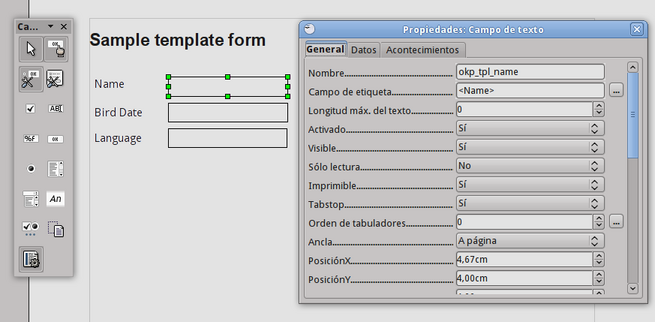
Once the form has been created, go to File > Export as PDF to generate a PDF with these form fields. This is the final result:
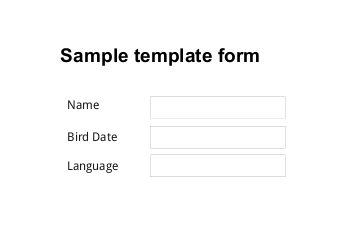
Here is the generated PDF file tpl.pdf and here is the ODT source tpl_pdf.odt.
Date format
Section titled “Date format”OpenKM uses FreeMarker internally, so you can take advantage of FreeMarker’s formatting features. For example, you can set the date format this way:
${okp_tpl_birth_date?string("yyyy-MM-dd")}Learn more about FreeMarker formatting at Built-in Reference.