Outlook Add-in CE 2.0.x
After installing the Outlook add-in, a new menu item, “OpenKM,” will appear in Outlook.

Details of the functions according to their icons:
| Button | Action |
|---|---|
 |
Add-in configuration. |
 |
Import mail. |
 |
Import only attachments. |
 |
Help. |
Configure OpenKM Add-In
Section titled “Configure OpenKM Add-In”First, you must select the Configuration menu item to set your configuration values for accessing OpenKM from the client computer.
| Property | Type | Description |
|---|---|---|
| Language | Select | MS Add-in’s user interface language. |
| User | String | User ID for accessing OpenKM. okmAdmin |
| Password | String | The user’s password. admin |
| Host | String | OpenKM URL. http://localhost:8080/openkm/ |
| Attachment path | String | The OpenKM path where the intercepted attachment will be stored when the user sends an email. /okm:root/attachments |
| Add metadata | Bool | To enable or disable the metadata selection form. |
| Find by UUID | Bool | It allows indicating, through the UUID of a folder, the destination where an email will be uploaded, or through the UUID of a document to insert it as an attached file. |
| Intercept attachment | Select | Choose the behavior when the user sends an email with attachments. - Never do anything - Ask if you want to intercept and import into OpenKM. - Always intercept and import into OpenKM. When OpenKM intercepts an attachment, it is imported into OpenKM and replaced in the sent email by an OpenKM URL of the document (attachment imported). |
| Enable attachment log | Checkbox | Enable or disable the activity log of intercepted attachments. This feature is only available when OpenKM works with a MySQL or MariaDB database. |
Importing emails to OpenKM
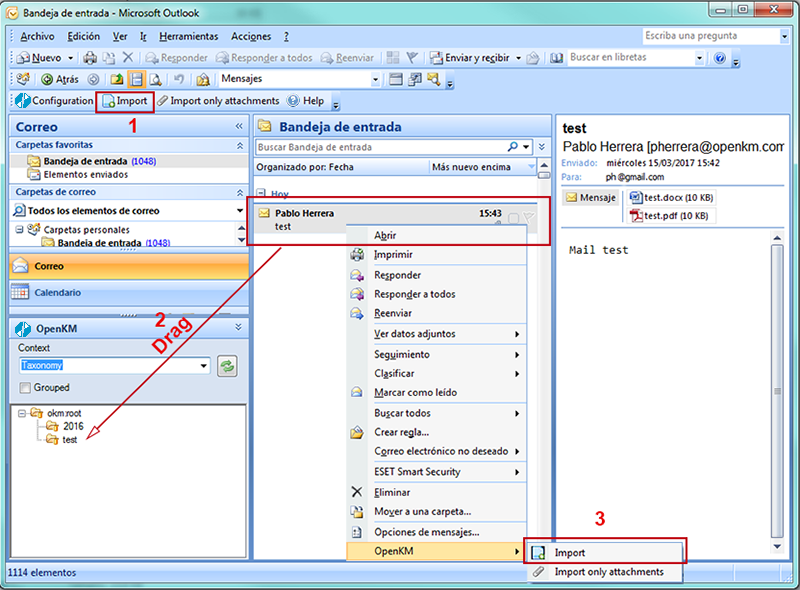
Section titled “Importing emails to OpenKM”The user can import emails from Outlook to OpenKM in three ways:
- Select the option “Import” in the OpenKM toolbar.
- Drag the mail to a folder inside the OpenKM navigator tree in the left panel.
- Right-click on the mail and choose the “Import” option inside the OpenKM menu.
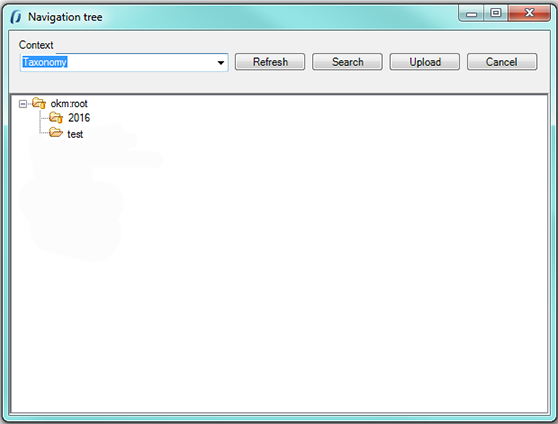
You must select the destination path to import the mail in cases one and three.
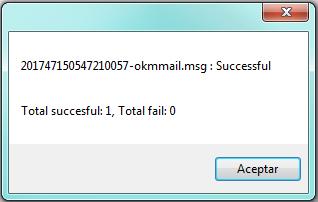
After the import is finished, a message indicating the number of emails and attachments imported will be displayed.
Importing attachments to OpenKM
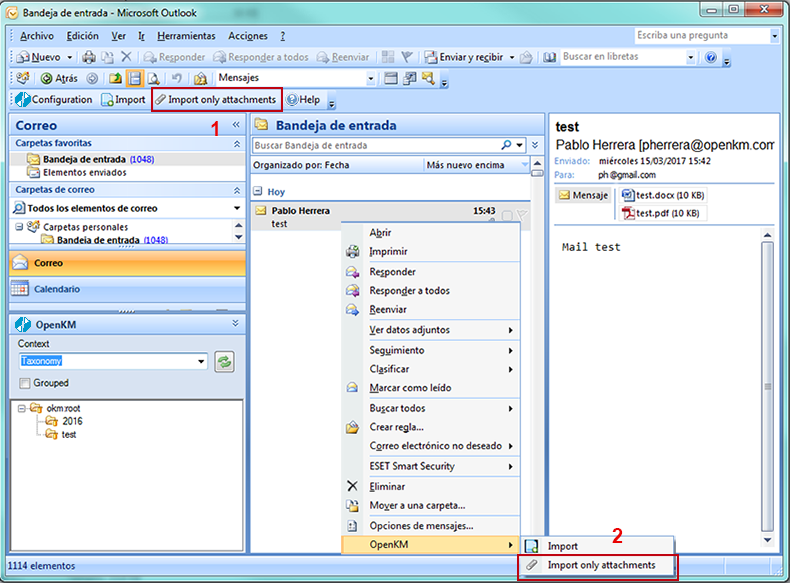
Section titled “Importing attachments to OpenKM”The user can import attachments from Outlook to OpenKM in two ways:
- Select the option “Import only attachments” in the OpenKM toolbar.
- Right-click on the mail and choose the “Import only attachments” option inside the OpenKM menu.
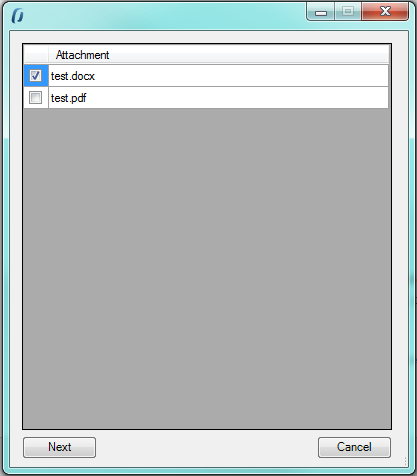
Check the attachments to be imported and click the following button to finish.
After the import is finished, a message indicating the imported attachments will be displayed.
Add attachments from OpenKM to a new mail
Section titled “Add attachments from OpenKM to a new mail”The user can add attachments from OpenKM.
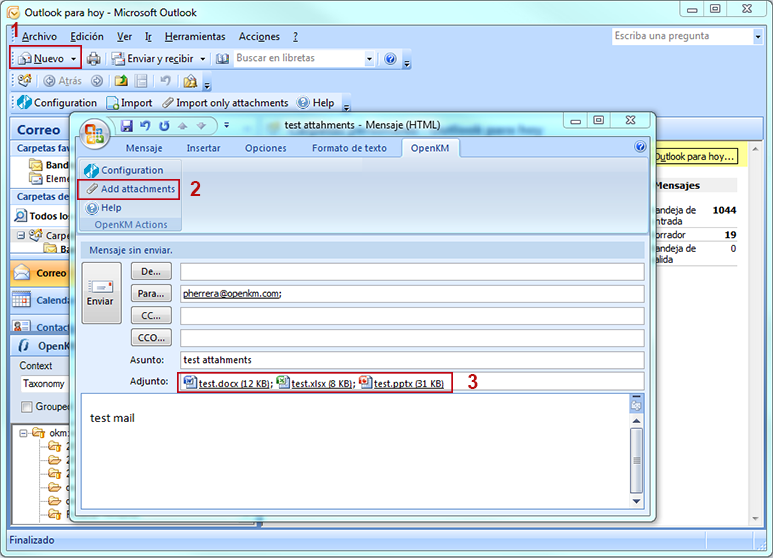
- First, click the New button to create a new mail.
- Press the Add attachment button; it will show the file explorer inside OpenKM, from which you can select one or more documents that you want to attach to the mail, and then press the Select button.
- You can view the attachments in the compose mail section.
My Documents/OpenKM contains a log file called OutlookAddin.log with a complete log trace.