Project Add-in 8.1.x
Project Add-in enables users to upload new files and edit existing OpenKM files.
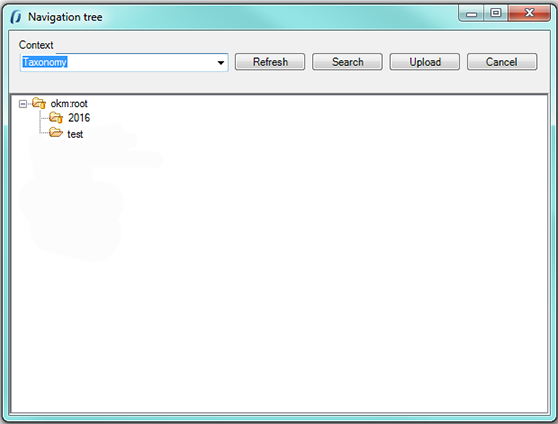
To upload a new file, choose a destination folder from the OpenKM tree view.
The OpenKM Project Add-in detects if the document opened by a user is an OpenKM file and enables or disables some toolbar options.
After installing the Project add-in, a new menu item “OpenKM” will appear in Project.

Details of the functions according to their icons:
| Button | Action |
|---|---|
 |
Add-in configuration. |
 |
Add new document |
 |
Document edit (check-out) |
 |
Upload modified document (check-in) |
 |
Cancel document edit |
 |
Help |
Configure OpenKM Add-in
Section titled “Configure OpenKM Add-in”First, you must select the Configuration menu item to set your configuration values to access OpenKM from the client computer.
| Property | Type | Description |
|---|---|---|
| Language | Select | MS Add-in user interface language. |
| User | String | User ID for accessing OpenKM. okmAdmin |
| Password | String | The user’s password. admin |
| Host | String | OpenKM URL. http://localhost:8080/openkm/ |
| Add metadata | Bool | To enable/disable the metadata selection form. |
| Find by UUID | Bool | Instead of locating a document through the search tree, it locates it by inserting the UUID of the document to be edited or of the destination folder when uploading a document. |
| Use personal token | Bool | The authentication will be done with the access token. |
| Personal token | String | The personal access token okmpat-Ky1t16O2Rwx4ttPmOK0R |
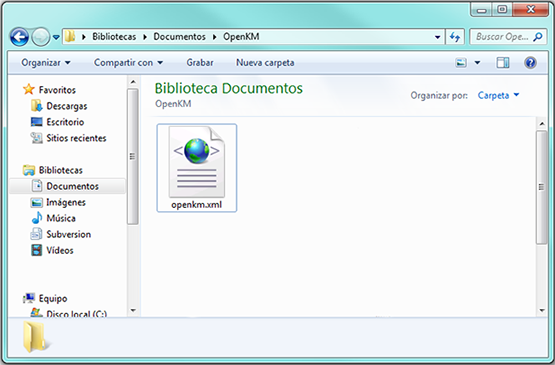
After you set your configuration values, a folder named OpenKM is created in your user My Documents folder. In this OpenKM folder, a configuration file named openkm.xml and another file named document.xml are created. The OpenKM Add-in uses them to store some document editing information. You should not edit or delete these files.
Uploading a new file
Section titled “Uploading a new file”Click the Add New Document button. A folder tree view will be shown. You must choose the folder where you want to upload the file.
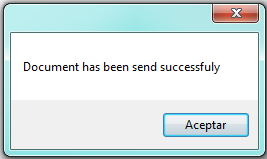
Click the Send button; after that, the document will be uploaded to OpenKM and a notification will be shown.
Editing an OpenKM document
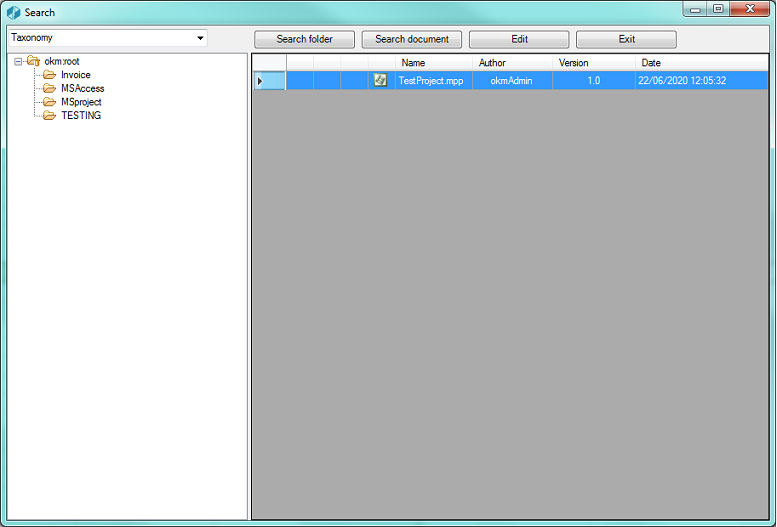
Section titled “Editing an OpenKM document”Click the Document Edit button. A folder navigator will appear. You must navigate through folders and choose the document you want to edit.
When you have an OpenKM document open, the Upload modified document (check-in) and Cancel document edit toolbar options will be enabled.
- To upload the modified document, use the Upload modified document (check-in) toolbar button.
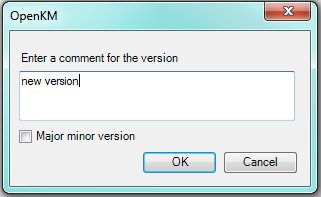
Insert a comment for the version and press the OK button.
- To cancel document editing, use the Cancel document edit toolbar button.
In My Documents/OpenKM there is a log file named ProjectAddin.log with a complete log trace.