Word Add-in
Word Add-in enables users to upload new files and edit existing OpenKM files.
When a user uploads new files, they browse the OpenKM tree view to select where they want to upload the file.
The OpenKM Word Add-in detects if the document opened by a user is an OpenKM file and enables or disables some toolbar options.
After installing the Outlook add-in, a new menu item “OpenKM” will appear in Outlook.
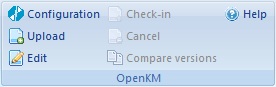
Details of the functions according to their icons:
| Button | Action |
|---|---|
 |
Add-in configuration. |
 |
Add new document |
 |
Document edit (check-out) |
 |
Upload modified document (check-in) |
 |
Cancel document edit |
 |
Compare versions |
 |
Help |
Configure OpenKM Add-In
Section titled “Configure OpenKM Add-In”First, you must choose the Configuration menu item to set your configuration values to access OpenKM from the client computer.
| Property | Type | Description |
|---|---|---|
| Language | Select | MS Add-in user interface language. |
| User | String | User ID for accessing OpenKM. okmAdmin |
| Password | String | The user’s password. admin |
| Host | String | OpenKM URL. https://demo.openkm.com/OpenKM/ |
| Add metadata | Bool | To enable/disable the metadata selection form. |
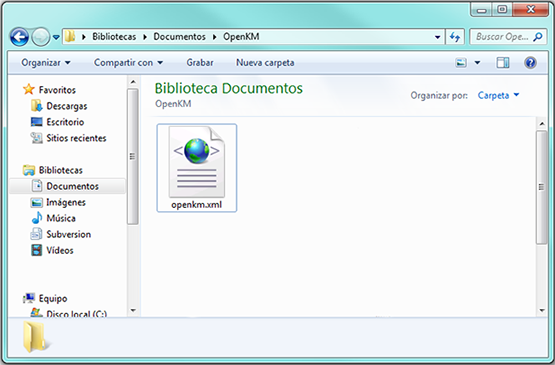
After you set your configuration values, a folder called OpenKM is created in your user My Documents folder. In this OpenKM folder, a configuration file called openkm.xml and another file called document.xml are created, which the OpenKM Add-in uses to store some document-editing information. You should not edit or delete these files.
Uploading a new file
Section titled “Uploading a new file”Click on the add new document button, and a folder tree view will be shown. You must select the folder where you want to upload the file.
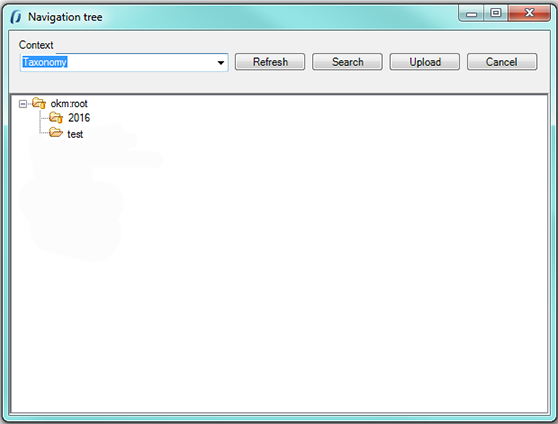
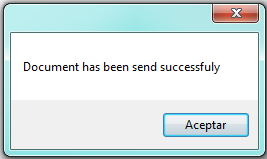
Click on the Upload button and after that, the document will be uploaded to OpenKM and a notification message will be shown.
Editing an OpenKM document
Section titled “Editing an OpenKM document”When you click the document edit button, a folder navigator will be shown. You must navigate through folders and select the document you want to edit.
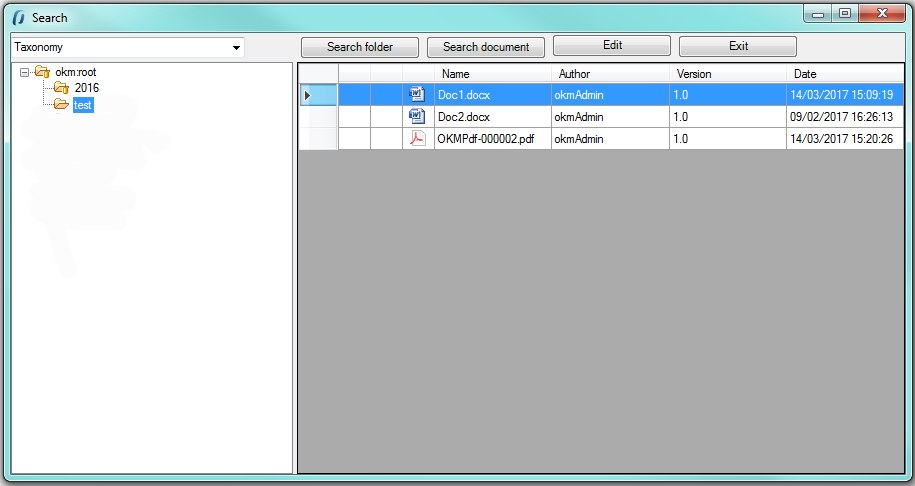
When you have an OpenKM document open, the Upload modified document (check-in) and Cancel document edit toolbar options will be enabled.
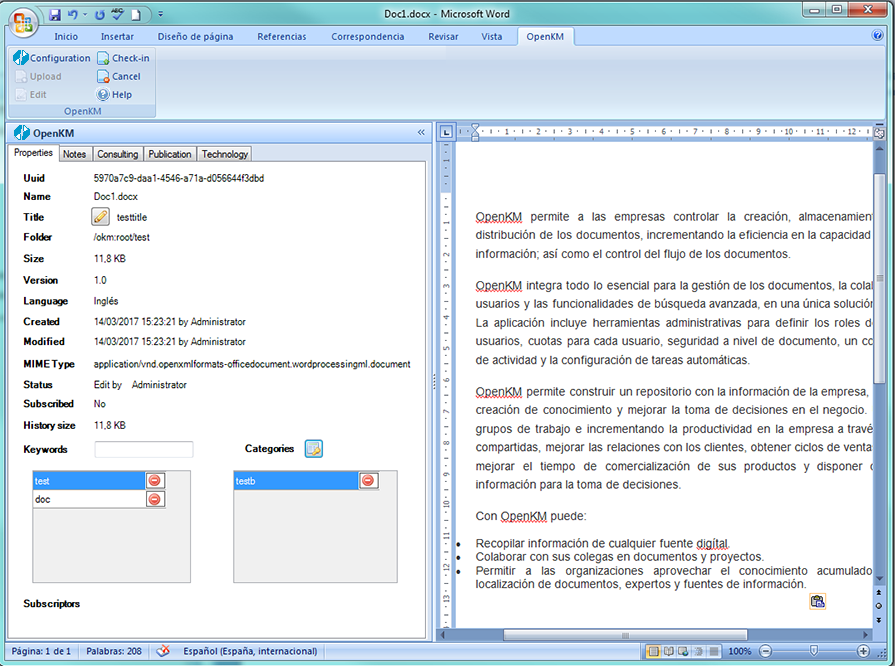
Notes tab
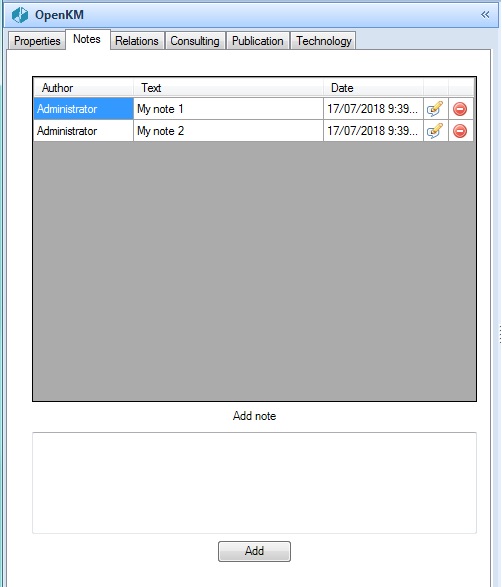
Relations tab
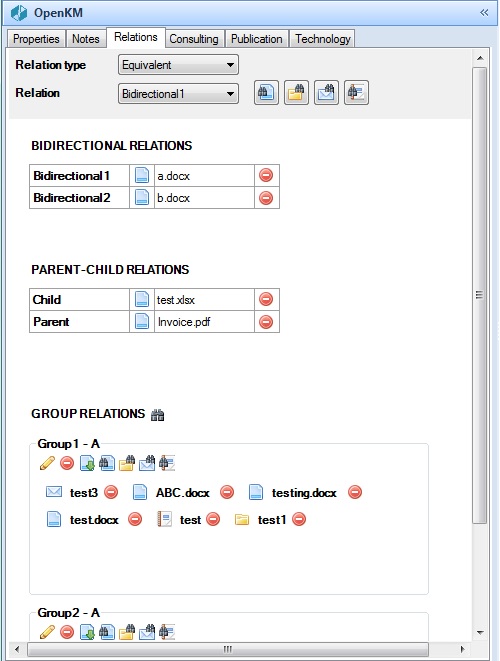
Metadata tab
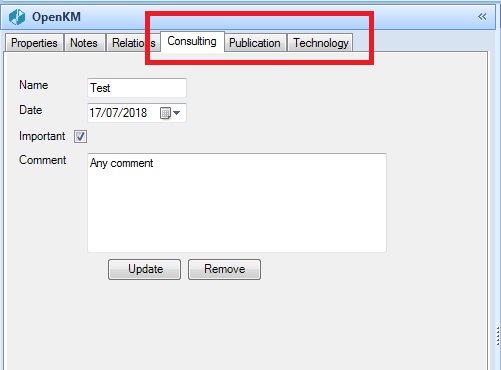
- To upload a modified document, use the Upload modified document (check-in) toolbar button.
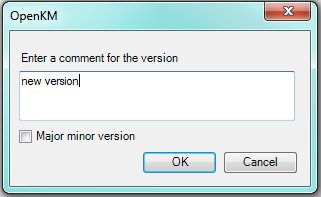
Insert a comment for the version and press the OK button.
- To cancel document editing, use the Cancel document edit toolbar button.
Compare versions
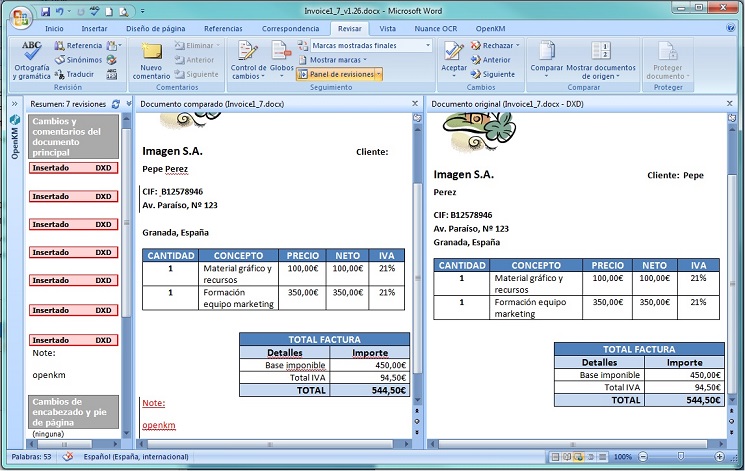
Section titled “Compare versions”Clicking the “Compare versions” button will display the version history in a pop-up, allowing you to select a version to compare.
In My Documents/OpenKM there is a log file called WordAddin.log with a complete log trace.