Troubleshooting
Enable or disable the OpenKM Add-ins toolbar in Microsoft Office.
Section titled “Enable or disable the OpenKM Add-ins toolbar in Microsoft Office.”For Word Add-in, Excel Add-in, and PowerPoint Add-in:
Section titled “For Word Add-in, Excel Add-in, and PowerPoint Add-in:”- Click the Office button and go to Word Options.
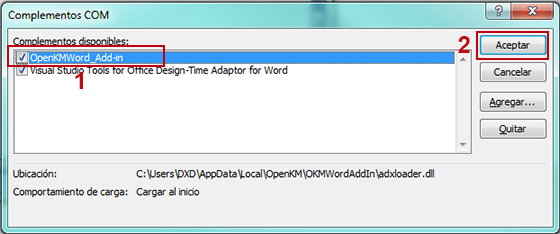
- A new window will be shown. Look for the Add-ins option, select the COM Add-in option and press the Go button.
- Finally, check the box OpenKMWord_AddIn and press the OK button.
For Outlook Add-in:
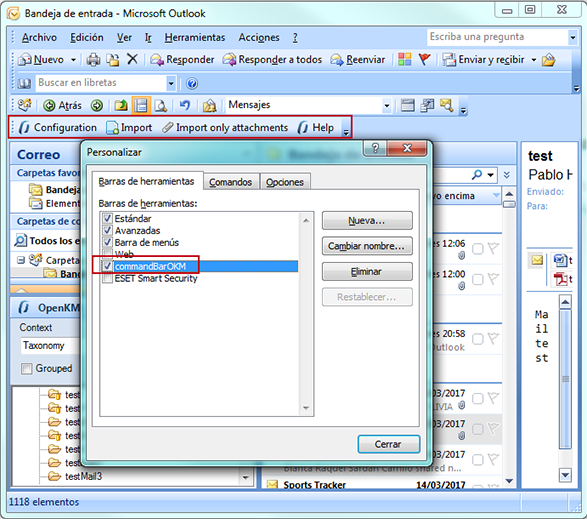
Section titled “For Outlook Add-in:”- Go to the Tools menu and look for the option to customize.
- A new window will be shown in which you should select the box for the commandBarOKM option and press the Close button.
Uninstall Office Add-ins
Section titled “Uninstall Office Add-ins”To uninstall the OpenKM Office Add-in, follow these steps:
- Press the Start button of Windows and look for the Control Panel.
- It will show a window in which you should choose the option to uninstall a program. Select the OKMOfficeAddIn you want to remove and press the uninstall button.
Alternative configuration of the main file folder
Section titled “Alternative configuration of the main file folder”To configure a custom path for storing key application files such as:
- The log file (openkm.log)
- The configuration file (openkm.xml)
- Temporary files generated during runtime
This configuration is done using the okm.folder.path property, located in the app.properties file within the installation directory.
Example:
okm.folder.path=C:\\New_folder_path
After making the changes, you must restart the app.