Using the installer
Another way of installing OpenKM is by using the installer tool. This Java application eases installation and works on Ubuntu, Debian, RedHat, CentOS, and Windows platforms. Remember that you need a working Java installation before using this tool. We recommend OpenJDK 8. Please check these pages for more information about installing Java on your server; look for the Checking Java version section:
- Installing on RedHat and CentOS (Manual)
- Installing on Ubuntu and Debian (Manual)
- Installing on Windows
Once Java 8 is installed, you can download the installer from https://sourceforge.net/projects/openkm/files/common/OKMInstaller.jar. In Linux, you can download it from the command line:
$ wget https://sourceforge.net/projects/openkm/files/common/OKMInstaller.jarIt’s a text-based installer, so you need to execute it from the console as root if you are on Linux or as Administrator if you are on Windows. This is because it needs to install package dependencies and configure OpenKM as a service:
$ java -jar OKMInstaller.jarAnd this is the output:
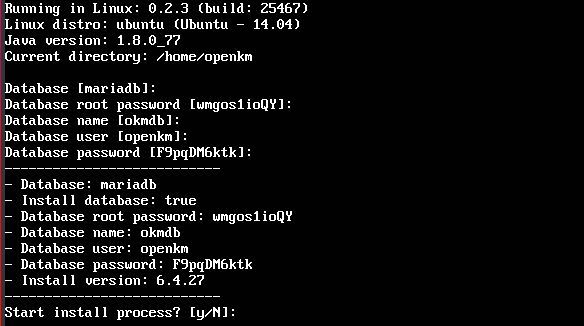
Values in brackets are the default ones. If you hit Enter, this is the chosen value. If you want a different one, write the string. In the end, the installed will show the entered information, and you can verify it and proceed or enter these values again.
Once the info is validated, the installation process will start. Depending on your Internet connection and server performance, this process may take several minutes. In the case of Linux-based systems, it will install all required dependencies like ImageMagick and LibreOffice.
You may also need HTTPS.proxyHost and HTTPS.proxyPort or even HTTP.proxyUser, HTTP.proxyPassword, HTTPS.proxyUser, and https.proxyPassword parameters.
Supported databases
Section titled “Supported databases”The installer supports these databases:
- MariaDB (mariadb)
- MySQL (mysql)
- PostgreSQL (posgresql)
- SQL Server (sqlserver)
- Oracle (oracle)
- HSQLDB (hsqldb)
- H2 (h2)
Other options
Section titled “Other options”The installer will also check if port 8080 is already being used, which is the default port used by Tomcat and should be free. Use the -p or --port parameters to disable this check.
$ java -jar OKMInstaller.jar -p