CmisSync
Requirements
Section titled “Requirements”Download the CmisSync tool from the OpenKM download center
Configuration
Section titled “Configuration”During the installation, the configuration should be like this:
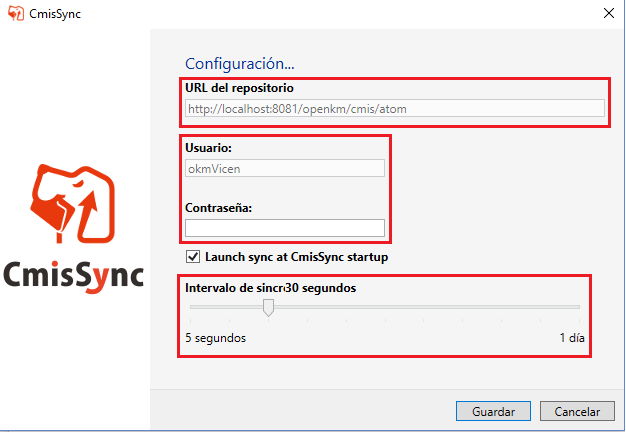
Enter the access URL of OpenKM followed by /cmis/atom, and enter the username and password with which you log in to OpenKM.
Poll Interval
Section titled “Poll Interval”Recommendations for configuring the synchronization interval:
The default poll interval is 5 seconds. While this is good for tests and environments where you want to get all server changes immediately, it might prove stressful for the server. You might want to modify the setting to:
- 5 minutes (project collaboration on office files),
- 6 hours if documents change only a few times per month (sales material, documentation, records management, archives).
Many people use CmisSync to synchronize from different folders or different servers. In such cases, you might want to configure the poll interval differently for each of them. This is possible: the poll interval is configured at this level.
How to modify the poll interval:
With a text editor like Notepad, open the C:\Users\user1\AppData\Roaming\cmissync\config.xml file (replace user1 with your user name). Note: Configure Windows to show hidden files, otherwise you might not see AppData.
Spot the
The poll interval is specified in milliseconds, for instance:
- 5 minutes = 300000 milliseconds
- 6 hours = 21600000 milliseconds
If no
Contextual Menu
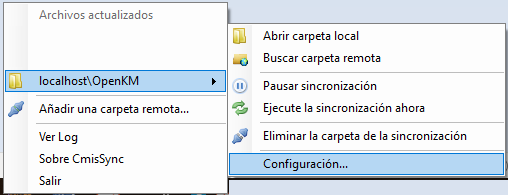
Section titled “Contextual Menu”- You can also access the configuration by right-clicking the CmisSync icon found in your Windows taskbar to open the contextual menu:
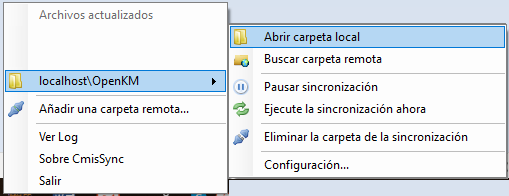
- Also the way to access your local folder:
Tomcat performance
Section titled “Tomcat performance”Compression
Some AtomPub binding calls can generate large XML responses. These responses compress very well. Compressing CMIS AtomPub responses can increase the performance noticeably if the CMIS client supports it. (Apache Chemistry OpenCMIS has supported compression since version 0.3.)
Please refer to the documentation of your servlet engine on how to turn compression on.
The following MIME types should be compressed:
application/atomsvc+xmlapplication/atom+xml;type=entryapplication/atom+xml;type=feedapplication/cmisquery+xmlapplication/cmisallowableactions+xmlapplication/cmisatom+xmlapplication/cmistree+xmlapplication/cmisacl+xmlTo turn on Tomcat compression, edit the file server.xml, which is located under the Tomcat conf directory. The compression configuration is added to the connector element:
<Connector port='8080' protocol='HTTP/1.1' connectionTimeout='20000' redirectPort='8443' URIEncoding='UTF-8' compression='on' compressionMinSize='2048' compressableMimeType='text/html,text/xml,application/atomsvc+xml,application/atom+xml;type=entry,application/atom+xml;type=feed,application/cmisquery+xml,application/cmisallowableactions+xml,application/cmisatom+xml,application/cmistree+xml,application/cmisacl+xml' />