OCR templates
OCR Templates allow creating zonal OCR templates which allow to recognise and extract structured text from scanned images.
Understanding the stages in the OCR templates’ execution:
Recognise Data extraction Save data
There are two field types in OCR templates:
- Validation Control fields.
- Data Capture fields.
Allowed MIME types in the recognise stage are:
- PNG
- JPG
- GIF
- BMP
Validation Control field description
Section titled “Validation Control field description”Validation Control fields are used only in the recognise stage to help with document identification by checking a document section pattern.
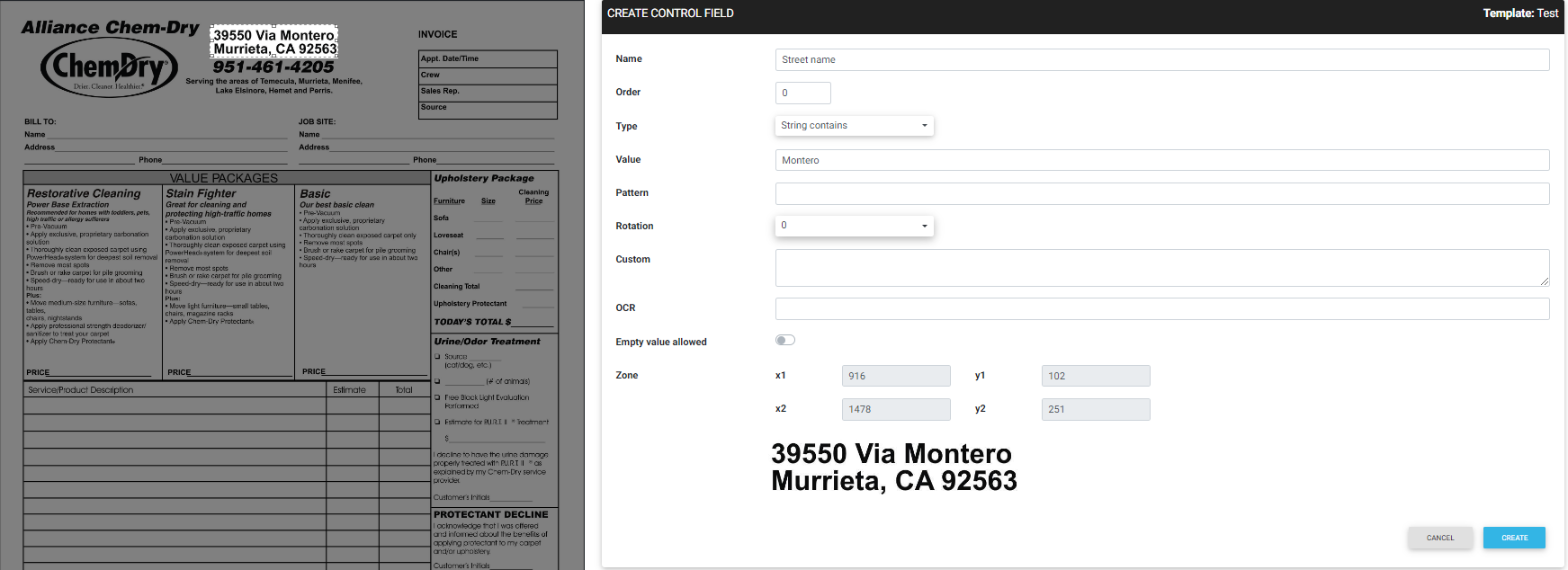
Each Validation Control field is composed of:
| Field | Description | Required |
|---|---|---|
| Name | Name of the field. | true. |
| Order | Order of evaluation. | true. |
| Type | List of OCR Validation Controls. Each validator is a condition that must be complied with. | true. |
| Value | A value. | * |
| Pattern | A Java regex pattern. | * |
| Rotation | Indicates the image rotation that must be applied. Available image rotations: - -270 - -180 - -90 - 0 - 90 - 180 - 270 |
true. |
| Custom | Sets commands to process images for the OCR. Several commands can be set, one per line. For example, to highlight the red color /usr/bin/convert ${fileIn} -matte ( +clone -fuzz 50% -transparent red ) -compose DstOut -composite -negate ${fileOut} |
false. |
| OCR | OCR command line. When present, it will be executed in place of the system.ocr configuration parameter. More information Configuration parameters. For example, to force digit capture. /usr/bin/tesseract ${fileIn} ${fileOut} digits |
false. |
| Empty value allowed | When checked, indicates that an OCR empty text value is also valid in the document identification process. | false |
| * These parameters are used in the Validation Control. They can be required or not depending on which Validation Control is used. |
Data Capture field description
Section titled “Data Capture field description”Data Capture fields are used to retrieve data in the extraction stage but can also be used in the recognise stage to help identify a document by checking a document section pattern.
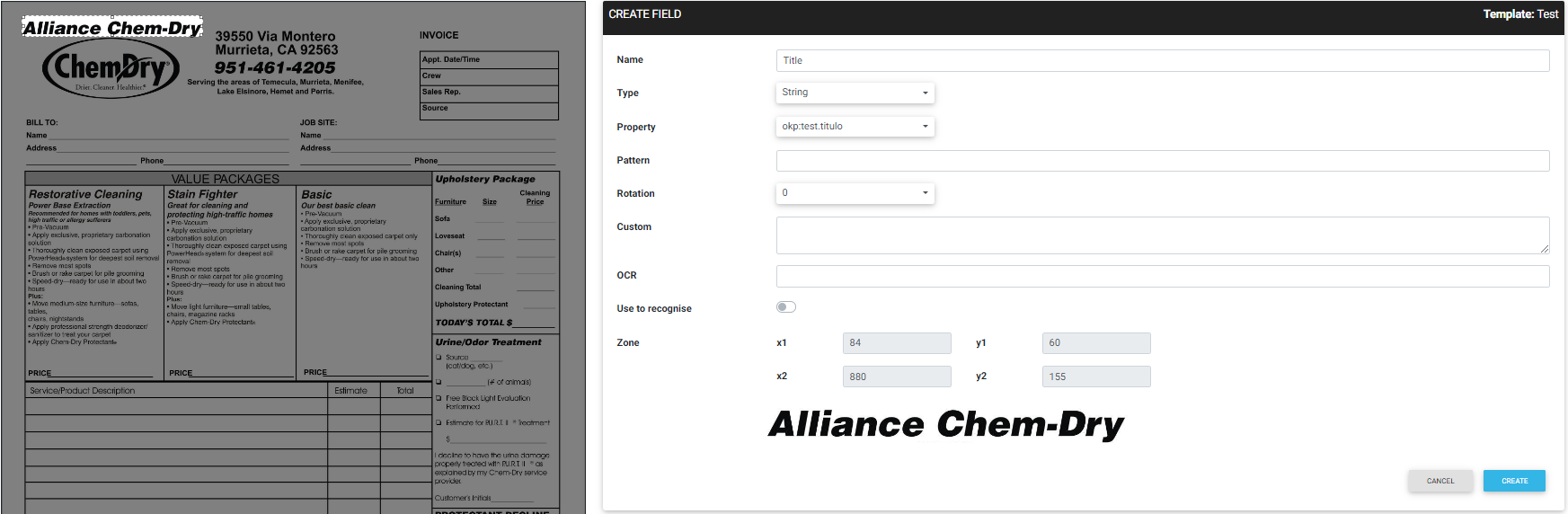
Each Data Capture field is composed of:
| Field | Description | Required |
|---|---|---|
| Name | Name of the field. | true. |
| Order | Order of evaluation. | true. |
| Type | List of the OCR Data Capture. | true. |
| Property | Metadata field where the captured data will be stored. | true. |
| Pattern | A Java regex pattern. | * |
| Rotation | Indicates the image rotation that must be applied. Available image rotations: - -270 - -180 - -90 - 0 - 90 - 180 - 270 |
true. |
| Custom | Sets commands to process images for the OCR. Several commands can be set, one per line. For example, to highlight the red color /usr/bin/convert ${fileIn} -matte ( +clone -fuzz 50% -transparent red ) -compose DstOut -composite -negate ${fileOut} |
false. |
| OCR | OCR command line. When present, it will be executed in place of the system.ocr configuration parameter. More information Configuration parameters. For example, to force digit capture. /usr/bin/tesseract ${fileIn} ${fileOut} digits |
false. |
| Use to recognise | When set to true, it indicates that the field will also be used in the recognise stage. | false. |
| * This parameter is used in the Data Capture. It can be required or not depending on which Data Capture is used. |
Understanding OCR Validation Control and OCR Data Capture
Section titled “Understanding OCR Validation Control and OCR Data Capture”The application provides a complete list of available OCR Validation Controls and OCR Data Capture in the Plugins view. The application’s plugins architecture helps administrators add new features to the application.
By default, the application comes with built-in plugins:
You can also create your own plugins:
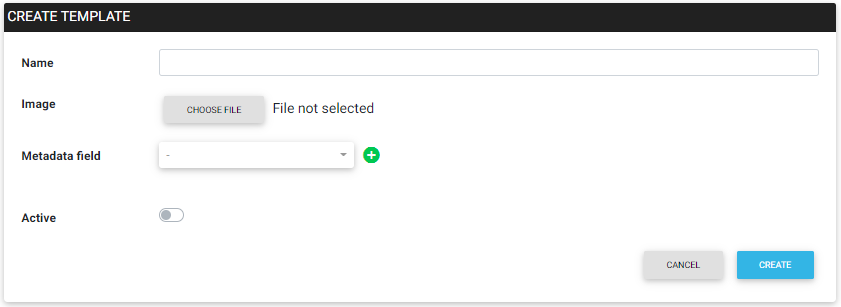
Create a new OCR template
Section titled “Create a new OCR template”- On the top right, click
 New OCR template icon.
 - Fill in the fields.
- Metadata field (static metadata values, normally used to identify document type).
- Choose the file (allowed MIME types).
- Click on the Create button.
- Add Validation Control fields according to your convenience.
- Validation Controls
- Click on
 Fields.
- To create a new Validation Control:
- Click on
 New Validation Control Field icon.
 - Fill in the fields.
- Choose the area with the mouse on the left image.
- Click on the Create button.
- Click on
- To edit a Validation Control:
- Click on
 Edit a Validation Control icon.
 - Modify the fields.
- Click on the Edit button.
- Click on
- To delete a Validation Control:
- Click on
 Delete a Validation Control icon.
 - Click on the Delete button.
- Click on
- To create a new Validation Control:
- Click on
- Validation Controls
- Add Data Capture fields according to your convenience.
- Data Capture
- Click on Fields.
- To create a new Data Capture
- Click on New Data Capture Field icon.
- Fill in the fields.
- Choose the area with the mouse on the left image.
- Click on the Create button.
- Click on
- To edit a Data Capture:
- Click on Edit a Data Capture icon.
- Modify the fields.
- Click on the Edit button.
- Click on
- To delete a Data Capture:
- Click on Delete a Data Capture icon.
- Click on the Delete button.
- Click on
- Click on
- Data Capture
Edit an OCR template
Section titled “Edit an OCR template”- Click on Edit OCR template icon.
- Modify the fields.
- Click on the Edit button.
Edit OCR template fields
Section titled “Edit OCR template fields”Edit an OCR Validation Control
Section titled “Edit an OCR Validation Control”Click on Fields.
- Click on Edit a Validation Control icon.
- Modify the fields.
- Click on the Edit button.
Edit an OCR Data Capture
Section titled “Edit an OCR Data Capture”Click on Fields.
- Click on Edit a Data Capture icon.
- Modify the fields.
- Click on the Edit button.
Delete OCR template fields
Section titled “Delete OCR template fields”Delete an OCR Validation Control
Section titled “Delete an OCR Validation Control”Click on Fields.
- Click on Delete a Validation Control icon.
- Click on the Delete button.
Delete an OCR Data Capture
Section titled “Delete an OCR Data Capture”Click on Fields.
- Click on Delete a Data Capture icon.
- Click on the Delete button.
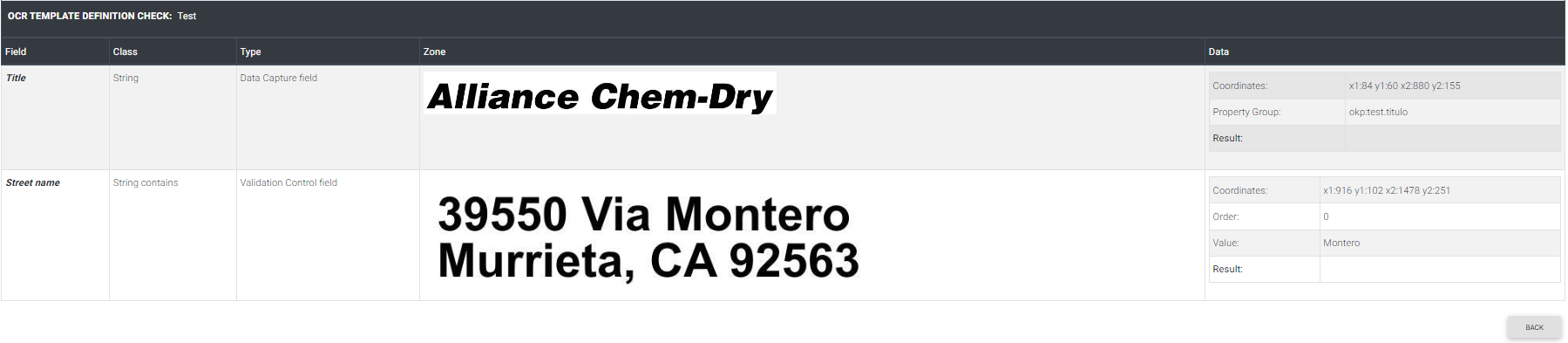
Check OCR template
Section titled “Check OCR template”- Click on
 the Check icon and the OCR template will be checked.
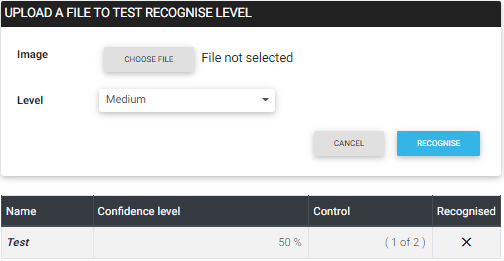
Recognise a document
Section titled “Recognise a document”- On the top right, click on
 Recognise icon.
 - Choose the file to be recognised (allowed MIME type).
- Choose the recognition level.
- Click on the Recognise button.
Delete an OCR template
Section titled “Delete an OCR template”- Click on Delete OCR template icon.
- Click on the Delete button.
Enable OCR Data Capture
Section titled “Enable OCR Data Capture”| Feature | Description |
|---|---|
| Profile General tab | When the OCR data capture is enabled from the Profile General tab, the OCR Data Capture process will be executed automatically for each newly uploaded document. If an automation definition is present, these parameters have no effect. With the automation feature, all these cases and more are covered. |
| Automation | Validations: - Is OCRDataCaptureFile More information about Built-in Automation Validator plugins. Actions: - OCR DataCapture - Add OCRDataCaptureToWizard More information about Built-in Automation Action plugins. |