Development tips
Tomcat application deployment
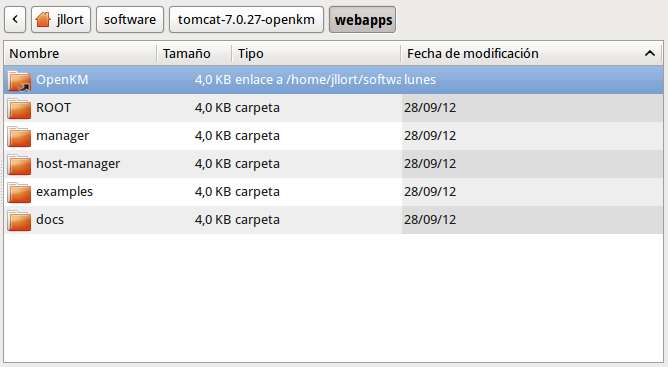
Section titled “Tomcat application deployment”For faster development we recommend not deploying OpenKM_.war_ directly; instead, create in $TOMCAT_HOME/webapps a folder alias of target/openkm:
Compile only the GWT frontend module
Section titled “Compile only the GWT frontend module”To compile GWT modules individually execute the command:
$ mvn gwt:compile -Dgwt.module=com.openkm.frontend.MainConfigure GWT build from Eclipse
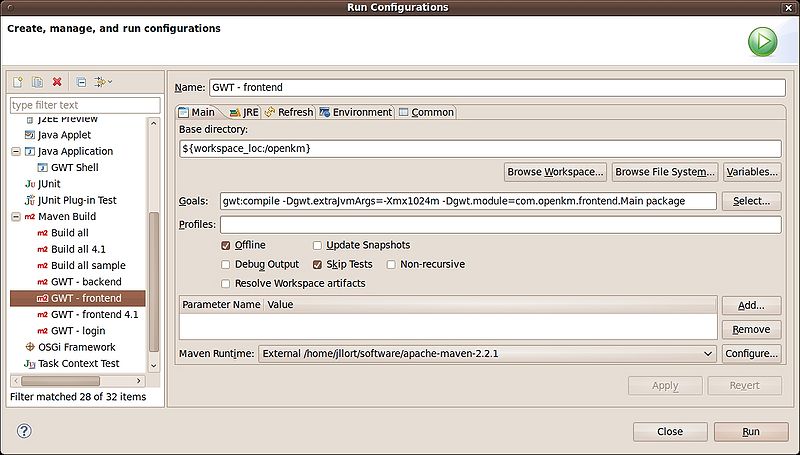
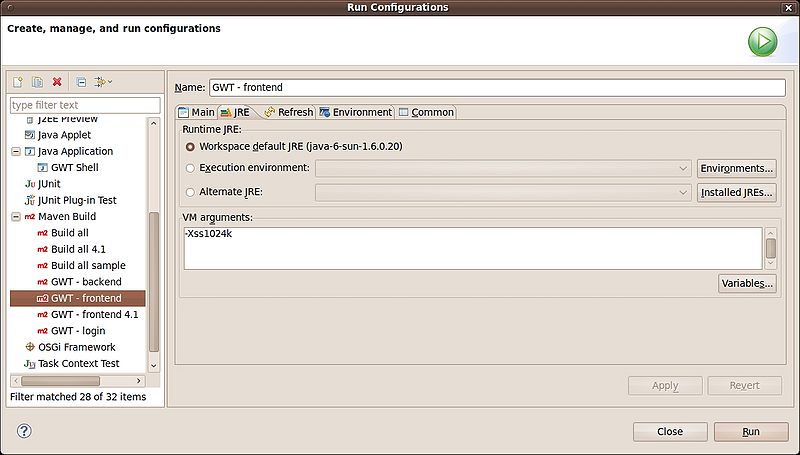
Section titled “Configure GWT build from Eclipse”Go to “Run configurations”, choose “Maven build” and click the “right mouse button” to “add” a new Maven build.
Compile only one GWT frontend permutation
Section titled “Compile only one GWT frontend permutation”GWT, by default, compiles six permutations, each for different browsers. Each permutation consumes a lot of hardware resources (RAM and CPUs).
Enable only Firefox permutation
Section titled “Enable only Firefox permutation”Edit the main.gwt.xml file in the OpenKM project:
<!-- Compile for Firefox only --><set-property name="user.agent" value="gecko1_8"/>Enable only Chrome permutation
Section titled “Enable only Chrome permutation”Edit the main.gwt.xml file in the OpenKM project:
<!-- Compile for Firefox only --><set-property name="user.agent" value="safari"/>Enable only IE permutation
Section titled “Enable only IE permutation”Edit the main.gwt.xml file in the OpenKM project:
<!-- Compile for Firefox only --><set-property name="user.agent" value="ie8"/>Configure the number of CPUs to be used for compiling the GWT frontend
Section titled “Configure the number of CPUs to be used for compiling the GWT frontend”The GWT compilation process can use more than one CPU. You can set the number of CPUs to be used with “localWorkers” parameter.
Edit the pom.xml project file.
<plugins> <plugin> <groupId>org.codehaus.mojo</groupId> <artifactId>gwt-maven-plugin</artifactId> <version>${gwt.version}</version> <executions> <execution> <goals> <goal>compile</goal> <!-- <goal>generateAsync</goal> --> <!-- <goal>test</goal> --> </goals> </execution> </executions> <configuration> <runTarget>com.openkm.frontend.Main/index.html</runTarget> <modules> <module>com.openkm.frontend.Main</module> </modules> <localWorkers>4</localWorkers> </configuration> </plugin>Deploying script sample
Section titled “Deploying script sample”You can use a deployment script:
#!/bin/bash# @author: Kenneth Walter
#Cleans and re-compiles the source filesmvn -Dmaven.test.skip=true clean gwt:compile install $*
#Set the TARGET_DIRECTORY to the path of your tomcat installationTARGET_DIRECTORY=~/Downloads/tomcat-8.5.69/FILE_TO_MOVE=target/openkm.war#This will only attempt to replace the existing WAR if the new WAR existsif [ -f $FILE_TO_MOVE ]then   echo 'Deploying WAR to Tomcat Directory'   cp -v $FILE_TO_MOVE $TARGET_DIRECTORY/webapps/.   echo 'Done'fi