Guía del usuario
El frontend de OpenKM es la vista de back office sobre el repositorio de contenido. Las funcionalidades se organizan en varias secciones:
- La Menu bar, en la parte superior, donde están disponibles todas las funcionalidades organizadas por tipo.
- El Quick search box, en la parte superior derecha.
- La Toolbar, donde están las funcionalidades más utilizadas.
- La pestaña Desktop permite navegar por el repositorio.
- La pestaña Search permite consultar el repositorio.
- La pestaña Dashboard proporciona un conjunto de paneles de control.
- La pestaña Administration proporciona un conjunto de herramientas de administración.
- El panel Status, en la parte inferior, proporciona información general.
El frontend de OpenKM le permite gestionar cualquier contenido: imágenes escaneadas, fotografías, documentos ofimáticos e incluso archivos de vídeo grandes o archivos CAD, entre otros. También permite actividades sociales en torno al contenido para conectar personas con personas, información con información y personas con información, lo que ayuda a gestionar de forma más eficiente la inteligencia colectiva de la empresa.
La funcionalidad de Perfiles de OpenKM ayuda a los administradores a establecer qué se muestra a cada usuario de la aplicación.
OpenKM proporciona la solución para:
- Controlar el creciente volumen de información que se debe gestionar.
- Acabar con la diversificación de las fuentes de almacenamiento de información.
- Evitar la duplicación de la información.
- Obtener información válida mediante el control de las versiones de los documentos.
- Reducir el tiempo y los recursos empleados en localizar información.
- Evitar fugas de conocimiento o accesos indebidos de los usuarios, cumpliendo así las obligaciones establecidas en la LOPD (Ley Orgánica de Protección de Datos).
- Restringir el acceso a la información a los usuarios no autorizados.
Gracias al sistema OpenKM, toda la información relevante y valiosa puede consultarse y encontrarse más rápidamente para resolver problemas y tomar decisiones.
Menu bar
Sección titulada «Menu bar»La barra de menú de la parte superior tiene todas las funcionalidades organizadas por tipo:
- File.
- Edit.
- Tools.
- Bookmarks.
- Templates.
- Help.

Quick search box
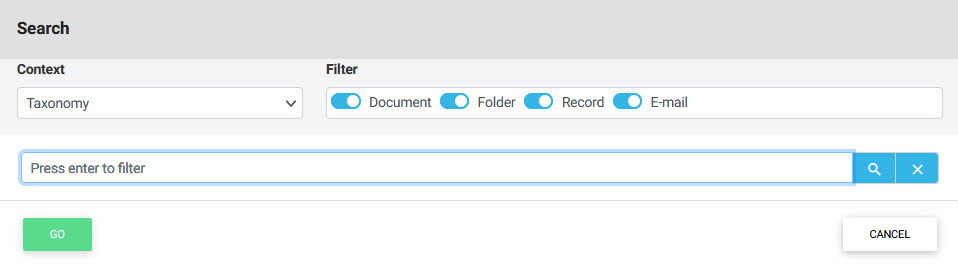
Sección titulada «Quick search box»El Quick search box está en la esquina superior derecha. Proporciona un acceso rápido a la Default search del panel Search.
Barra de herramientas
Sección titulada «Barra de herramientas»La sección de la barra de herramientas contiene las funcionalidades más utilizadas, como descargar documentos, crear nuevas carpetas, editar o subir archivos, entre otras.

Desktop
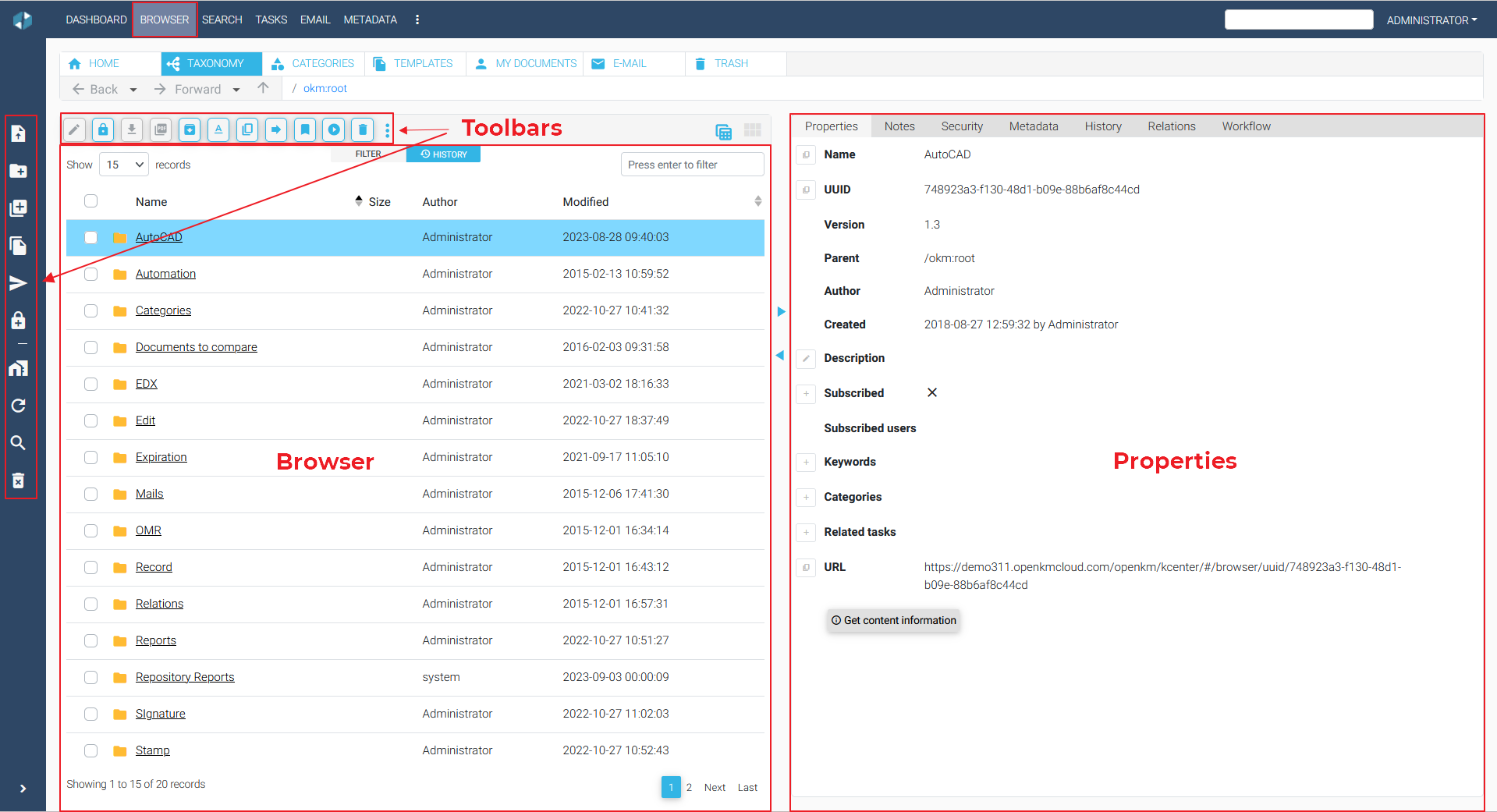
Sección titulada «Desktop»La mayor parte de la actividad del usuario se realiza aquí. Los usuarios pueden trabajar directamente sobre carpetas, documentos, correos o expedientes.
El escritorio se distribuye en tres secciones:
- Panel de Navigation en el lado izquierdo.
- Panel de Browser en la parte superior central.
- Panel de Properties en la parte inferior central.
Navigation
Sección titulada «Navigation»La navegación del lado izquierdo es un panel de pilas (stack). Cada pila contiene una estructura de árbol (jerarquía de carpetas y registros) desde la raíz que permite acceder fácilmente a documentos y correos.
Browser
Sección titulada «Browser»El panel del navegador, en la parte superior central, muestra una tabla de nodos (documentos, carpetas, correos y registros) que se encuentran en el nodo seleccionado del panel de navegación.
Properties
Sección titulada «Properties»El panel de propiedades, en la parte inferior central, muestra un conjunto de pestañas que contienen las propiedades agrupadas o funcionalidades, como la vista previa, asociadas al nodo seleccionado. El nodo seleccionado puede ser un nodo del navegador de árbol o un nodo de la tabla del navegador.
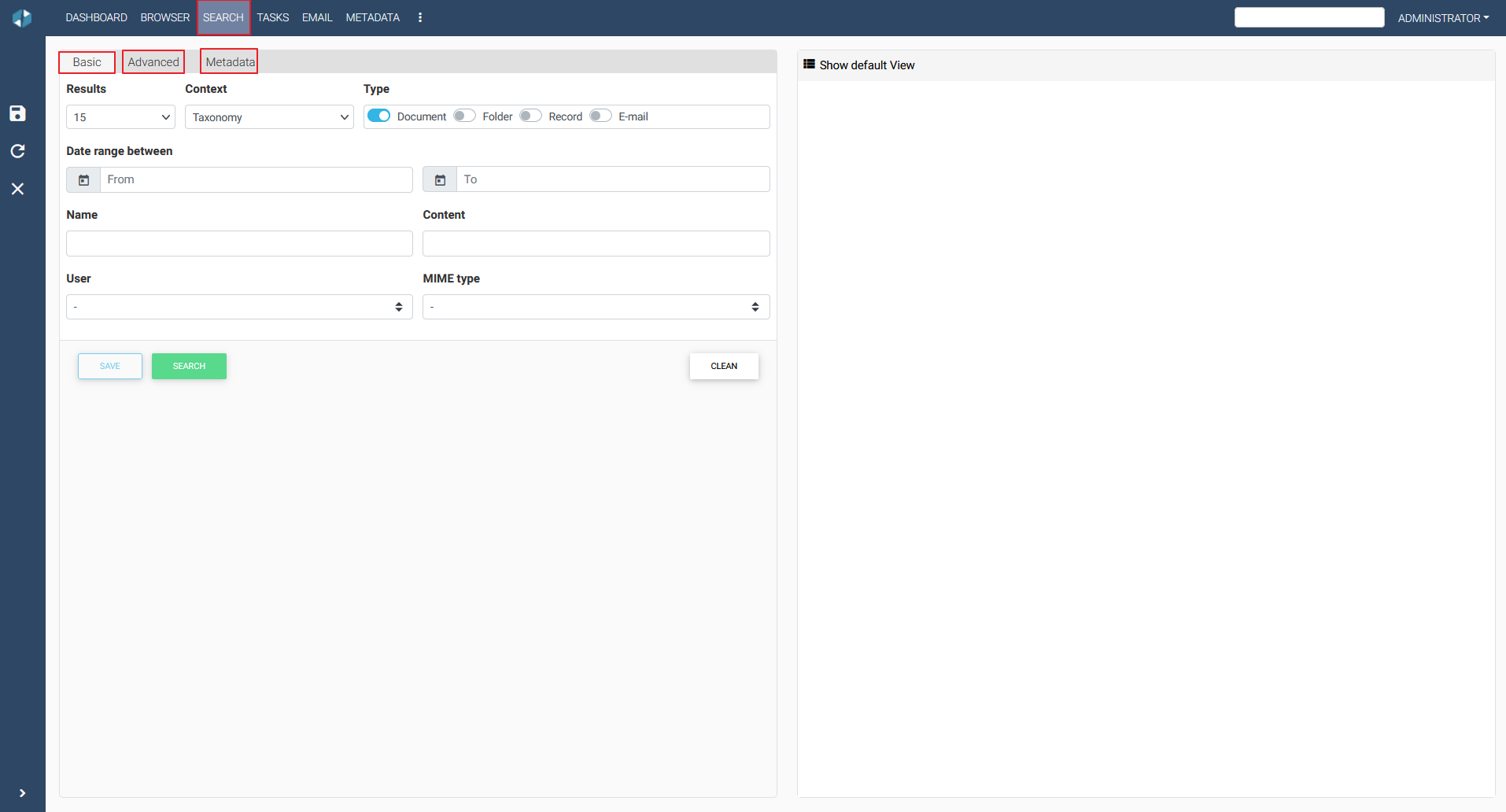
La pestaña search permite consultar el repositorio. Esta pestaña da acceso a distintas búsquedas para consultar el contenido de la aplicación:
- La búsqueda por defecto es una búsqueda de texto completo. La búsqueda por defecto también está disponible en la esquina superior derecha de la pantalla.
- La búsqueda avanzada permite buscar por palabras clave, metadatos y criterios adicionales, como la ubicación en la aplicación.
Dashboard
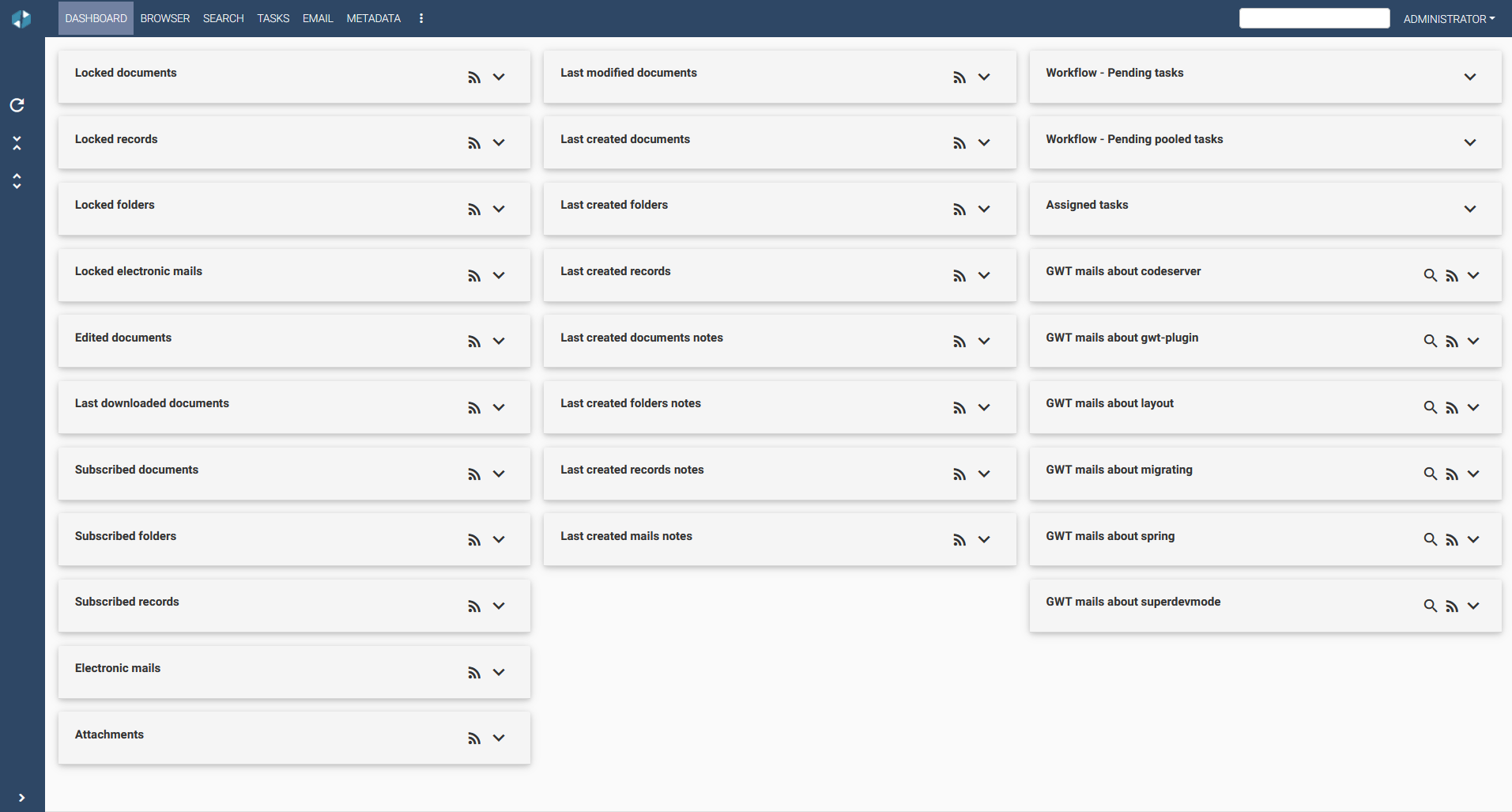
Sección titulada «Dashboard»El panel de control proporciona un conjunto de paneles; cada usuario dispone de un conjunto de paneles personales que muestran la información relevante para él y ayudan a tener una visión global de la actividad de la aplicación.
El panel del dashboard:
- User view. Muestra las acciones que se han realizado en el sistema.
- General view. Muestra una visión global de la actividad de la aplicación.
- News. Muestra información basada en las consultas de búsqueda programadas por el usuario.
Administration
Sección titulada «Administration»El panel de administración es un conjunto de herramientas que ayuda al administrador a gestionar la aplicación.
El panel de estado proporciona información general:
- Alerta de noticias de OpenKM.
- El usuario conectado.
- Tamaño del repositorio del usuario.
- Chat.
- Alertas.
- Documentos HTML en edición.
- Panel de mensajes.
