Configuring Apache HTTP Reverse-Proxy
Exposing OpenKM directly from Tomcat can be risky. If you need the application to be accessed from the Internet (for example https://issues.jboss.org/browse/JBAS-3861), it could be infected by PerlBot. 8080 may be blocked by a firewall, for this reason is a recommendable to expose your OpenKM installation through the standard web port 80. In the following steps we explain how to configure Apache to handle these requests and forward them to the Tomcat application server using the AJP13 protocol.
From the Apache documentation: The AJP13 protocol is packet-oriented. A binary format was presumably chosen over the more readable plain text for performance reasons. The web server communicates with the servlet container over TCP connections. To cut down on the expensive process of socket creation, the web server will attempt to maintain persistent TCP connections to the servlet container, and to reuse a connection for multiple request/response cycles.
Internal IP vs external IP
Section titled “Internal IP vs external IP”Your OpenKM can be accessed from two different zones: Internet and LAN. This means that to access this server you need to use two IPs: external IP (Internet) and internal IP (LAN).
The internal IP address (also known as “local IP address”) is the address that is assigned by your local network router that often begins with 192.168.x.x. These IP addresses can only be seen by other computers in your local network (LAN) and not by any computers connected in an external network such the Internet.
To reach the Internet or a computer in another network your computer is often assigned an external IP address, which can then be used to refer to the computer in your local network.
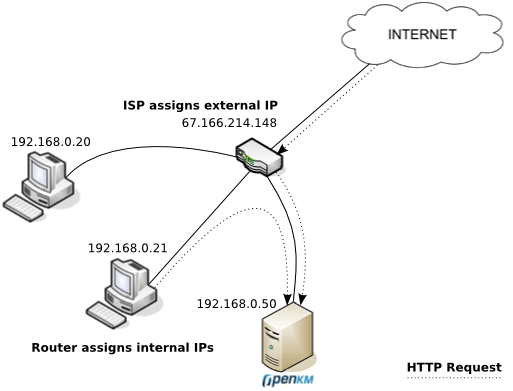
In the above picture, there are three computers in the local network that have each been assigned their own internal IP address by the router. The ISP is connected to the router and gives the router an external IP address that allows it to communicate with the Internet. On the Internet everyone sees your external IP address, but any information coming from the router is “converted” from the external IP address to the internal IP address.
So if you want your OpenKM installation accessible from both LAN and Internet, the trick here is to configure the client computers to resolve your internal IP (192.168.0.50) if they are inside the LAN or the external IP if they are on Internet. To resolve the Internet IP (67.166.214.148) your computer uses the public DNS. So, you need to configure a sort of DNS server inside the LAN or modify every client host file to resolve to the internal IP.
Debian and Ubuntu
Section titled “Debian and Ubuntu”The first thing is to install the required Apache software. From Debian / Ubuntu you can install Apache with a single command:
$ sudo apt-get install apache2Edit the file named /etc/apache2/apache2.conf and configure a ServerName to prevent warnings in the Apache startup process:
$ vim /etc/apache2/apache2.confServerRoot "/etc/apache2"ServerName "your-domain.com"Enable the proxy module:
$ sudo a2enmod proxy_ajp$ sudo a2enmod proxy_wstunnelCreate the configuration file /etc/apache2/sites-available/openkm.conf with this content:
$ vim /etc/apache2/sites-available/openkm.conf<VirtualHost *:80> ServerName openkm.your-domain.com RedirectMatch ^/$ /OpenKM # WebSocket support - needs proxy-wstunnel ProxyPass /OpenKM/frontend/webSocket ws://127.0.0.1:8080/OpenKM/frontend/webSocket ProxyPassReverse /OpenKM/frontend/webSocket ws://127.0.0.1:8080/OpenKM/frontend/webSocket ProxyPass /OpenKM ajp://127.0.0.1:8009/OpenKM keepalive=On ProxyPassReverse /OpenKM http://openkm.your-domain.com/OpenKM ErrorLog /var/log/apache2/openkm-error.log CustomLog /var/log/apache2/openkm-access.log combined</VirtualHost>The VirtualHost ServerName must be other than ServerName in the main Apache configuration. Enable this site configuration:
$ cd /etc/apache2/sites-available/$ sudo a2ensite openkm.confYou have to explicitly enable the proxy access by editing the Apache configuration file /etc/apache2/mods-available/proxy.conf:
$ vim /etc/apache2/mods-available/proxy.conf<IfModule mod_proxy.c> #turning ProxyRequests on and allowing proxying from all may allow #spammers to use your proxy to send emails.
ProxyRequests Off
<Proxy *> AddDefaultCharset off Order deny,allow Allow from all Deny from all #Allow from .example.com </Proxy>
# Enable/disable the handling of HTTP/1.1 "Via:" headers. # ("Full" adds the server version; "Block" removes all outgoing Via: headers) # Set to one of: Off | On | Full | Block
ProxyVia On</IfModule>Check the configuration
Section titled “Check the configuration”Restart Apache:
$ sudo /etc/init.d/apache2 restartCheck the access to your OpenKM installation from http://openkm.your-domain.com/.
Red Hat and CentOS
Section titled “Red Hat and CentOS”Use the yum application manager to install Apache:
$ sudo yum install httpdEnable it at boot:
$ sudo chkconfig httpd --level 2345 onNow create the file /etc/httpd/conf.d/openkm.conf with this content:
$ vim /etc/httpd/conf.d/openkm.conf<VirtualHost *:80> ServerName openkm.your-domain.com RedirectMatch ^/$ /OpenKM # WebSocket support ProxyPass /OpenKM/frontend/webSocket ws://127.0.0.1:8080/OpenKM/frontend/webSocket ProxyPassReverse /OpenKM/frontend/webSocket ws://127.0.0.1:8080/OpenKM/frontend/webSocket ProxyPass /OpenKM ajp://127.0.0.1:8009/OpenKM keepalive=On ProxyPassReverse /OpenKM http://openkm.your-domain.com/OpenKM ErrorLog /var/log/httpd/openkm-error.log CustomLog /var/log/httpd/openkm-access.log combined</VirtualHost>Check the configuration
Section titled “Check the configuration”Restart Apache:
$ sudo /etc/init.d/httpd restartCheck the access to your OpenKM installation from http://openkm.your-domain.com/.
Error Permission denied: proxy: AJP: attempt to connect
Section titled “Error Permission denied: proxy: AJP: attempt to connect”If in the log appears an error like Permission denied: proxy: AJP: attempt to connect to solve executing the next command:
$ /usr/sbin/setsebool httpd_can_network_connect 1If it works then set the configuration permanent to persist across reboots:
$ /usr/sbin/setsebool -P httpd_can_network_connect 1Windows
Section titled “Windows”Install the apache webserver from http://httpd.apache.org/download.cgi (windows binary no mod_ssl)
Edit the C:Program files\Apache Software Foundation\Apache2.2\conf\httpd.conf file.
# Enable proxy modulesLoadModule proxy_module modules/mod_proxy.soLoadModule proxy_ajp_module modules/mod_proxy_ajp.so
#Add in bottomNameVirtualHost *:80<VirtualHost *:80>  ServerName openkm.your-domain.com  RedirectMatch ^/$ /OpenKM
  ProxyRequests Off  ProxyVia On
  <Proxy *>    AddDefaultCharset off    Order deny,allow    Allow from all    Deny from All  </Proxy>   # WebSocket support   ProxyPass /OpenKM/frontend/webSocket ws://127.0.0.1:8080/OpenKM/frontend/webSocket   ProxyPassReverse /OpenKM/frontend/webSocket ws://127.0.0.1:8080/OpenKM/frontend/webSocket   ProxyPass /OpenKM ajp://127.0.0.1:8009/OpenKM keepalive=On   ProxyPassReverse /OpenKM http://openkm.your-domain.com/OpenKM
ErrorLog logs/openkm-error_log CustomLog logs/openkm-access_log common</VirtualHost>Max OS X
Section titled “Max OS X”Edit the file called /etc/apache2/apache2.conf and configure a ServerName, enable proxy modules and mod_proxy:
ServerRoot "/usr"ServerName "openkm.your-domain.com"
LoadModule proxy_module libexec/apache2/mod_proxy.soLoadModule proxy_ajp_module libexec/apache2/mod_proxy_ajp.so
<IfModule mod_proxy.c> ProxyRequests Off <Proxy "*"> AddDefaultCharset off Allow from all Deny from all Order Deny,Allow </Proxy> ProxyVia On</IfModule>Now create the configuration file /etc/apache2/sites/openkm.conf with this content:
<VirtualHost *:80>  ServerName openkm.your-domain.com  RedirectMatch ^/$ /OpenKM  # WebSocket support  ProxyPass /OpenKM/frontend/webSocket ws://127.0.0.1:8080/OpenKM/frontend/webSocket  ProxyPassReverse /OpenKM/frontend/webSocket ws://127.0.0.1:8080/OpenKM/frontend/webSocket  ProxyPass /OpenKM ajp://127.0.0.1:8009/OpenKM keepalive=On  ProxyPassReverse /OpenKM http://openkm.your-domain.com/OpenKM
  ErrorLog /var/log/apache2/openkm-error.log  CustomLog /var/log/apache2/openkm-access.log combined</VirtualHost>
Check the configuration
Section titled “Check the configuration”Restart Apache:
Check the access to your OpenKM installation from http://openkm.your-domain.com/.
Troubleshooting
Section titled “Troubleshooting”If you see an error message like:
You need to enable this Apache module:
$ sudo a2enmod rewrite$ sudo a2enmod proxy_http$ sudo a2enmod headers