Quick start
With OpenKM it’s simply to store and share information and collaborate effectively.
This quick start guide give you an introduction to some of the features of the OpenKM:
- Logging in.
- Create a taxonomy.
- Add documents.
- Edit documents.
- Search documents.
Loggin in
Section titled “Loggin in”You need to log in to OpenKM.
- Enter the following on the login page:
- Username: your username.
- Password: your password.
- Choose your language.
- Click on Login button.
Create a taxonomy
Section titled “Create a taxonomy”The first step should be analyse the company organization and define a set of folder hierarchy to store the documents organized. Take this one as a sample:
| /okm:root/ | 2015/ | invoices/ |
| human resources/ | ||
| marketing/ | ||
| 2016/ | invoices/ | |
| human resources/ | ||
| marketing/ |
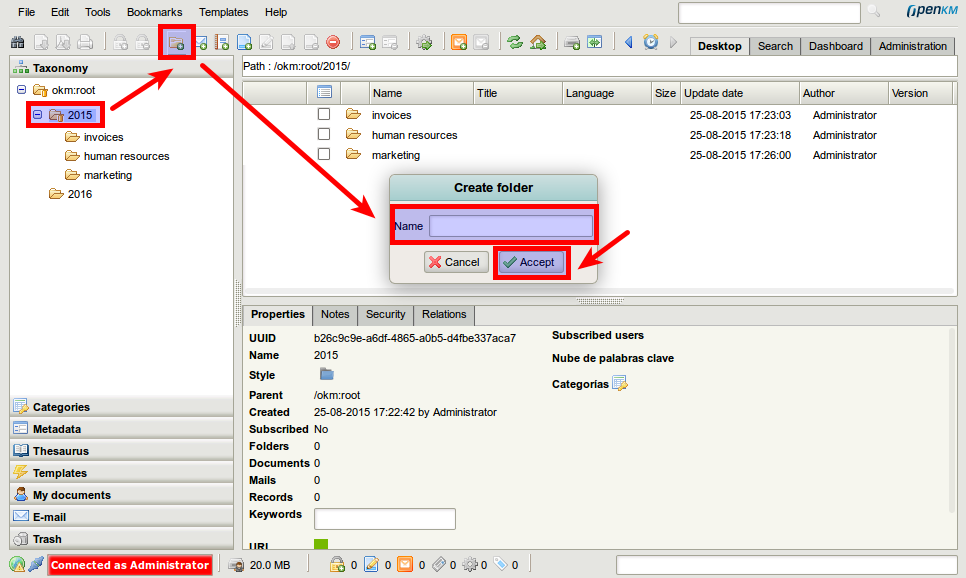
To create a folder:
- Select a node from taxonomy where to create the folder.
- Click on
 folder icon at tool bar.
 - Set the name.
- Click on Accept button.
Add documents
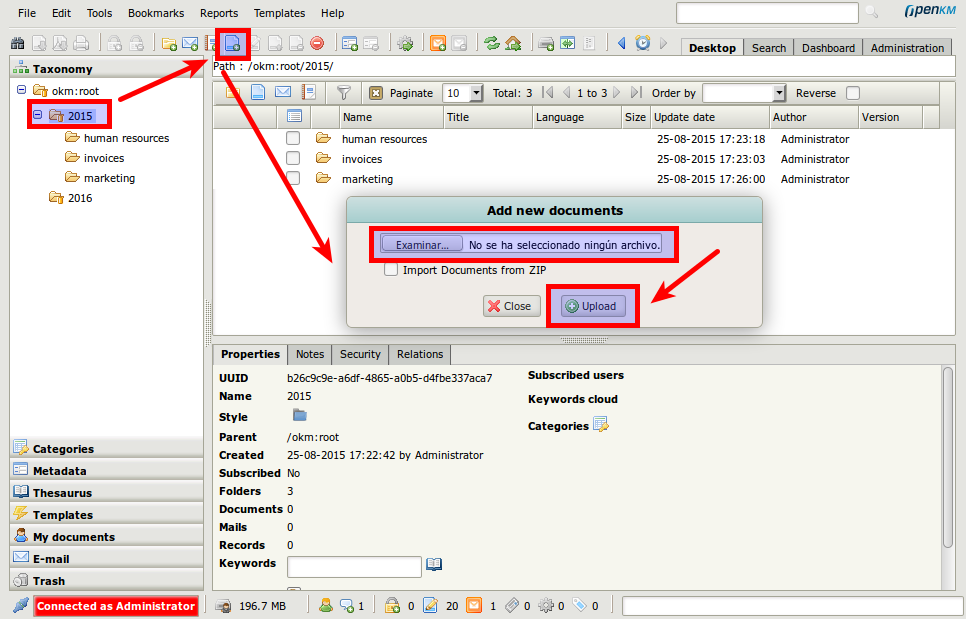
Section titled “Add documents”- Select a node from taxonomy where to add the document.
- Click the
 add document icon from the toolbar.
 - Select the document from your computer.
- Click Upload button.
Edit documents
Section titled “Edit documents”The document edition is based on the “check-out / check-in” model.
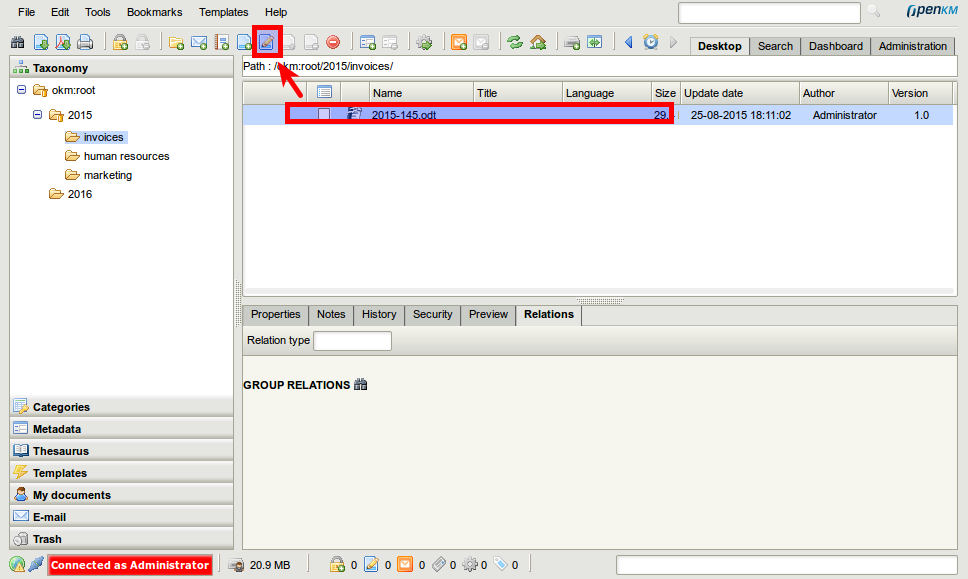
First must check-out the document:
- Select a document.
- Click on
 Edit icon.
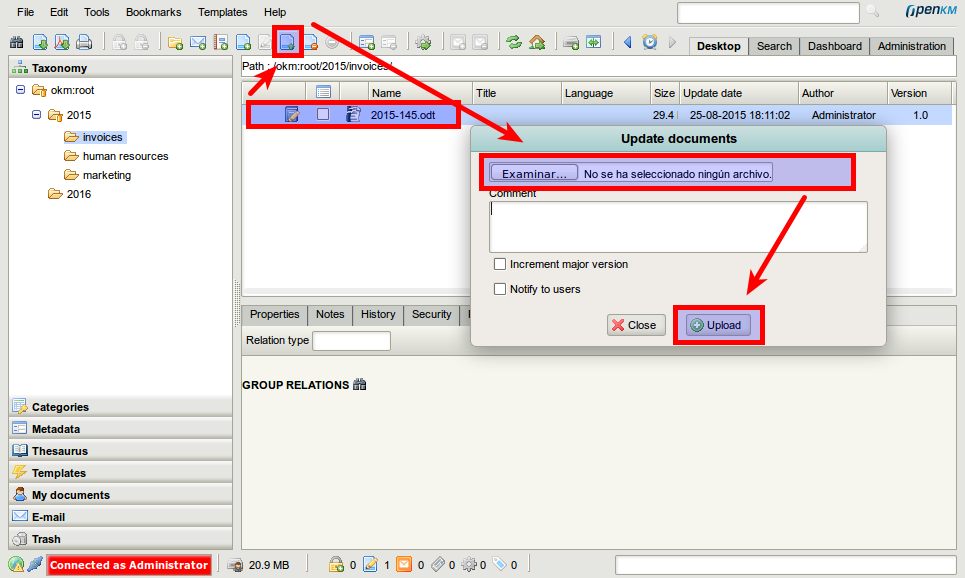
Finally check-in the document to upload the changes:
- Select the edited document.
- Click on
 Update icon.
 - Select the document from your computer.
- Click Upload button.
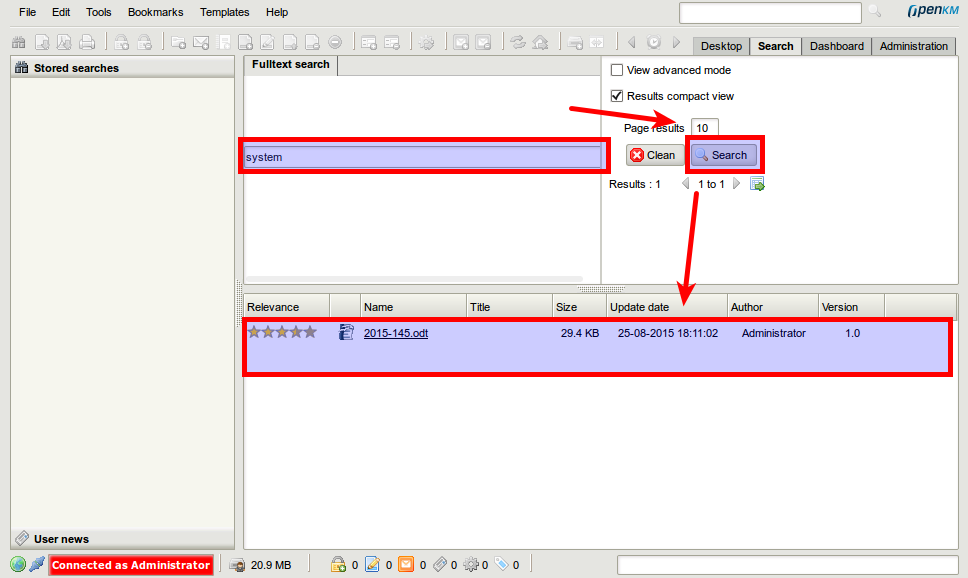
Search documents
Section titled “Search documents”- Go to search view.
- Write the term for the query.
- Click on Search button.