Introducing to reports based on SQL
- Install iReport tool.
- Execute iReport tool.
Create datasource
Section titled “Create datasource”- Click on Report datasources button.

- Click on New button.
- Choose “Database JDBC connection” option.
- Click on Next button.
- Set the name.
- Choose the JDBC driver.
- Click on Text button to check the connection parameters.
- Click on Save button.
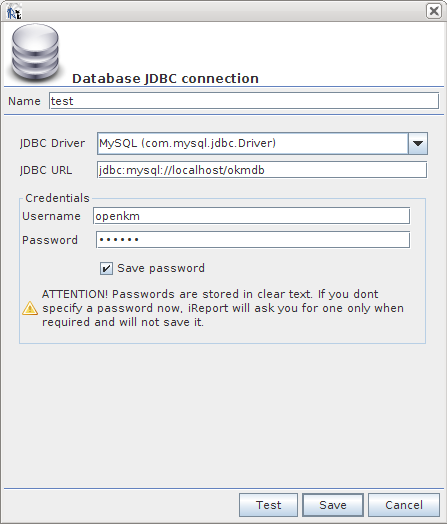
- Check as default checkbox.
- Click on Close button.
Testing SQL sample report
Section titled “Testing SQL sample report”- Download the SQLReportPattern.jrxml file.
- Open the file.
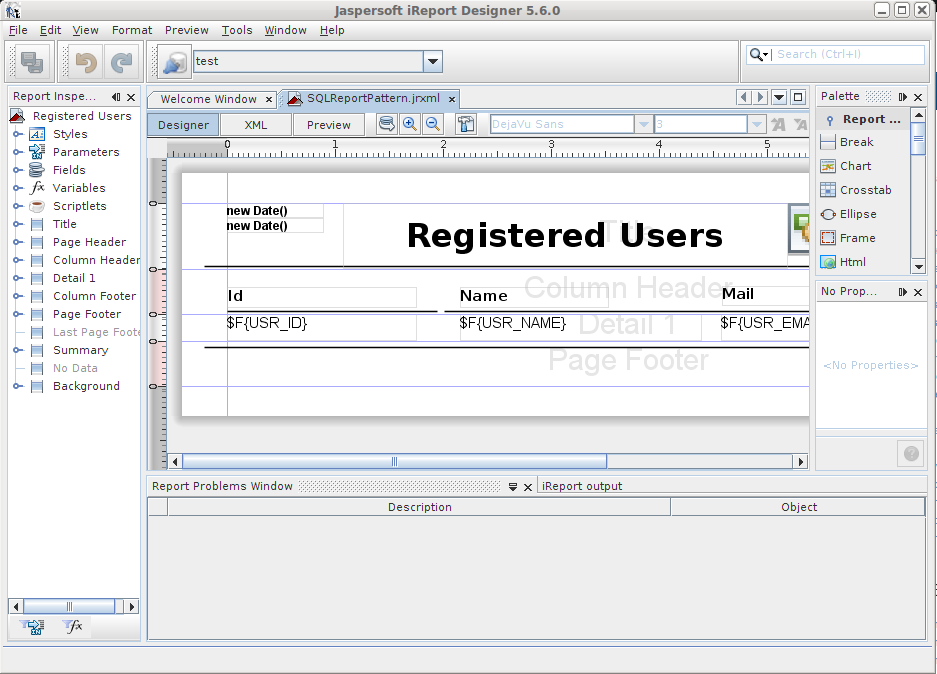
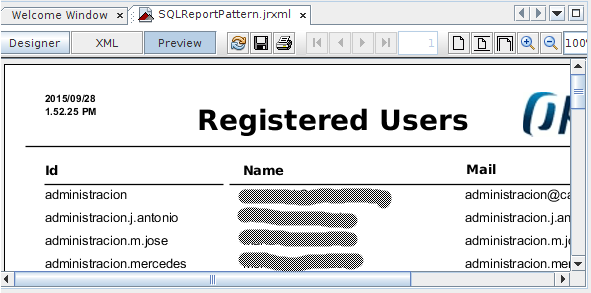
- Click on Preview tab.
- Set the host value ( for example http://localhost:8080/OpenKM ).
- Click on Designer tab.
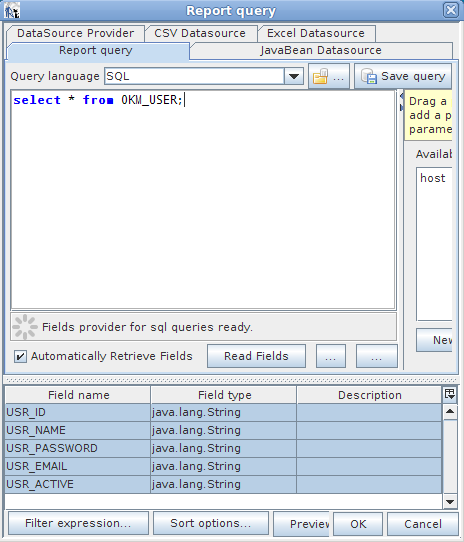
- Click on
 report query button.
Closer look into JRXML file
Section titled “Closer look into JRXML file”The iReport tool is creating for you the jasper report file in XML format.
Query section
Section titled “Query section”<queryString> <![CDATA[select * from OKM_USER;]]></queryString>Fields section
Section titled “Fields section”<field name="USR_ID" class="java.lang.String"/><field name="USR_NAME" class="java.lang.String"/><field name="USR_PASSWORD" class="java.lang.String"/><field name="USR_EMAIL" class="java.lang.String"/><field name="USR_ACTIVE" class="java.lang.String"/>Remote image section
Section titled “Remote image section”<imageExpression><![CDATA[$P{host}+"/logo/report"]]></imageExpression>Using fields in report
Section titled “Using fields in report”<textField isBlankWhenNull="false"> <reportElement key="textField" x="329" y="0" width="206" height="18" uuid="5e3e2df8-a99b-4ce2-aab9-9adb97bc4dc9"/> <textElement> <font fontName="Arial"/> </textElement> <textFieldExpression><![CDATA[$F{USR_EMAIL}]]></textFieldExpression></textField>