Configuring Apache HTTP Reverse-Proxy ( Windows )
Exposing OpenKM directly from Tomcat can be dangerous if you need the application to be accessed from the Internet (for example https://issues.jboss.org/browse/JBAS-3861). As a result you can be infected by PerlBot. Also port 8080 may be blocked by a firewall. For these reasons, it is a good practice to expose your OpenKM installation through the standard web port 80. In the following steps we explain how to configure Apache to handle these requests and forward them to the Tomcat application server using the AJP13 protocol.
From the Apache documentation: The AJP13 protocol is packet-oriented. A binary format was presumably chosen over the more readable plain text for performance reasons. The web server communicates with the servlet container over TCP connections. To cut down on the expensive process of socket creation, the web server will attempt to maintain persistent TCP connections to the servlet container, and to reuse a connection for multiple request/response cycles.
Internal IP vs external IP
Section titled “Internal IP vs external IP”Your OpenKM can be accessed from two different zones: Internet and LAN. This means that to access this server you need to use two IP addresses: external IP (Internet) and internal IP (LAN).
The internal IP address (also known as “local IP address”) is the address that is assigned by your local network router and often begins with 192.168.x.x. These IP addresses can only be seen by other computers in your local network (LAN) and not by any computer connected in an external network such as the Internet.
To reach the Internet or a computer in another network your computer is often assigned an external IP address, which can then be used to refer to the computer in your local network.
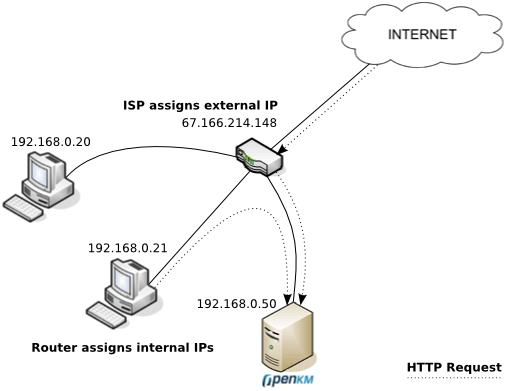
In the above picture, there are three computers in the local network that have each been assigned their own internal IP address by the router. The ISP is connected to the router and gives the router an external IP address that allows it to communicate with the Internet. On the Internet everyone sees your external IP address, but any information coming from the router is “converted” from the external IP address to the internal IP address.
So if you want your OpenKM installation to be accessible from both LAN and Internet, the trick here is to configure the client computers to resolve your internal IP (192.168.0.50) if they are inside the LAN or the external IP if they are on the Internet. To resolve the Internet IP (67.166.214.148) your computer uses the public DNS. So, you need to configure a local DNS server inside the LAN or modify every client’s hosts file to resolve to the internal IP.
Installing Apache HTTP Server
Section titled “Installing Apache HTTP Server”Apache does not distribute official Windows binaries. Download a Win64 build, together with the matching Visual C++ Redistributable, from Apache Lounge.
Extract the downloaded ZIP file, which contains an Apache24 folder, directly to the root of C:\, so that it ends up as C:\Apache24. Avoid any path containing spaces, such as Program Files.
Register Apache as a Windows service from an elevated CMD console:
C:\> cd C:\Apache24\binC:\Apache24\bin> httpd.exe -k installCheck that the configuration is valid; it should return Syntax OK:
C:\Apache24\bin> httpd.exe -tStart the service:
C:\Apache24\bin> httpd.exe -k startThe service can also be started, stopped or restarted from the Windows Services panel, looking for Apache2.4.
Browsing to http://localhost/ should show the Apache “It works!” page.
Configuring OpenKM on port 80 (HTTP reverse proxy)
Section titled “Configuring OpenKM on port 80 (HTTP reverse proxy)”Enable the AJP connector on the OpenKM/Tomcat server, editing tomcat\conf\server.xml and uncommenting:
<!-- Define an AJP 1.3 Connector on port 8009 --><Connector protocol="AJP/1.3" secretRequired="false" address="127.0.0.1" port="8009" redirectPort="8443" />Save the file and restart the OpenKM/Tomcat service so the AJP connector starts listening on port 8009.
Unlike Linux, where modules are enabled with a2enmod, the Apache Lounge Windows build already ships every standard module compiled as a .so file under C:\Apache24\modules\. You only need to uncomment the matching LoadModule lines in C:\Apache24\conf\httpd.conf:
LoadModule proxy_module modules/mod_proxy.soLoadModule proxy_ajp_module modules/mod_proxy_ajp.soLoadModule proxy_http_module modules/mod_proxy_http.soLoadModule proxy_wstunnel_module modules/mod_proxy_wstunnel.soLoadModule rewrite_module modules/mod_rewrite.soLoadModule headers_module modules/mod_headers.soInclude the OpenKM configuration file in httpd.conf, next to the other Include directives:
# OpenKMInclude conf/extra/openkm.confCreate C:\Apache24\conf\extra\openkm.conf with this content:
<VirtualHost *:80>  ServerName openkm.your-domain.com  ServerAlias 192.168.10.230  RedirectMatch ^/$ /openkm
  # WebSocket support - needs mod_proxy_wstunnel  ProxyPass /openkm/frontend/webSocket ws://127.0.0.1:8080/openkm/frontend/webSocket  ProxyPassReverse /openkm/frontend/webSocket ws://127.0.0.1:8080/openkm/frontend/webSocket
  ProxyPass /openkm ajp://127.0.0.1:8009/openkm keepalive=On  ProxyPassReverse /openkm http://openkm.your-domain.com/openkm
ErrorLog logs/openkm-error.log CustomLog logs/openkm-access.log combined</VirtualHost>Check the configuration and restart Apache:
C:\> cd C:\Apache24\binC:\Apache24\bin> httpd.exe -tC:\Apache24\bin> httpd.exe -k restartCheck access to your OpenKM installation at http://openkm.your-domain.com/, it should redirect to /openkm and load the application.
Requesting an SSL certificate
Section titled “Requesting an SSL certificate”To serve OpenKM over HTTPS you need a certificate issued by a Certificate Authority. This example uses GoDaddy, but the same procedure applies to any other CA.
Create the certificates folder:
C:\> mkdir C:\Apache24\conf\certsSet the OpenSSL configuration location:
C:\> set OPENSSL_CONF=C:\Apache24\conf\openssl.cnfGenerate the CSR and the private key, run from C:\Apache24\bin, pointing the output paths to certs:
C:\> cd C:\Apache24\binC:\Apache24\bin> openssl.exe req -new -newkey rsa:2048 -nodes -keyout ..\conf\certs\openkm.your-domain.com.key -out ..\conf\certs\openkm.your-domain.com.csrOpenSSL will prompt for the following data:
| Field | Value |
|---|---|
| Common Name | openkm.your-domain.com (must match the domain exactly) |
| Organization | Legal company name |
| Organizational Unit | Optional, can be left blank |
| City/Locality | Full name, not abbreviated |
| State/Province | Full name, not abbreviated |
| Country | 2-letter ISO code (e.g. ES) |
| Passphrase | Leave empty, otherwise Apache will ask for a password every time the service starts |
Open the generated openkm.your-domain.com.csr file with Notepad, copy the full contents (including the -––BEGIN CERTIFICATE REQUEST—– and -––END CERTIFICATE REQUEST—– lines) and paste it into your CA’s certificate request form.
After validating the domain, the CA will provide, among others:
- The domain certificate itself, in text/Base64 format (.pem or .crt).
- The same certificate in binary/DER format – not used by Apache.
- An intermediate certificate bundle (e.g. gd_bundle-g2.crt.pem for GoDaddy).
Copy the certificate and the intermediate bundle into C:\Apache24\conf\certs\, next to the private key generated above.
Configuring OpenKM on port 443 (HTTPS)
Section titled “Configuring OpenKM on port 443 (HTTPS)”Enable the SSL modules in httpd.conf:
LoadModule ssl_module modules/mod_ssl.soLoadModule socache_shmcb_module modules/mod_socache_shmcb.soInclude the SSL configuration at the end of httpd.conf:
Include conf/extra/httpd-ssl.confEdit C:\Apache24\conf\extra\httpd-ssl.conf. Keep the global SSL settings shipped by default (Listen 443, SSLCipherSuite, SSLProtocol, SSLSessionCache, etc., located before the VirtualHost block), and replace only the <VirtualHost _default_:443> block with:
<VirtualHost *:443>  ServerName openkm.your-domain.com  ServerAlias 192.168.10.230  RedirectMatch ^/$ /openkm
  SSLEngine on  SSLCertificateFile "C:/Apache24/conf/certs/openkm.your-domain.com.crt"  SSLCertificateKeyFile "C:/Apache24/conf/certs/openkm.your-domain.com.key"  SSLCertificateChainFile "C:/Apache24/conf/certs/gd_bundle-g2.crt.pem"
  ErrorLog "logs/openkm-ssl-error.log"  TransferLog "logs/openkm-ssl-access.log"
  ProxyPass /openkm/frontend/webSocket wss://127.0.0.1:8080/openkm/frontend/webSocket  ProxyPassReverse /openkm/frontend/webSocket wss://127.0.0.1:8080/openkm/frontend/webSocket
  ProxyPass /openkm ajp://127.0.0.1:8009/openkm  ProxyPassReverse /openkm https://openkm.your-domain.com/openkm
  BrowserMatch "MSIE [2-5]" \           nokeepalive ssl-unclean-shutdown \           downgrade-1.0 force-response-1.0
CustomLog "${SRVROOT}/logs/ssl_request_log" \ "%t %h %{SSL_PROTOCOL}x %{SSL_CIPHER}x \"%r\" %b"</VirtualHost>Check the configuration and restart Apache:
C:\> cd C:\Apache24\binC:\Apache24\bin> httpd.exe -tC:\Apache24\bin> httpd.exe -k restartCheck access to your OpenKM installation at https://openkm.your-domain.com/. With a valid CA-issued certificate, the browser should load OpenKM without any certificate warning.
Redirecting HTTP requests to HTTPS
Section titled “Redirecting HTTP requests to HTTPS”Once port 443 is confirmed to work correctly, simplify C:\Apache24\conf\extra\openkm.conf (which so far did the proxying directly over HTTP) so that it only redirects to HTTPS:
<VirtualHost *:80> ServerName openkm.your-domain.com ServerAlias 192.168.10.230 Redirect permanent / https://openkm.your-domain.com/</VirtualHost>The ProxyPass/ProxyPassReverse directives are removed from this block, since the VirtualHost *:443 block is now the only one talking to OpenKM’s Tomcat.
Check the configuration and restart Apache:
C:\> cd C:\Apache24\binC:\Apache24\bin> httpd.exe -tC:\Apache24\bin> httpd.exe -k restartBrowsing to http://openkm.your-domain.com/ should now redirect automatically to https://openkm.your-domain.com/, from where OpenKM loads correctly.
Summary of the final configuration files
Section titled “Summary of the final configuration files”| File | Content |
|---|---|
| C:\Apache24\conf\httpd.conf | Modules (proxy, proxy_ajp, proxy_http, proxy_wstunnel, rewrite, headers, ssl, socache_shmcb), Include conf/extra/openkm.conf, Include conf/extra/httpd-ssl.conf |
| C:\Apache24\conf\extra\openkm.conf | VirtualHost *:80 – permanent redirect to HTTPS |
| C:\Apache24\conf\extra\httpd-ssl.conf | VirtualHost *:443 – AJP/WebSocket reverse proxy towards 127.0.0.1, CA-issued certificate |
| C:\Apache24\conf\certs\ | openkm.your-domain.com.key, openkm.your-domain.com.csr, openkm.your-domain.com.crt, intermediate bundle |
Troubleshooting
Section titled “Troubleshooting”If, for defense in depth, you also want to prevent requests outside /openkm from serving Apache’s default “It works!” page or the default htdocs directory listing:
Point DocumentRoot to an empty, access-denied folder inside the VirtualHost:
DocumentRoot "C:/Apache24/htdocs-empty"
<Directory "C:/Apache24/htdocs-empty"> Require all denied</Directory>C:\> mkdir C:\Apache24\htdocs-emptyAnd disable directory listing in the global section of httpd.conf (the <Directory “${SRVROOT}/htdocs”> block):
DocumentRoot "${SRVROOT}/htdocs"<Directory "${SRVROOT}/htdocs"> Options -Indexes +FollowSymLinks AllowOverride None Require all granted</Directory>