Eclipse tips
Debug Tomcat
Section titled “Debug Tomcat”You can debug your OpenKM installation using the Tomcat logging facility. This is useful when you have problems with your configuration. The default OpenKM installation logs important events such as errors and warnings. It is possible to change this configuration by editing the file $TOMCAT_HOME/conf/logging.properties.
The default Tomcat log configuration can generate many messages. These files are stored in $TOMCAT_HOME/logs.
Debug remote Tomcat server
Section titled “Debug remote Tomcat server”Add the following options when the JVM is started:
-Xdebug -Xrunjdwp:transport=dt_socket,address=8000,server=y,suspend=nOr if you are using shell scripts to start Tomcat, start it with the following command (recommended):
$ $TOMCAT_HOME/bin/catalina.sh jpda startIt will start Tomcat so that a remote debugger can connect to port 8000.
Eclipse configuration
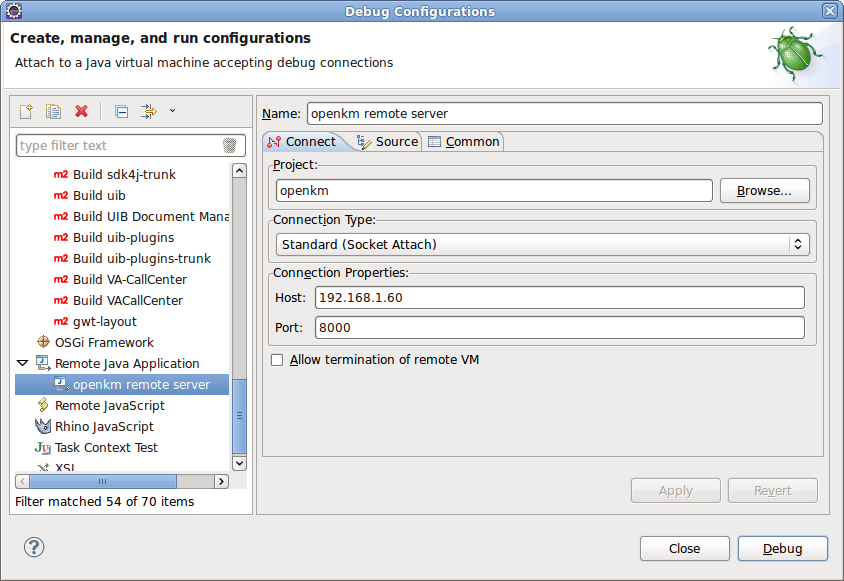
Section titled “Eclipse configuration”Open Eclipse “Debug Configurations”, then choose “Remote Java Application”, right-click and choose “New”.
Set the “host” and “port” of the remote server:
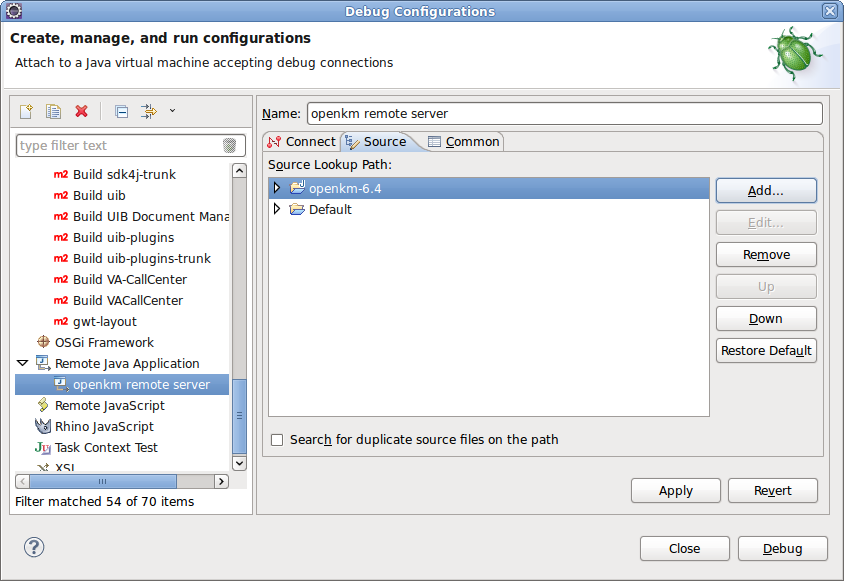
Include your OpenKM Java project in the Source tab:
You can debug normally by setting breakpoints, etc.