User guide
The OpenKM interface is the back-office view of the content repository. The features are organized into several sections:
- The Menu bar at the top provides access to all features, organized by type.
- The Quick search box is at the top right.
- The Toolbar contains the most commonly used features.
- The Desktop tab enables you to navigate the repository.
- The Search tab enables querying the repository.
- The Dashboard tab provides a set of dashboards.
- The Administration tab provides a set of administration tools.
- The Status panel at the bottom provides general information.
The OpenKM front allows you to manage any content: scanned images, photographs, office documents, and even large video files or CAD files, among others. The built-in workflow feature helps companies automate processes and get complete control of the document lifecycle, saving time and money. It also allows the social activities around the content to connect people to other people, information to other information, and people to information, helping to manage the collective intelligence of the company’s human resources more efficiently.
The OpenKM Profiles feature helps administrators configure what is displayed for each user of the application.
OpenKM provides the solution to:
- Control the growing volume of information to be managed.
- End the diversification of information storage sources.
- Prevent the duplication of data.
- Obtain valid information through the control of document versions.
- Reduce the time and resources used in locating information.
- Prevent unauthorized access to information, thereby helping comply with applicable data protection regulations (e.g., GDPR, LOPD).
- Restrict unauthorized users’ access to the information.
Through the OpenKM system, all relevant and valuable information can be accessed and found more quickly to resolve problems and make decisions.
Menu bar
Section titled “Menu bar”The menu bar at the top has all features organized by type:
- File.
- Edit.
- Tools.
- Bookmarks.
- Templates.
- Help.

Quick search box
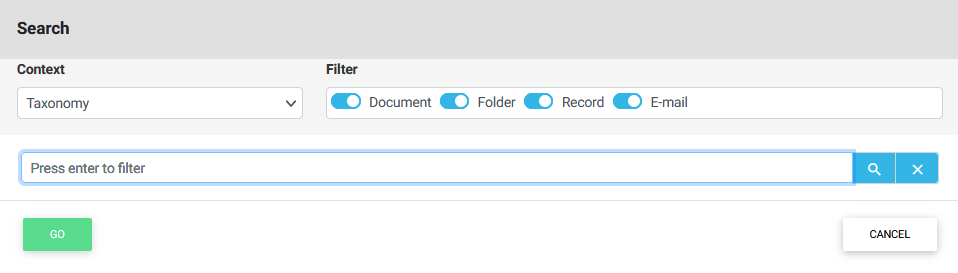
Section titled “Quick search box”The Quick search box is at the top right corner, providing fast access to the default search in the Search panel.
Toolbar
Section titled “Toolbar”The toolbar section has the most commonly used features, like downloading documents, creating new folders, and editing or uploading files.

Desktop
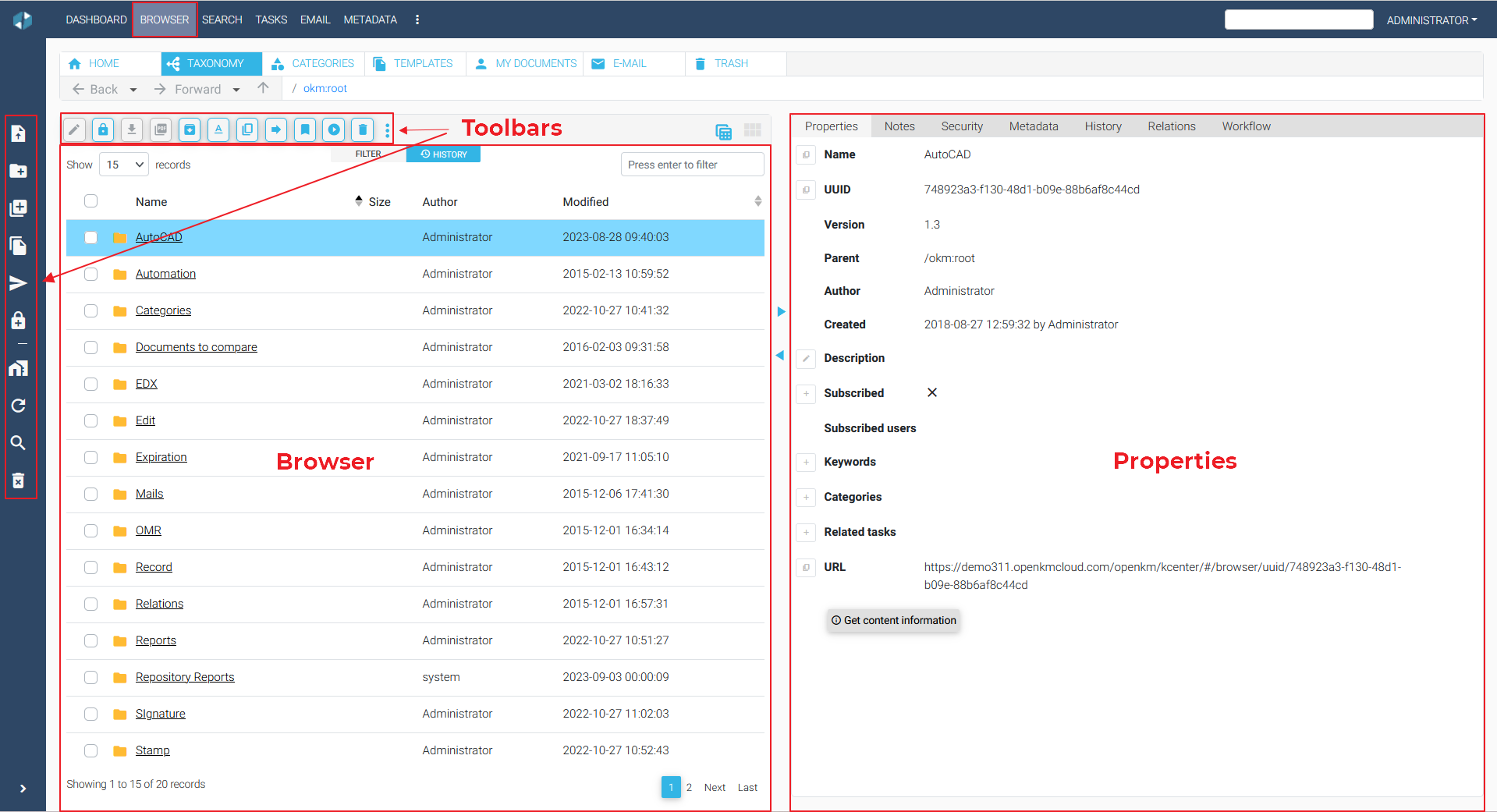
Section titled “Desktop”Most user activity takes place here. Users can work directly on folders, documents, emails, or records.
The desktop is distributed in three sections:
- Navigation panel on the left-hand side.
- Browser panel at the top center.
- Properties panel at the bottom center.
Navigation
Section titled “Navigation”The navigation on the left-hand side is a stack panel. Each stack contains a tree (folder and records hierarchy) structure from a root that enables quick access to documents and emails.
Browser
Section titled “Browser”The browser panel at the top center shows a table of nodes (documents, folders, emails, and records) for the selected navigation node.
Properties
Section titled “Properties”The properties panel at the bottom center shows a collection of tabs that contain the grouped properties or features, like a preview associated with the selected node. The selected node can be a navigation node or a browser node.
Search
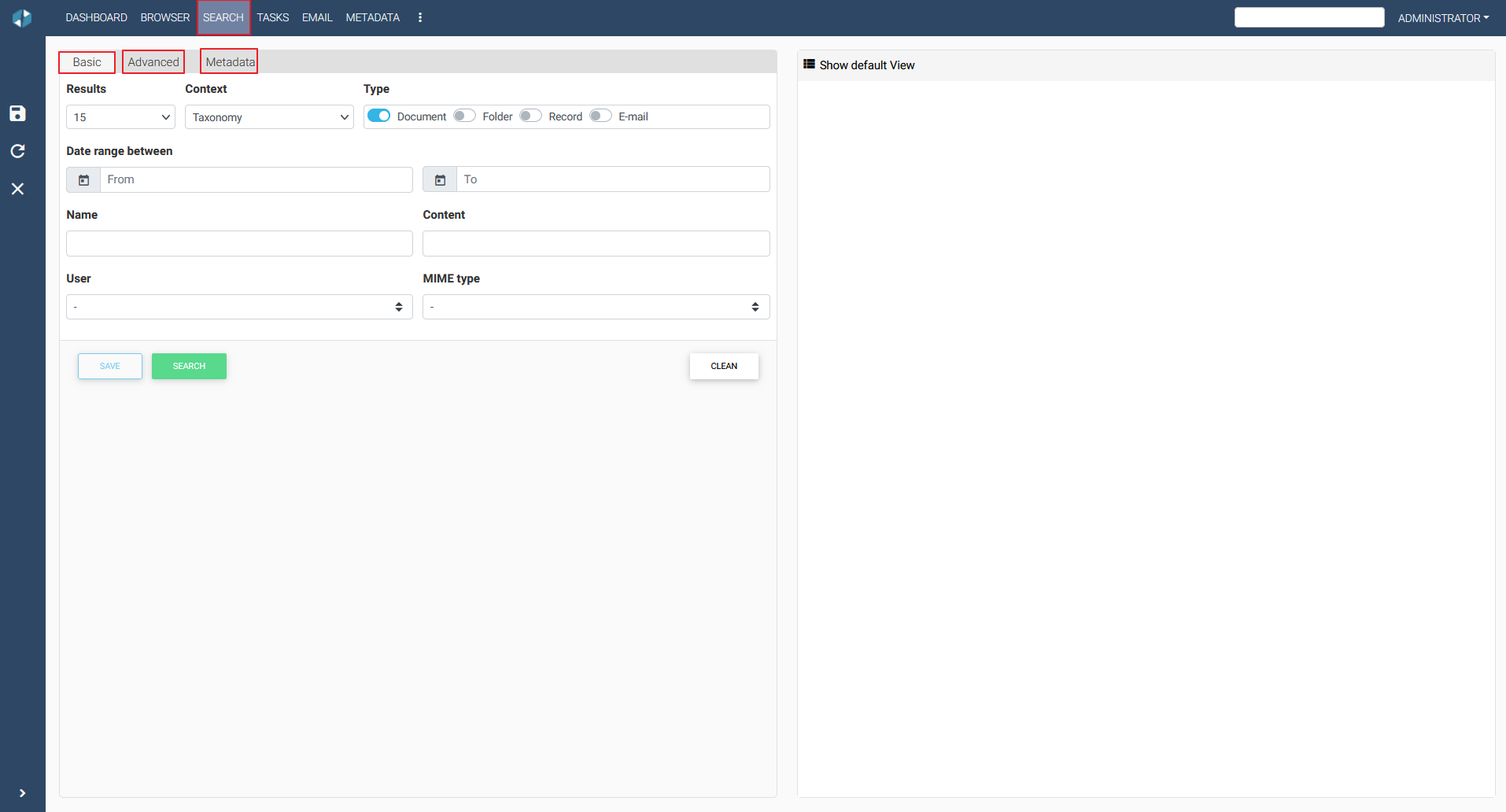
Section titled “Search”The search tab enables querying the repository. This tab gives access to different searches to query the content of the application:
- The default search is a full-text search, also available from the top right corner of the screen.
- Advanced search enables you to search for keywords, metadata, and additional criteria, such as location in the application.
Dashboard
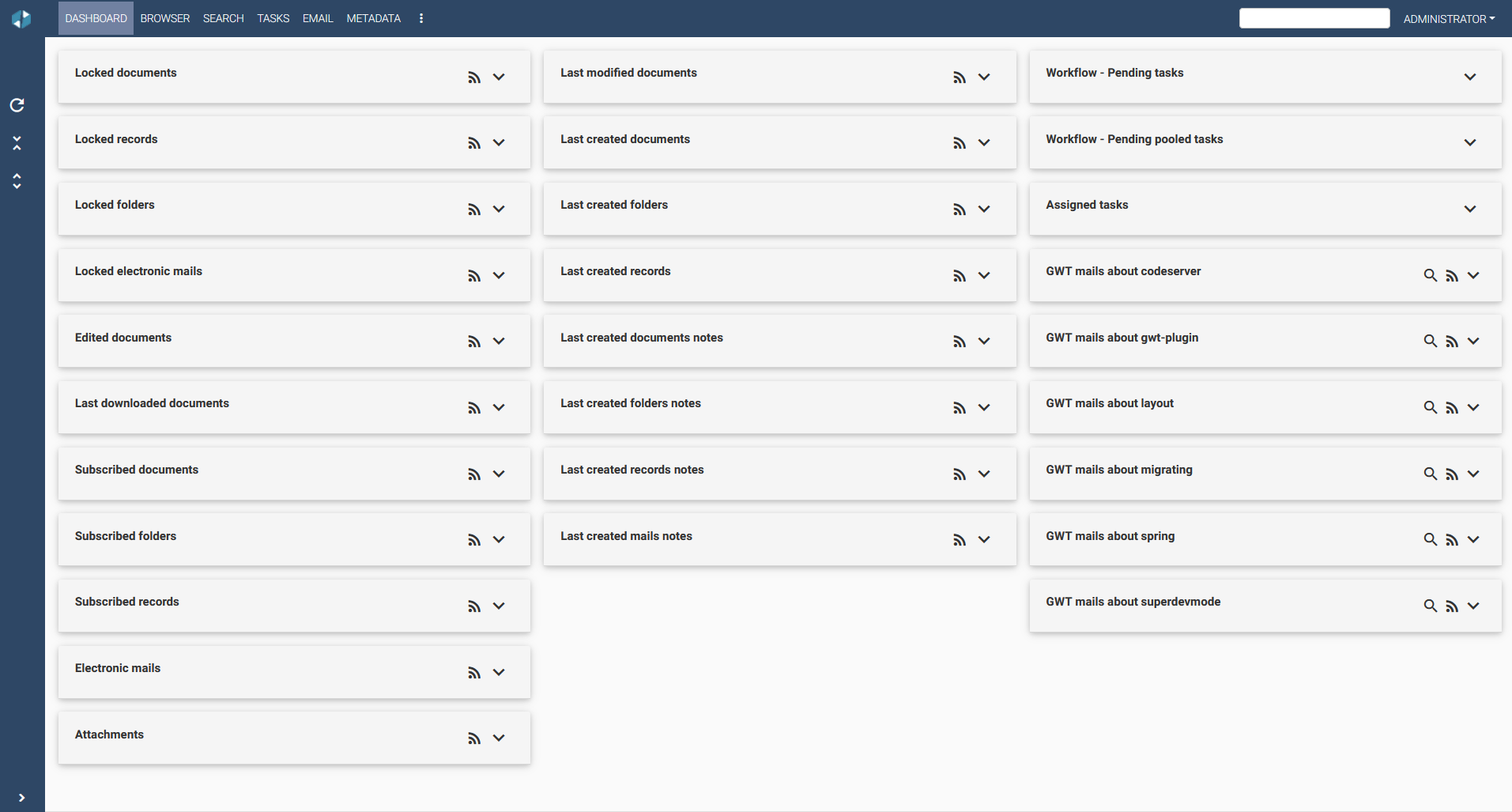
Section titled “Dashboard”The dashboard panel provides a set of dashboards; each user has a set of personal dashboards that display the information relevant to them and help provide a global view of the application’s activity.
The dashboard panel:
- User view. Displays the actions that have been carried out in the system.
- General view. Displays a global view of the application activity.
- News. Displays information based on scheduled user search queries.
- Mail. Provides virtual navigation across all mail repositories.
- Mail account. Helps users manage their mail accounts.
- Workflow. Users work on company business process tasks.
- Keyword map. Displays a tag cloud based on all repository keywords.
- Tasks. Helps with creating, administering, assigning, and following basic company tasks.
- Calendar. Assists in following the status of the primary company task.
- Messaging. Displays internal OpenKM messaging.
- Forum. Displays a forum.
- Wiki. Displays a wiki.
Administration
Section titled “Administration”The administration panel is a set of tools that help the administrator manage the application.
Status
Section titled “Status”The status panel provides general information:
- OpenKM news alert.
- The connected user.
- User repository size.
- Chat.
- Alerts.
- HTML documents in the editor.
- Message panel.
