Installing on Windows
Preliminaries
Section titled “Preliminaries”Check that you have enough disk space.
We recommend installing these tools:
- Notepad++ (text editor)
- Geany (text editor).
- mTail (Windows program that works like the Unix command “tail”).
Checking Java version
Section titled “Checking Java version”C:\> java -versionIf Java is correctly installed on your computer, the name and version of the Java virtual machine are displayed:
openjdk version "11.0.20.1"OpenJDK Runtime EnvironmentOpenJDK 64-Bit Server VMWe also recommend setting the JAVA_HOME variable:
setx JAVA_HOME "C:\Program Files\Java\jdk11.0.20.1" /MInstall Java
Section titled “Install Java”If the required version of Java is not installed on your computer:
- Download it from the Microsoft website and choose the right platform for your hardware and Windows version.
- Run the MSI file and follow the instructions displayed.
Installing database
Section titled “Installing database”Install MySQL if you do not already have it installed:
Download MySQL MSI Installer from MySQL Community Server and follow the installation wizard steps.
Check InnoDB is the default MySQL engine
Section titled “Check InnoDB is the default MySQL engine”show engines;If it is not the default, modify c:\ProgramData\MySQL\MySQL Server 8.0.34\my.ini
and under [mysqld], add
default-storage-engine = innodb
Create database
Section titled “Create database”CREATE DATABASE okmdb DEFAULT CHARACTER SET utf8 DEFAULT COLLATE utf8_bin;CREATE USER openkm@localhost IDENTIFIED BY 'password';GRANT ALL ON okmdb.* TO openkm@localhost WITH GRANT OPTION;Installing Tomcat
Section titled “Installing Tomcat”Unzip Tomcat-9.0.76.zip to c:\
Configuring Tomcat as a service
Section titled “Configuring Tomcat as a service”Register for the service:
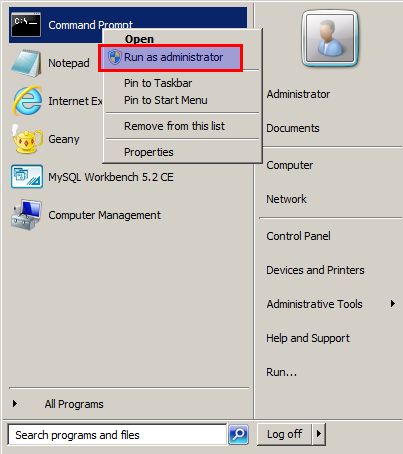
cd c:\tomcat-9.0.76\binservice.bat installSet the JVM parameters for the Tomcat service:
cd c:\tomcat-9.0.76\binopenkm //US//OpenKM ++JvmOptions="-Xms1024m"openkm //US//OpenKM ++JvmOptions="-Xmx4096m"openkm //US//OpenKM ++JvmOptions="-XX:+UseG1GC"openkm //US//OpenKM ++JvmOptions="-XX:+UseStringDeduplication"openkm //US//OpenKM ++JvmOptions="-XX:+HeapDumpOnOutOfMemoryError"openkm //US//OpenKM ++JvmOptions="-XX:HeapDumpPath=%CATALINA_HOME%"openkm //US//OpenKM ++JvmOptions="-Djava.net.preferIPv4Stack=true"openkm //US//OpenKM ++JvmOptions="-Dmail.mime.ignoreunknownencoding=true"openkm //US//OpenKM ++JvmOptions="-Dfile.encoding=UTF-8"openkm //US//OpenKM ++JvmOptions="-Dsun.jnu.encoding=UTF-8"openkm //US//OpenKM ++JvmOptions="-Djava.awt.headless=true"openkm //US//OpenKM ++JvmOptions="-Dsun.java2d.cmm=sun.java2d.cmm.kcms.KcmsServiceProvider"Execute the openkmw.exe as administrator:
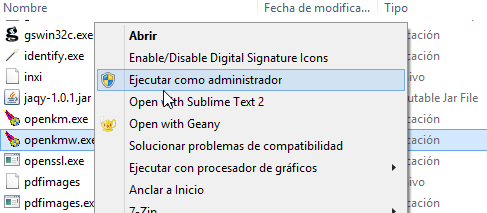
Check the configuration parameters:
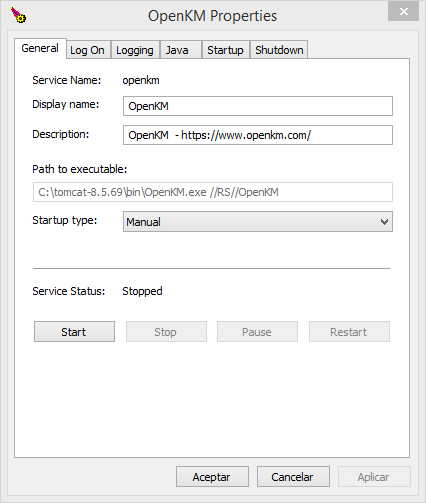 |
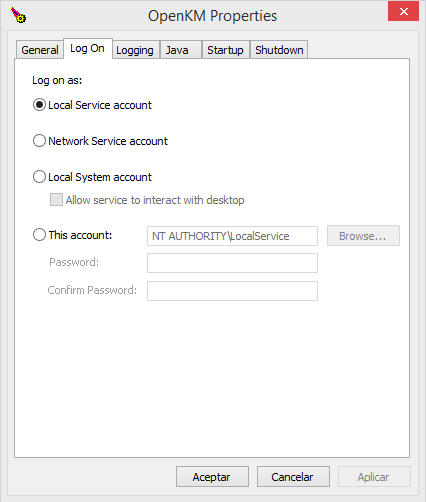 |
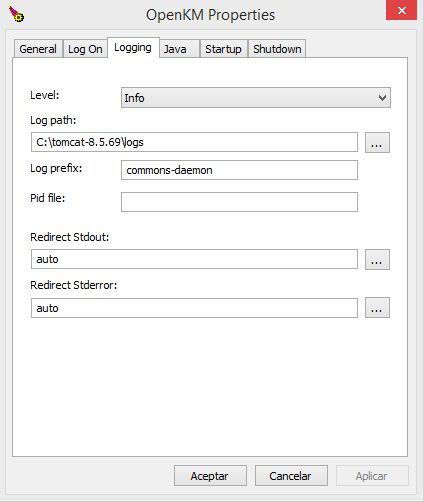 |
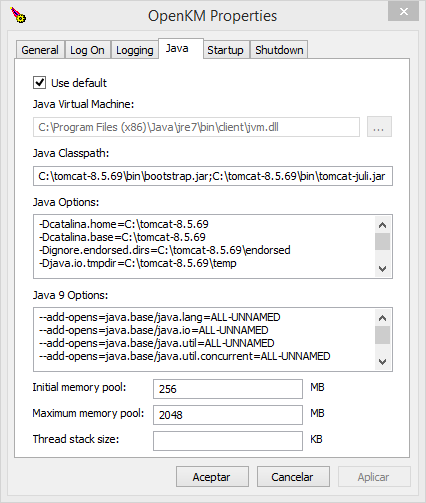 |
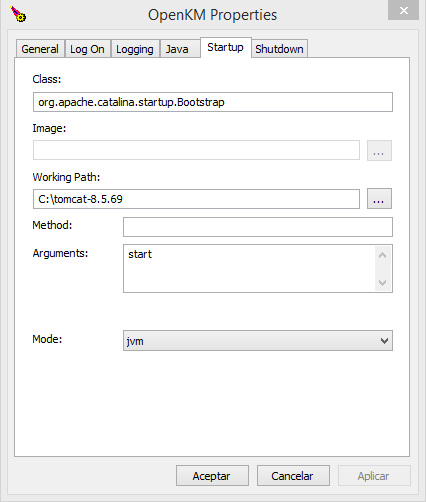 |
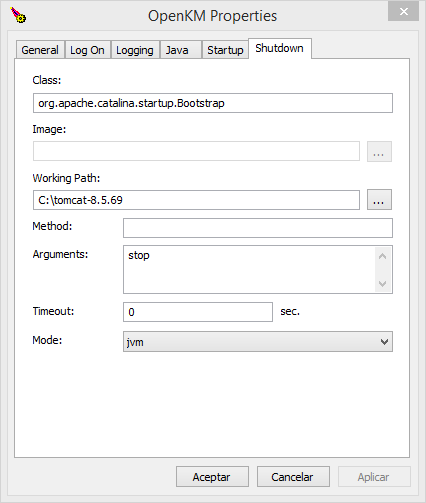 |
Check the service
Section titled “Check the service”From terminal
Section titled “From terminal”Start the service:
$ net start OpenKMStop the service:
$ net stop OpenKMFrom the Windows service panel
Section titled “From the Windows service panel”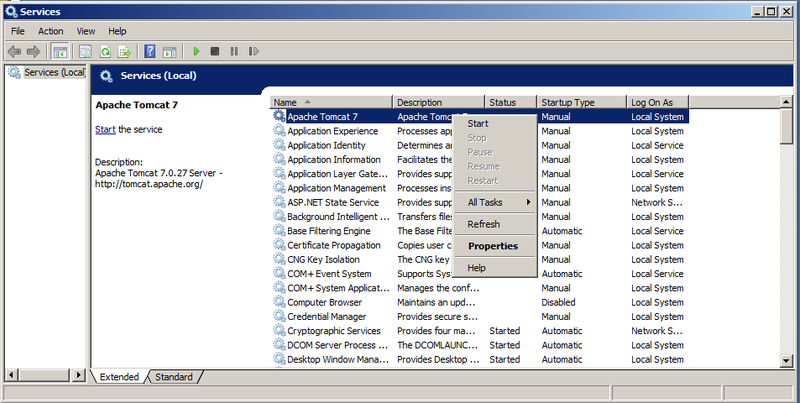
From the openkmw tool
Section titled “From the openkmw tool”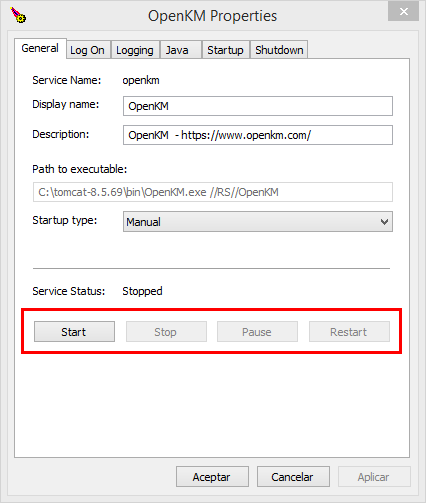
Configuring environment variables
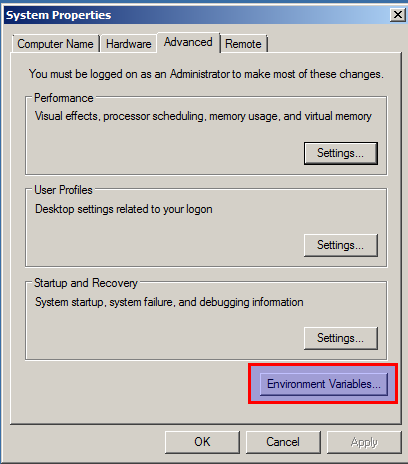
Section titled “Configuring environment variables”Add the bin folder to the environment PATH variable:
setx PATH "%PATH%;C:\tomcat-9.0.76\bin" /MThese operations can also be done from Windows environment variables:
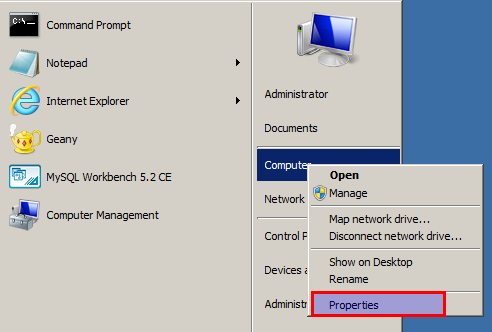
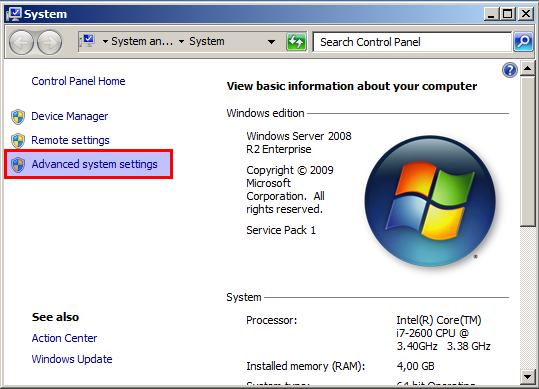
Installing OpenKM
Section titled “Installing OpenKM”With Tomcat stopped, copy the OpenKM.war file into /home/openkm/tomcat-9.0.76/webapps
$ copy openkm.war c:\tomcat-9.0.76\webappsInstall third-party software:
| Software | Required | Description |
|---|---|---|
| LibreOffice | Yes | We recommend using LibreOffice because it is compatible with Microsoft Office formats. |
| Tesseract | No | Download from https://tesseract-ocr.github.io/tessdoc/Installation.html and follow the installation wizard. |
| ClamAV | No | Download from http://www.clamav.net/download.html and follow the installation wizard. |
| ImageMagick | No | The Tomcat bundle comes with an embedded convert tool. If you decide to install it, go to http://www.imagemagick.org/script/binary-releases.php, download the latest binary release, and follow the installation wizard. Take into consideration that 16-bit builds need more hardware resources than 8-bit builds. We suggest ImageMagick-6.9.1-7-Q8-x64-dll.exe rather than ImageMagick-6.9.1-7-Q16-x64-dll.exe (note the version numbering may differ due to ImageMagick version upgrades). |
| GhostScript | No | The Tomcat bundle comes with an embedded Ghostscript tool. Go to http://ghostscript.com/download/gsdnld.html and follow the installation wizard if you decide to install it. |
Start application
Section titled “Start application”Check openkm.properties parameters
Section titled “Check openkm.properties parameters”C:\> geany c:\openkm\openkm.propertiesYour configuration should be something like this:
# OpenKM Hibernate configuration values
hibernate.dialect=com.openkm.db.dialect.MySQL5InnoDBDialect
hibernate.hbm2ddl=create-only
# Initial configuration - Windows
system.libreoffice.path=C:/Program Files (x86)/LibreOffice
First-time application start:
$ net start OpenKMWhen the application is started, you’ll see it in the log file in the lines:
2015-07-04 18:28:10,680 [main] INFO org.apache.coyote.http11.Http11Protocol - Starting ProtocolHandler ["http-bio-0.0.0.0-8080"]2015-07-04 18:28:10,688 [main] INFO org.apache.coyote.ajp.AjpProtocol - Starting ProtocolHandler ["ajp-bio-127.0.0.1-8009"]2015-07-04 18:28:10,692 [main] INFO org.apache.catalina.startup.Catalina - Server startup in 41456 msThe application will be accessible at http://YOUR_IP:8080/openkm by user:okmAdmin with password: admin. (Do not forget to change it.) For more information: Manage users and roles.
Enable the extensions you need (for example Live Edit and HTML Editor) in the profile Misc > Extensions selector. See Enable extensions for details.
Access from other computers
Section titled “Access from other computers”Access from other computers will be denied by default due to Windows Firewall configuration. To enable access from anywhere, please execute this command:
netsh advfirewall firewall add rule name="OpenKM" dir=in action=allow protocol=TCP localport=8080Other standard additional setup configurations
Section titled “Other standard additional setup configurations”OpenKM comes with many configuration parameters. Please take a look at Recommended configuration parameters.