Configuring CADViewer
CADViewer is a third-party product which can be integrated into OpenKM to provide previsualization of AutoCAD documents.
Enable the CADViewer Preview extension in the profile Misc > Extensions selector. See Enable extensions for details.
Some configuration properties are needed:
| Field / Property | Type | Description |
|---|---|---|
| extension.cadviewer.license.key | String | The CADViewer frontend key. The default license only works with local installations. It is the JavaScript CAD previewer. |
| extension.cadviewer.autoxchange | String | Path to the autoxchange utility. Used in thumbnail generation, preview, and PDF conversion. |
| extension.cadviewer.linklist | String | Path to the linklist utility. Extracts text and metadata from DWG documents. |
| extension.cadviewer.dwglist | String | Path to the dwglist utility. Gets XREFs from DWG documents. Also used in thumbnail generation, preview, and PDF conversion. |
| extension.cadviewer.sibling.xrefs | Boolean | When this parameter is set to true the AutoCAD files’ references must all be in the same folder. If it is set to false the AutoCAD file references can be stored in any place in the taxonomy tree. In this case, keep in mind that you should avoid document name duplication. There is an automation called CheckUniqueDocumentName which can help you maintain this restriction. |
| extension.cadviewer.debug | Boolean | Set to true to view the commands executed during conversion in the log file. Only for debugging purposes. |
| extension.cadviewer.remove.temp.files | Boolean | Set to false to keep the temporary files created during conversion. Only for debugging purposes. |
| extension.cadviewer.qr.url | String | The URL of the QR code application: http://openkm.your-domain.com/qrcad/ |
| extension.cadviewer.qr.user | String | Name of the user of the QR code application. |
| extension.cadviewer.qr.password | Password | The password of the user of the QR code application. |
| extension.cadviewer.qr.pos_x | Integer | Percent X from the lower-left corner where to place the QR code in the AutoCAD file. |
| extension.cadviewer.qr.pos_y | Integer | Percent Y from the lower-left corner where to place the QR code in the AutoCAD file. |
| extension.cadviewer.qr.width | Integer | QR code width as a percentage. |
These utilities can be downloaded from https://cadviewer.com/alldownloads/
CADViewer has several licenses:
- axlic.key: This is the license for the autoxchange executable. This one should be placed in the same directory as the executable, typically the $TOMCAT_HOME/bin/cadviewer folder.
- dl_lic.key: This is the license for the dwglist executable. This one should be placed in the same directory as the executable, typically the $TOMCAT_HOME/bin/cadviewer folder.
- dm_lic.key: This is the license for the dwgmerge executable. This one should be placed in the same directory as the executable, typically the $TOMCAT_HOME/bin/cadviewer folder.
- ll_lic.key: This is the license for the linklist executable. This one should be placed in the same directory as the executable, typically the $TOMCAT_HOME/bin/cadviewer folder.
- JavaScript CAD previewer license: This license key is configured using the extension.cadviewer.license.key configuration property.
If you have problems with the conversion, try executing it from the command line. For example, this would perform a PDF conversion:
$ ./autoxchange -i=test.dwg -f=pdfOn Linux, ensure you have configured the LD_LIBRARY_PATH properly. On Windows, the program may fail because VCRUNTIME140.DLL is missing. If you see this error, download the Microsoft Visual C++ 2015 Redistributable from https://www.microsoft.com/en-us/download/details.aspx?id=52685 and install it.
There is also a script which may help by setting the correct library path:
$ ./cad2svg test.dwgThe resulting “test.svg” file can be viewed with any browser and you will see if the license was set up correctly.
To enable viewing of external references for each AutoCAD document, enable the External Tab Document extension in the profile Misc > Extensions selector. See Enable extensions for details.
Configuring Automations:
| Name | Event | At | Validations | Actions |
|---|---|---|---|---|
| CAD Create | Document create | post | Type: NameMatches Param 0: .+\.[dD][wW][gG] |
Type: NewCadReferences Order: 0 |
| CAD Update Pre | Document update | pre | Type: NameMatches Param 0: .+\.[dD][wW][gG] |
Type: DelCadReferences Order: 0 |
| CAD Update Post | Document update | post | Type: NameMatches Param 0: .+\.[dD][wW][gG] |
Type: NewCadReferences Order: 0 |
| CAD Delete | Document delete | pre | Type: NameMatches Param 0: .+\.[dD][wW][gG] |
Type: DelCadReferences Order: 0 |
| CAD Folder Delete | Folder delete | pre | Type: PathContains Param 0: /okm:root |
Type: DelCadReferences Order: 0 |
Troubleshooting
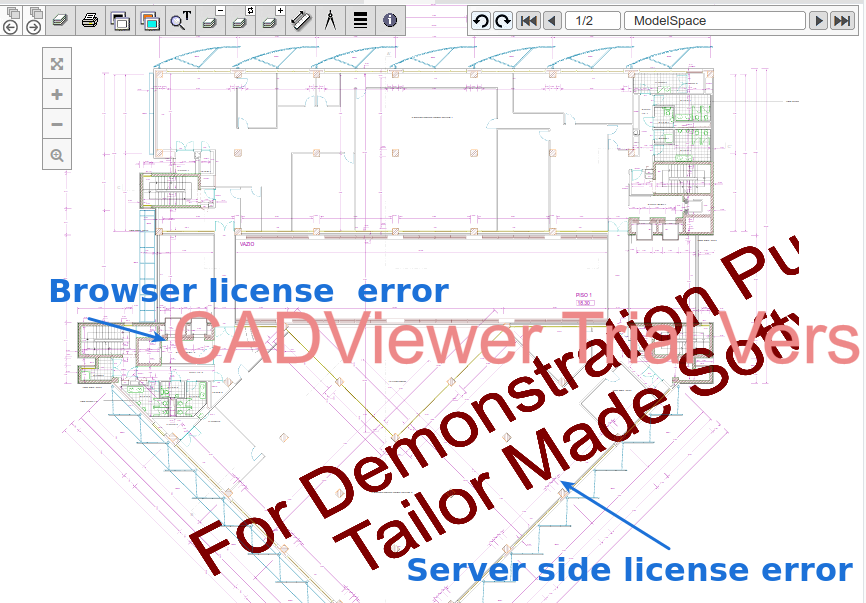
Section titled “Troubleshooting”Mainly there are two license problems: one related to the browser (client-side) license, and the other related to the server-side conversion utilities.
Client-side (browser)
Section titled “Client-side (browser)”These problems are related to the CADViewer JavaScript previewer. The license set in extension.cadviewer.license.key configuration property is incorrect.
You can identify this issue by the “CADViewer Trial Version” watermark.
To resolve this issue, set the correct key in the extension.cadviewer.license.key configuration property and refresh the browser.
Server-side (utilities)
Section titled “Server-side (utilities)”These problems are generated by CADViewer conversion utilities installed on the server. The license is configured in the axlic.key server file.
You can identify this issue by the “For Demonstration Purposes / Tailor Made Software” watermark.
To solve this issue, copy the correct axlic.key license file to the OpenKM server. Once copied, go to Administration > Utilities > Clean Conversion Cache and clear the SVG cache.
You can verify the license this way:
$ ax2023 -verifyThis parameter is only available in recent AutoXchange versions.