Configurar Apache HTTPS Reverse-Proxy
Exponer OpenKM directamente desde Tomcat puede ser peligroso si necesita que se acceda a la aplicación desde Internet (por ejemplo https://issues.jboss.org/browse/JBAS-3861). Como resultado, puede resultar infectado por PerlBot. Además, este puerto 8080 puede estar bloqueado por un cortafuegos. Por estas razones, es una buena práctica exponer su instalación de OpenKM a través del puerto web estándar 80. En los siguientes pasos explicamos cómo configurar Apache para gestionar estas peticiones y reenviarlas al servidor de aplicaciones Tomcat mediante el protocolo AJP13.
De la documentación de Apache: el protocolo AJP13 está orientado a paquetes. Presumiblemente se eligió un formato binario en lugar del texto plano, más legible, por razones de rendimiento. El servidor web se comunica con el contenedor de servlets mediante conexiones TCP. Para reducir el costoso proceso de creación de sockets, el servidor web intentará mantener conexiones TCP persistentes con el contenedor de servlets y reutilizar una conexión para varios ciclos de petición/respuesta.
IP interna frente a IP externa
Sección titulada «IP interna frente a IP externa»Se puede acceder a su OpenKM desde dos zonas diferentes: Internet y la LAN. Esto significa que, para acceder a este servidor, necesita utilizar dos IP: la IP externa (Internet) y la IP interna (LAN).
La dirección IP interna (también conocida como “dirección IP local”) es la que asigna el router de su red local y que a menudo empieza por 192.168.x.x. Estas direcciones IP solo pueden ser vistas por otros equipos de su red local (LAN) y no por ningún equipo conectado a una red externa como Internet.
Para llegar a Internet o a un equipo de otra red, a su equipo suele asignársele una dirección IP externa, que puede utilizarse después para referirse al equipo de su red local.
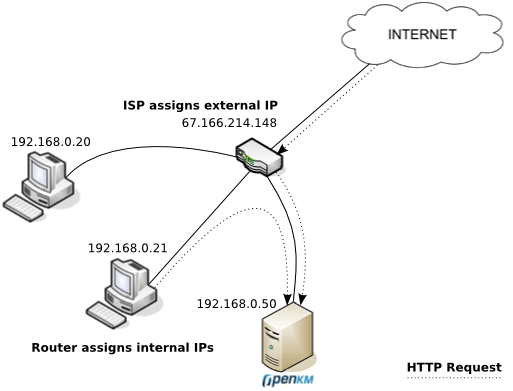
En la imagen anterior hay tres equipos en la red local a los que el router ha asignado a cada uno su propia dirección IP interna. El ISP está conectado al router y le proporciona una dirección IP externa que le permite comunicarse con Internet. En Internet todo el mundo ve su dirección IP externa, pero cualquier información que llega desde el router se “convierte” de la dirección IP externa a la dirección IP interna.
Así, si desea que su instalación de OpenKM sea accesible tanto desde la LAN como desde Internet, el truco consiste en configurar los equipos cliente para que resuelvan su IP interna (192.168.0.50) si están dentro de la LAN o la IP externa si están en Internet. Para resolver la IP de Internet (67.166.214.148), su equipo utiliza el DNS público. Por tanto, necesita configurar una especie de servidor DNS dentro de la LAN o modificar el archivo host de cada cliente para que resuelva a la IP interna.
Debian y Ubuntu
Sección titulada «Debian y Ubuntu»El primer paso es instalar el software Apache necesario. En Debian / Ubuntu puede instalar Apache con un solo comando:
$ sudo apt-get install apache2Edite el archivo /etc/apache2/apache2.conf y configure un ServerName para evitar advertencias en el proceso de arranque de Apache:
$ vim /etc/apache2/apache2.confServerRoot "/etc/apache2"ServerName "your-domain.com"Habilite el módulo proxy:
$ sudo a2enmod proxy_ajp$ sudo a2enmod proxy_wstunnelCree los certificados
$ sudo mkdir /etc/apache2/ssl$ sudo /usr/sbin/make-ssl-cert /usr/share/ssl-cert/ssleay.cnf /etc/apache2/ssl/apache.pem$ sudo a2enmod sslAsegúrese de que el puerto 443 está configurado para escuchar en /etc/apache2/ports.conf:
$ cat /etc/apache2/ports.conf | grep ListenCree el archivo de configuración /etc/apache2/sites-available/openkm.conf con este contenido:
$ vim /etc/apache2/sites-available/openkm.conf<VirtualHost *:443> ServerName openkm.your-domain.com RedirectMatch ^/$ /OpenKM
# WebSocket support - needs proxy-wstunnel ProxyPass /OpenKM/frontend/webSocket wss://127.0.0.1:8080/OpenKM/frontend/webSocket ProxyPassReverse /OpenKM/frontend/webSocket wss://127.0.0.1:8080/OpenKM/frontend/webSocket
ProxyPass /OpenKM ajp://127.0.0.1:8009/OpenKM ProxyPassReverse /OpenKM https://openkm.your-domain.com/OpenKM
ErrorLog /var/log/apache2/openkm.your-domain.com-error.log CustomLog /var/log/apache2/openkm.your-domain.com-access.log combined
SSLEngine on SSLCertificateFile /etc/apache2/ssl/apache.pem</VirtualHost>El ServerName del VirtualHost debe ser diferente del ServerName de la configuración principal de Apache. Habilite esta configuración de sitio:
$ cd /etc/apache2/sites-available/$ sudo a2ensite openkm.confRedirigir todas las conexiones HTTP a HTTPS
Sección titulada «Redirigir todas las conexiones HTTP a HTTPS»Edite el archivo de configuración /etc/apache2/sites-available/openkm.conf y añada este contenido
$ vim /etc/apache2/sites-available/openkm.conf<VirtualHost *:80> ServerName openkm.your-domain.com Redirect permanent / https://openkm.your-domain.com/</VirtualHost>Comprobar la configuración
Sección titulada «Comprobar la configuración»Reinicie Apache:
$ sudo /etc/init.d/apache2 restartCompruebe el acceso a su instalación de OpenKM desde https://openkm.your-domain.com/.
Red Hat y CentOS
Sección titulada «Red Hat y CentOS»Utilice el gestor de aplicaciones yum para instalar Apache:
$ sudo yum install httpdHabilítelo en el arranque:
$ sudo chkconfig httpd --level 2345 onCree el certificado
$ sudo yum install mod_ssl openssl crypto-utilsGenere las claves privadas (para más información visite Apache HTTP Secure Server Configuration)
$ genkey your-domain.comDurante el proceso se generarán dos archivos en:
ReplaceSSLCertificateFile /etc/pki/tls/certs/your-domain.com.cert
SSLCertificateKeyFile /etc/pki/tls/private/your-domain.com.key
Ahora cree el archivo /etc/httpd/conf.d/openkm.conf con este contenido:
$ vim /etc/httpd/conf.d/openkm.conf<VirtualHost *:443> ServerName openkm.your-domain.com ProxyPass / ajp://localhost:8009/OpenKM/ ProxyPassReverse / http://your-domain.com/OpenKM/ ErrorLog /var/log/your-domain.com-error.log CustomLog /var/log/your-domain.com-access.log combined
SSLEngine on SSLCertificateFile /etc/pki/tls/certs/your-domain.com.cert SSLCertificateKeyFile /etc/pki/tls/private/your-domain.com.key</VirtualHost>Por último, debe modificar los valores SSLCertificateFile y SSLCertificateKeyFile del archivo /etc/httpd/conf.d/ssl.conf:
$ vim /etc/httpd/conf.d/ssl.confSSLCertificateFile /etc/pki/tls/certs/your-domain.com.certSSLCertificateKeyFile /etc/pki/tls/private/your-domain.com.keyComprobar la configuración
Sección titulada «Comprobar la configuración»Reinicie Apache:
$ sudo /etc/init.d/httpd restartCompruebe el acceso a su instalación de OpenKM desde https://openkm.your-domain.com/.
Error Permission denied: proxy: AJP: attempt to connect
Sección titulada «Error Permission denied: proxy: AJP: attempt to connect»Si en el registro aparece un error como Permission denied: proxy: AJP: attempt to connect, para solucionarlo ejecute el siguiente comando:
$ /usr/sbin/setsebool httpd_can_network_connect 1Si funciona, haga que la configuración sea permanente para que persista tras los reinicios:
$ /usr/sbin/setsebool -P httpd_can_network_connect 1Resolución de problemas
Sección titulada «Resolución de problemas»Si ve un error como:
Debe habilitar este módulo de Apache:
$ sudo a2enmod rewrite$ sudo a2enmod proxy_http$ sudo a2enmod headers