Consejos de Eclipse
Depurar Tomcat
Sección titulada «Depurar Tomcat»Puede depurar su instalación de OpenKM utilizando el sistema de registro de Tomcat. Es algo útil cuando tiene problemas con su configuración. La instalación por defecto de OpenKM intenta registrar eventos importantes como errores y advertencias. Es posible cambiar esta configuración editando el archivo $TOMCAT_HOME/conf/logging.properties.
La configuración de registro por defecto de Tomcat puede generar muchos mensajes. Estos archivos se almacenan en $TOMCAT_HOME/logs.
Depurar un servidor Tomcat remoto
Sección titulada «Depurar un servidor Tomcat remoto»Añada las siguientes opciones al iniciar la JVM:
-Xdebug -Xrunjdwp:transport=dt_socket,address=8000,server=y,suspend=nO, si utiliza scripts de shell para iniciar Tomcat, inícielo con el siguiente comando (recomendado):
$ $TOMCAT_HOME/bin/catalina.sh jpda startIniciará Tomcat de modo que un depurador remoto pueda conectarse al puerto 8000.
Configuración de Eclipse
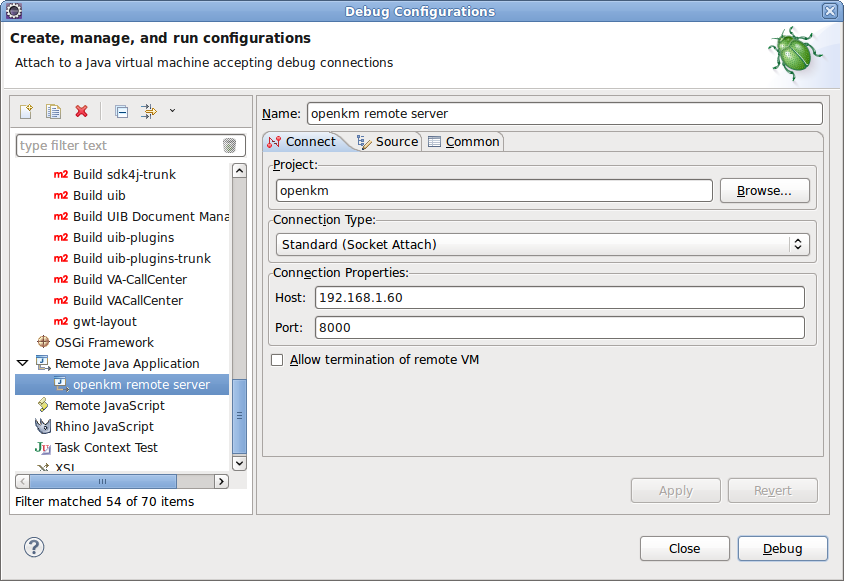
Sección titulada «Configuración de Eclipse»Abra en Eclipse “Debug configurations”, elija “Remote Java Application”, haga clic con el botón derecho del ratón y elija “new”.
Establezca el “host” y el “port” del servidor remoto:
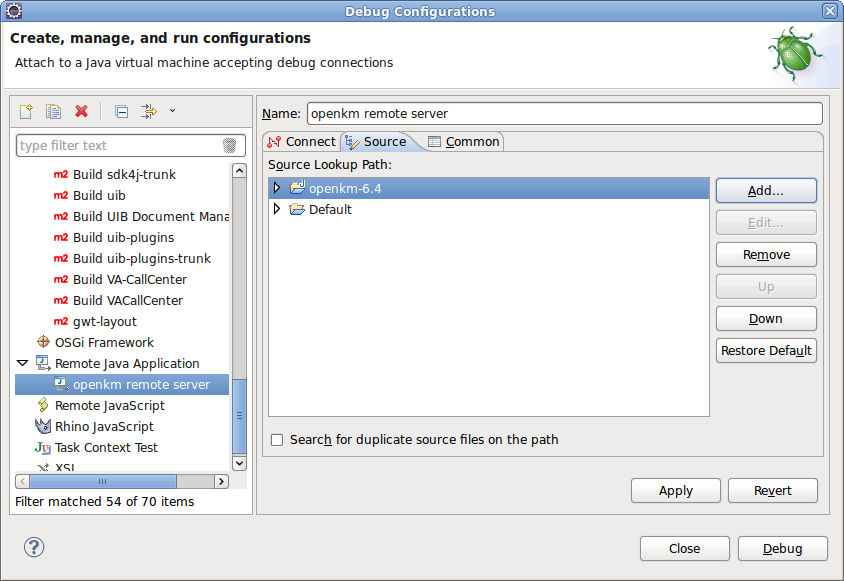
Incluya en la pestaña source su proyecto Java de OpenKM:
Puede depurar con normalidad, estableciendo puntos de interrupción, etc.
Depurar la interfaz de usuario GWT con GWT Super Dev Mode
Sección titulada «Depurar la interfaz de usuario GWT con GWT Super Dev Mode»Habilitar el código fuente para depurar
Sección titulada «Habilitar el código fuente para depurar»Edite el archivo pom.xml y descomente esta sección:
<!-- Only for development --><dependency> <groupId>com.google.gwt</groupId> <artifactId>gwt-dev</artifactId> <version>${gwt.version}</version> <scope>provided</scope></dependency>Descomente la sección xsiframe del archivo Main.gwt.xml:
<!-- Use GWT 2.7.0 to debug in Firefox --> <add-linker name="xsiframe"/> <set-configuration-property name='xsiframe.failIfScriptTag' value='FALSE'/> <set-configuration-property name="devModeUrlWhitelistRegexp" value="http://(localhost|127\.0\.0\.1|192\.168\.1\.34)(:\d+)?/.*" />Configuración de Eclipse
Sección titulada «Configuración de Eclipse»Abra en Eclipse “Debug configurations”, elija “Java Application”, haga clic con el botón derecho del ratón y elija “new”.
Establezca el valor del campo Main class:
com.google.gwt.dev.DevMode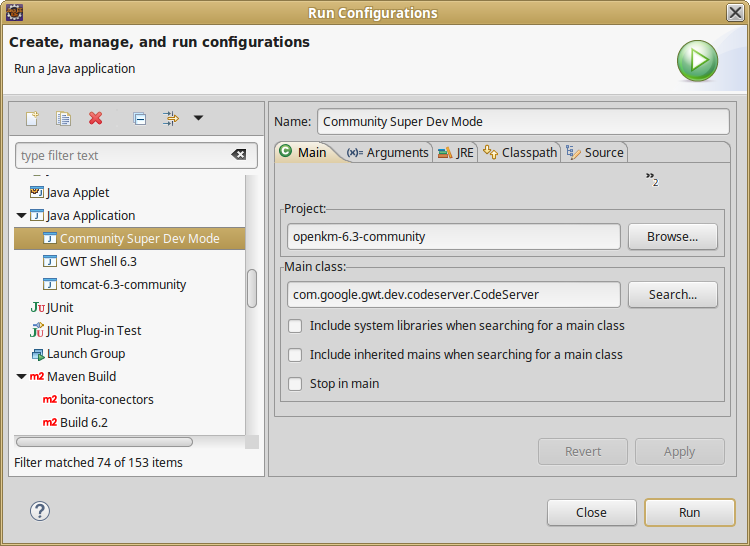
Seleccione la pestaña “Arguments” y establezca el valor del campo “program arguments”:
-bindAddress 0.0.0.0 -src src/ com.openkm.frontend.MainY el valor del campo “VM arguments”:
-Xms2048m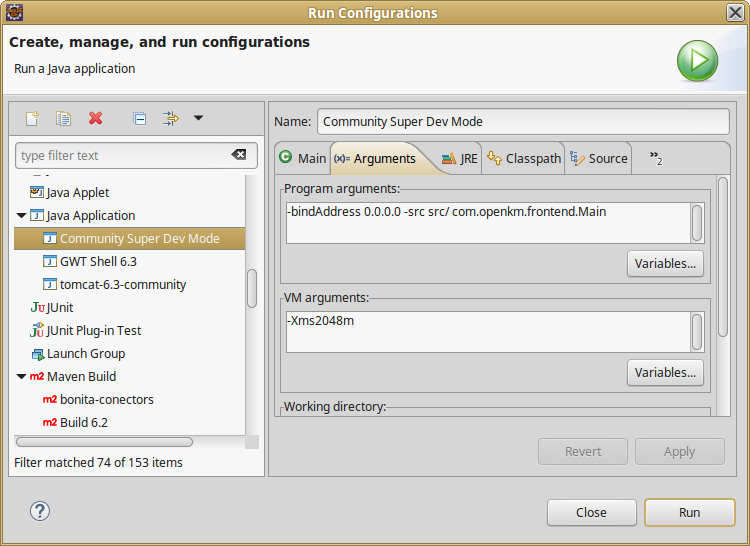
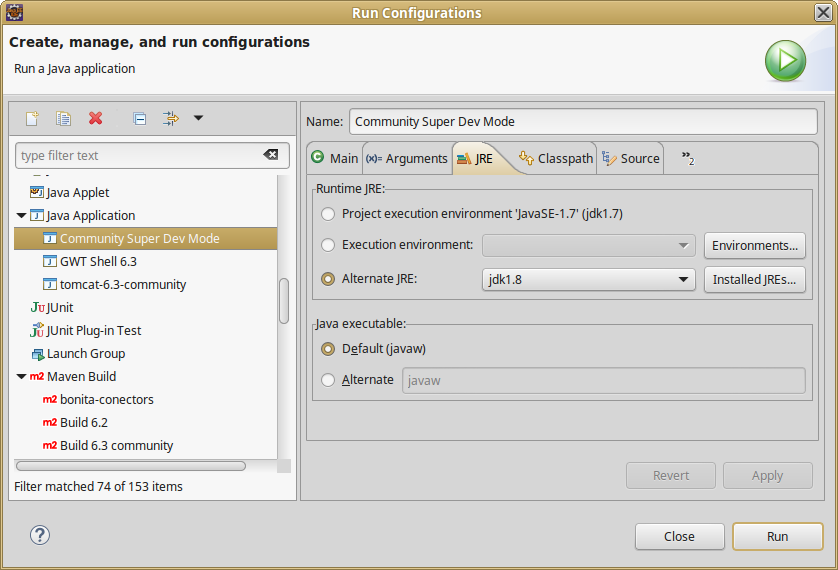
Seleccione la pestaña “JRE” y establezca la “OpenJDK version”:
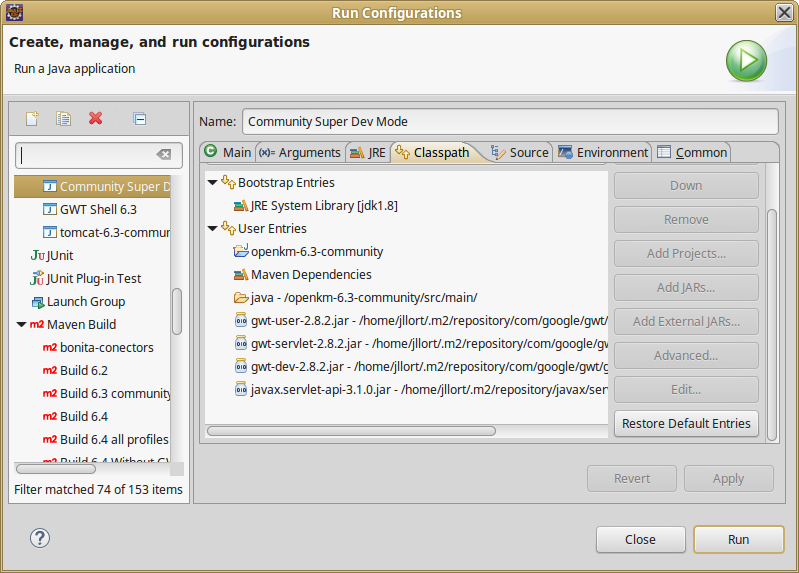
Seleccione la pestaña “Classpath” y añada la carpeta /openkm/src/main (utilice para ello el botón “Advanced” y la opción “add folder”):
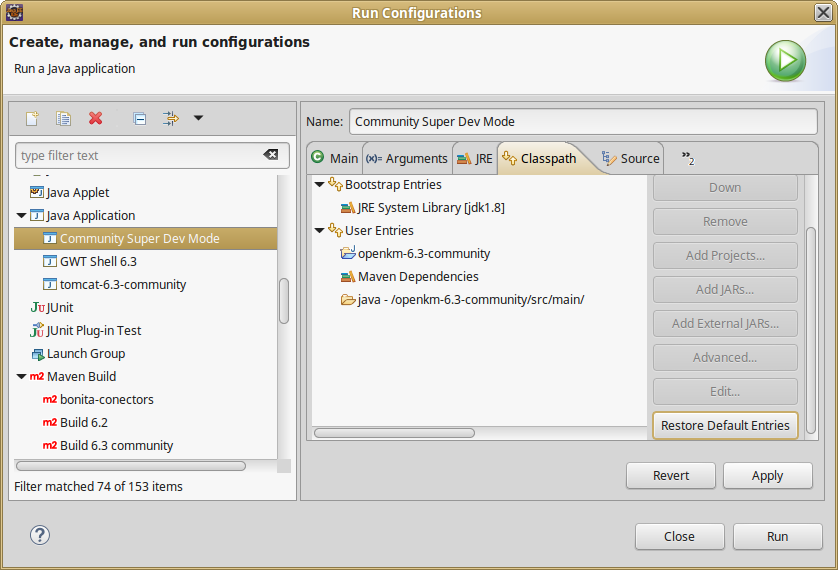
Añada las dependencias jar de GWT con el botón Add External JARs:
- gwt-user-2.8.2.jar
- gwt-dev-2.8.2.jar
- gwt-user-2.8.2.jar
- javax.servlet-api-3.1.0
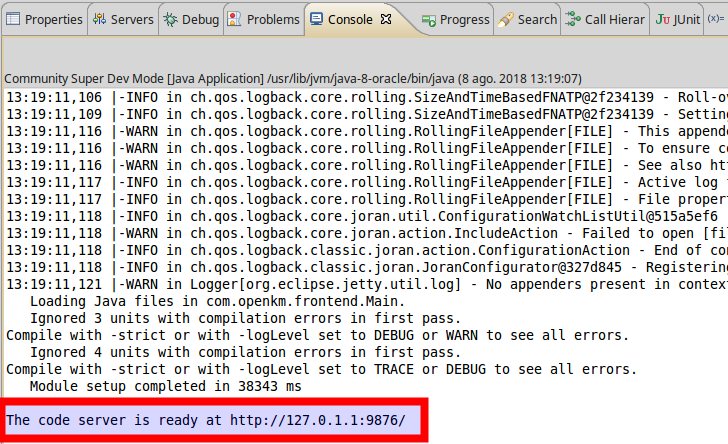
Ahora puede ejecutar Super Dev Mode; al final del registro se muestra la URL en la que se enlaza el servicio:
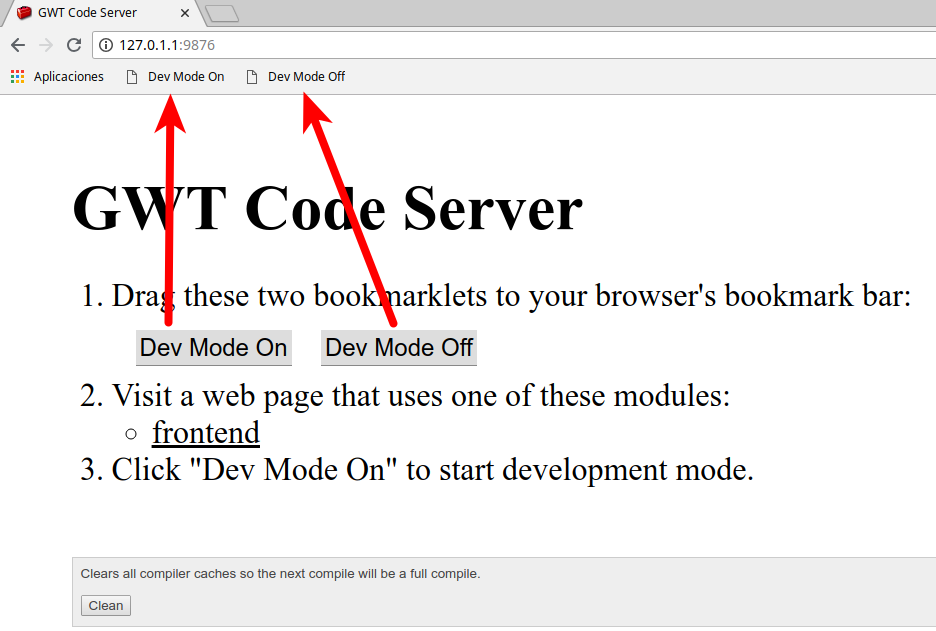
Abra la URL del code server en su navegador Chrome y arrastre los bookmarklets a su barra de marcadores:
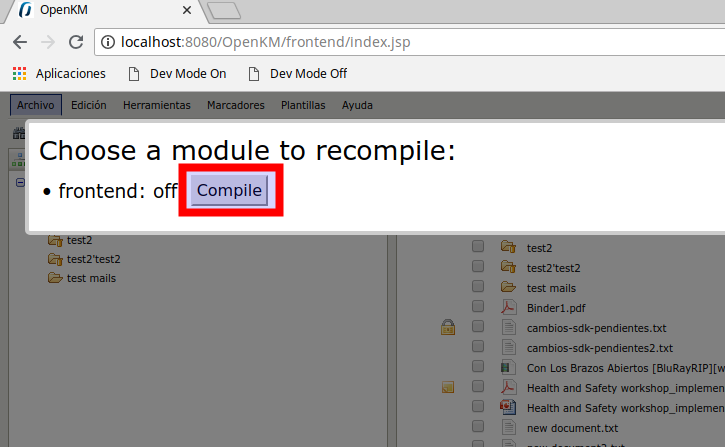
Abra la URL de su frontend de OpenKM en el navegador Chrome y después haga clic en su barra de marcadores en la opción “Dev Mode On” que arrastró en el paso anterior. Se mostrará una ventana emergente con el botón Compile. Haga clic en el botón “Compile”.
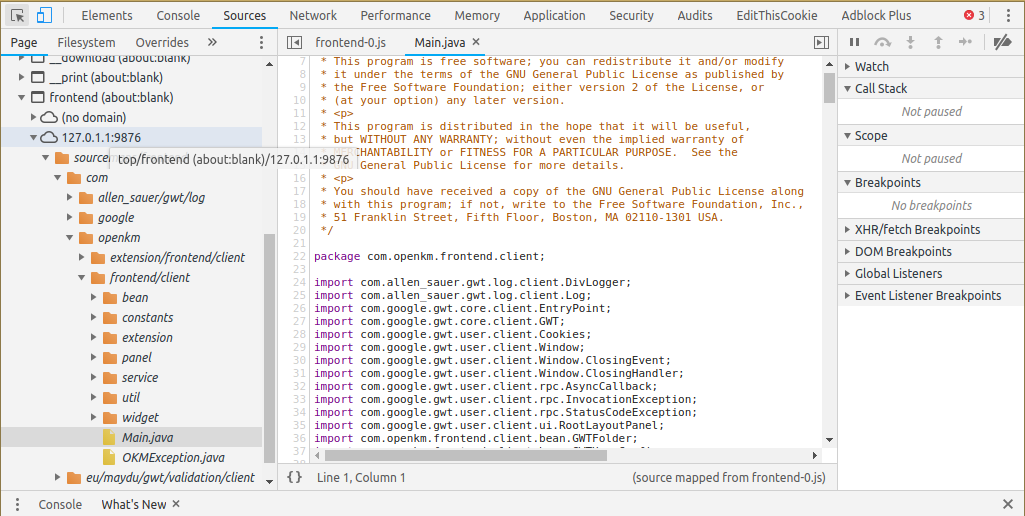
Por último, abra las herramientas de desarrollo de Chrome y, desde la pestaña sources, dispondrá del código Java de OpenKM, donde podrá establecer puntos de interrupción, observar variables, etc.:
Depurar la interfaz de usuario GWT con GWT Shell
Sección titulada «Depurar la interfaz de usuario GWT con GWT Shell»Habilitar el código fuente para depurar
Sección titulada «Habilitar el código fuente para depurar»Edite el archivo pom.xml y descomente esta sección:
<!-- Only for development --><dependency> <groupId>com.google.gwt</groupId> <artifactId>gwt-dev</artifactId> <version>${gwt.version}</version> <scope>provided</scope></dependency>Configuración de Eclipse
Sección titulada «Configuración de Eclipse»Abra en Eclipse “Debug configurations”, elija “Java Application”, haga clic con el botón derecho del ratón y elija “new”.
Establezca el valor del campo Main class:
com.google.gwt.dev.DevMode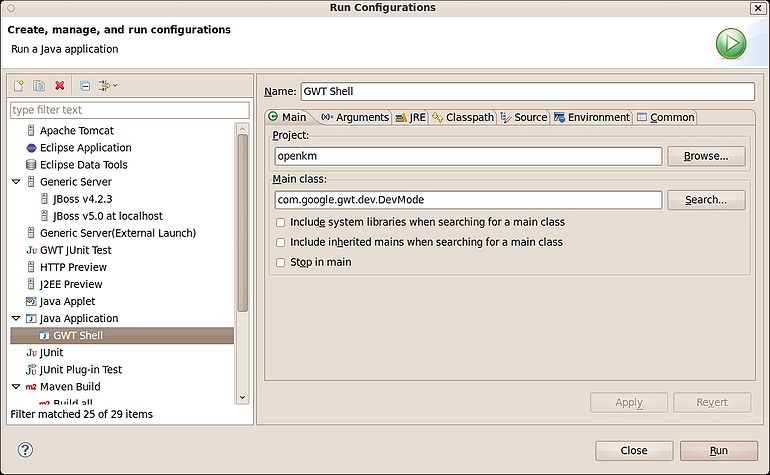
Seleccione la pestaña “Arguments” y establezca el valor del campo “program arguments”:
-port 8080 -noserver -startupUrl /OpenKM/frontend/index.jsp com.openkm.frontend.MainY el valor del campo “VM arguments”:
-Xms1024m -Xmx2048M -XX:PermSize=64m -XX:MaxPermSize=1024m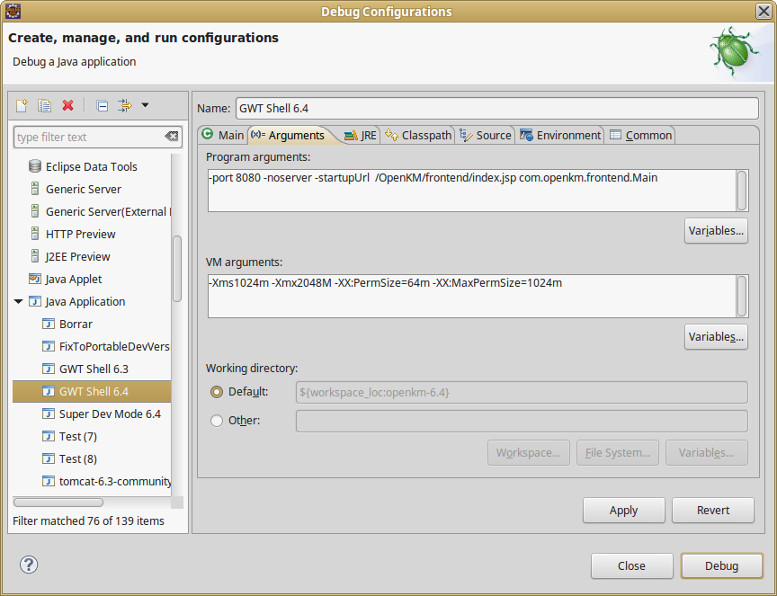
Seleccione la pestaña “JRE” y establezca la “OpenJDK version”:
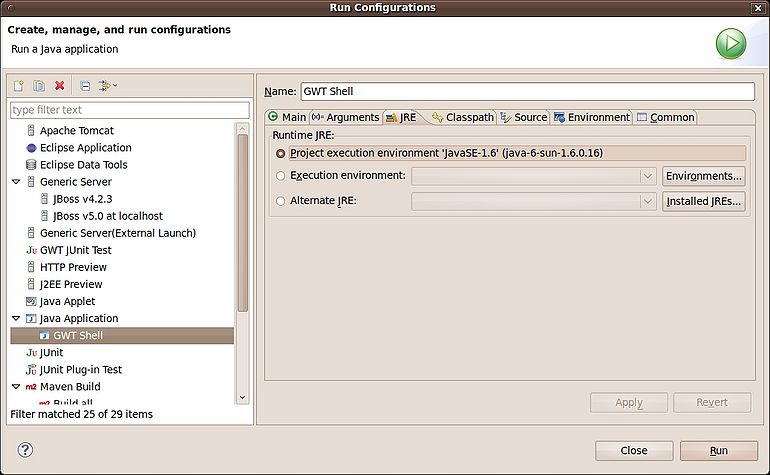
Seleccione la pestaña “Classpath” y añada la carpeta /openkm/src/main (utilice para ello el botón “Advanced” y la opción “add folder”):
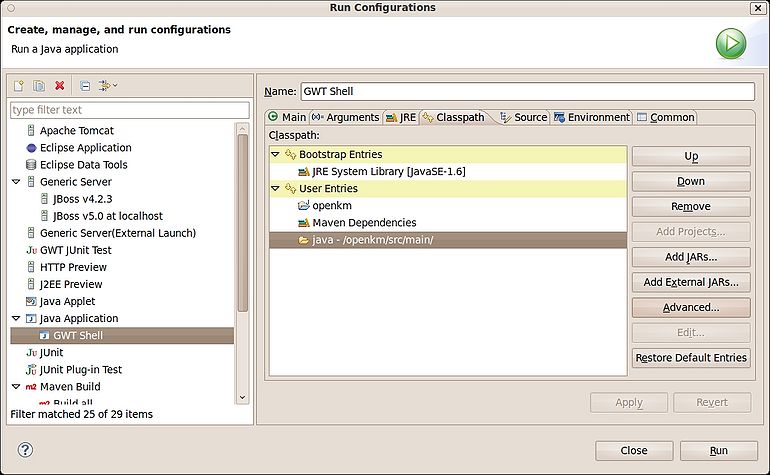
Ahora puede ejecutar GWT Shell.
Para depurar el inicio de sesión escriba en su navegador:
http://localhost:8080/OpenKM/frontend/index?gwt.codesvr=127.0.1.1:9997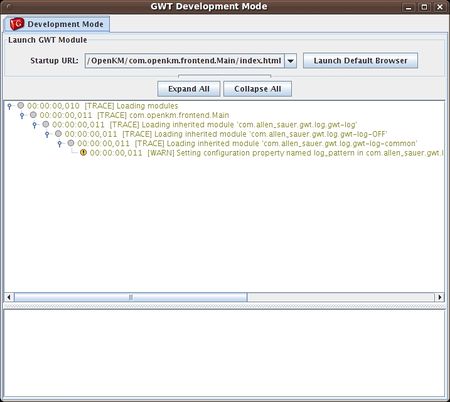 |
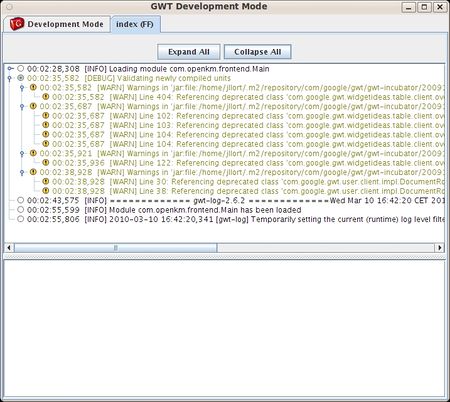 |
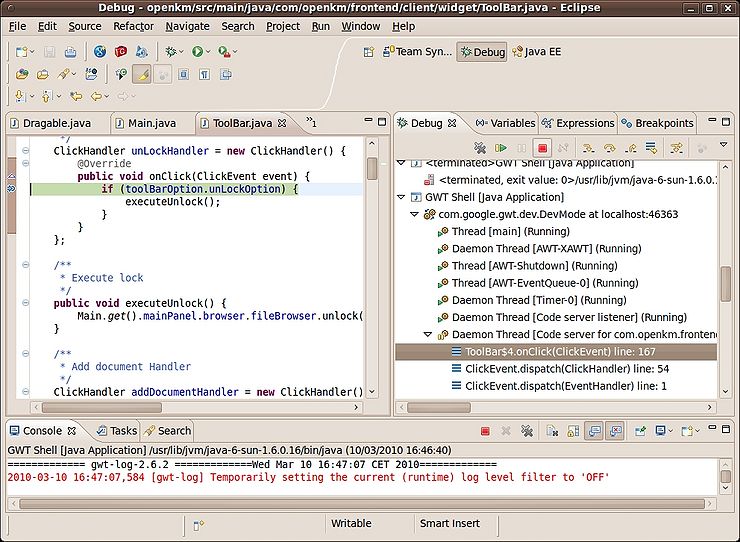
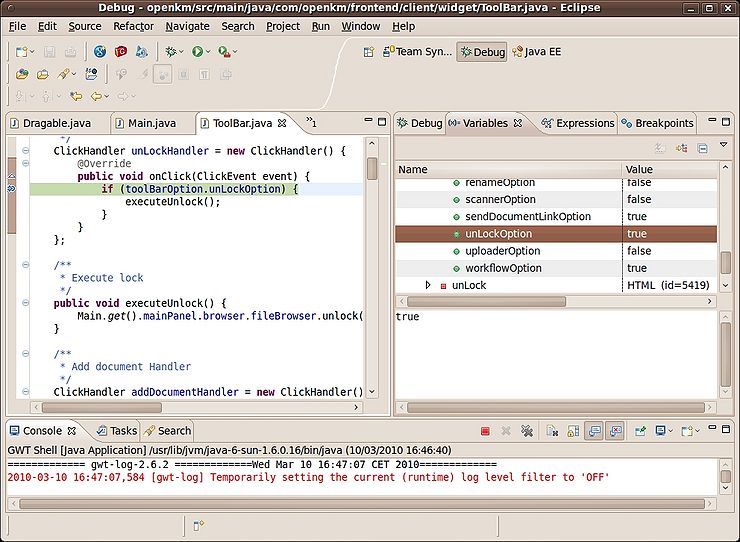
Depura dentro de Eclipse, ve los valores de las variables, etc.