Configurar SQL Server
Creación de la base de datos
Sección titulada «Creación de la base de datos»Crear una base de datos y un usuario
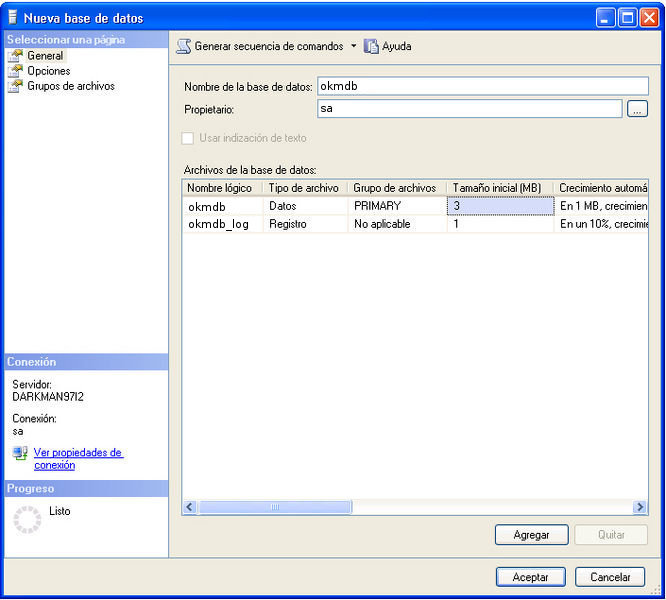
Sección titulada «Crear una base de datos y un usuario»Inicie SQL Server Management Studio Express y cree una base de datos llamada okmdb.
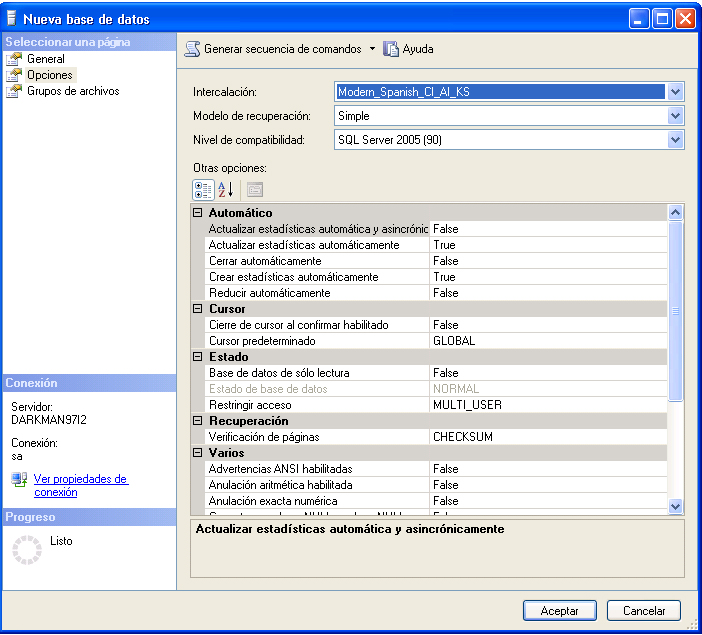
Seleccione la collation de base de datos apropiada.
Configurar su OpenKM.cfg
Sección titulada «Configurar su OpenKM.cfg»Edite el archivo $TOMCAT_HOME/OpenKM.cfg
hibernate.dialect=org.hibernate.dialect.SQLServerDialecthibernate.hbm2ddl=createConfigurar los orígenes de datos de Tomcat
Sección titulada «Configurar los orígenes de datos de Tomcat»Edite el archivo $TOMCAT_HOME/conf/server.xml y habilite el recurso llamado jdbc/OpenKMDS
<Resource name="jdbc/OpenKMDS" auth="Container" type="javax.sql.DataSource" maxActive="100" maxIdle="30" maxWait="10000" validationQuery="select 1" username="sa" password="***" driverClassName="com.microsoft.sqlserver.jdbc.SQLServerDriver" url="jdbc:sqlserver://localhost:1433;databaseName=okmdb"/>Configurar el inicio de sesión de la aplicación
Sección titulada «Configurar el inicio de sesión de la aplicación»Edite el archivo $TOMCAT_HOME/OpenKM.xml
<security:authentication-manager alias="authenticationManager"> <security:authentication-provider> <security:password-encoder hash="md5"/> <security:jdbc-user-service data-source-ref="dataSource" users-by-username-query="select usr_id, usr_password, 1 from OKM_USER where usr_id=? and usr_active='T'" authorities-by-username-query="select ur_user, ur_role from OKM_USER_ROLE where ur_user=?"/> </security:authentication-provider></security:authentication-manager>Comprobar el driver JDBC
Sección titulada «Comprobar el driver JDBC»Vaya a $TOMCAT_HOME/lib y compruebe que existe el driver JDBC sqljdbc4.jar.
Si no está presente, descargue el driver JDBC de SQL Server desde la página del driver de Microsoft SQL Server y muévalo a $TOMCAT_HOME/lib.
Ejecutar la aplicación
Sección titulada «Ejecutar la aplicación»Como parte del proceso de arranque de OpenKM, la aplicación creará automáticamente una estructura de base de datos vacía.
Resolución de problemas
Sección titulada «Resolución de problemas»No puede conectarse a MS SQL Server
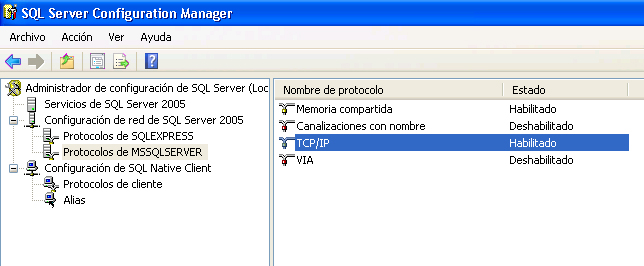
Sección titulada «No puede conectarse a MS SQL Server»Asegúrese de tener habilitado el protocolo TCP (está deshabilitado por defecto)
Se pierde la conexión pasado un tiempo
Sección titulada «Se pierde la conexión pasado un tiempo»Hemos observado un nuevo comportamiento en algunas ediciones de SQL Server en las que la conexión se cierra al cabo de unas horas (puede tratarse de algún parámetro de configuración adicional de las últimas ediciones de SQL Server que viene habilitado por defecto, o algo similar). Existe un nuevo atributo de configuración llamado autoReconnect para solucionarlo.
<Resource name="jdbc/OpenKMDS" auth="Container" type="javax.sql.DataSource" maxActive="100" maxIdle="30" maxWait="10000" validationQuery="select 1" username="sa" password="***" driverClassName="com.microsoft.sqlserver.jdbc.SQLServerDriver" url="jdbc:sqlserver://localhost\SQL;databaseName=okmdb;autoReconnect=true"/>No puede iniciar sesión en OpenKM
Sección titulada «No puede iniciar sesión en OpenKM»Cuando el primer inicio de sesión en OpenKM falla con el usuario y la contraseña correctos (okmAdmin / admin), debe comprobar la configuración de la base de datos.
Compruebe si la base de datos está configurada para distinguir mayúsculas y minúsculas; este puede ser el motivo por el que no puede iniciar sesión.